< DOCS. Comments | DOCS. Transfer >
¶ 1. Creating an Review
To create an Review set, go to the "Reviews" section, click "+" and fill in the following fields in the window that opens:
- "Name" of the set.
- "Code" of the set.
- "Contractual date" for the end of the Review process. The contract date is copied to the planned date, but both dates can be changed later if necessary.
- Select the pre-configured “Review Type”.
Then open the created Review set or any other set from the list by clicking on the line in the registry, and add files to the set. Files can be added to the set both from the Review set and from the “Documents” section.

- To add files directly from the set, click “+” and select the required documents in the window that opens.

- To add files from the “Documents” section, right-click → Add to Reviews.

The top section displays Review stages; hovering over them displays information about each stage. The right section displays the status of each file at each stage.

Legends:
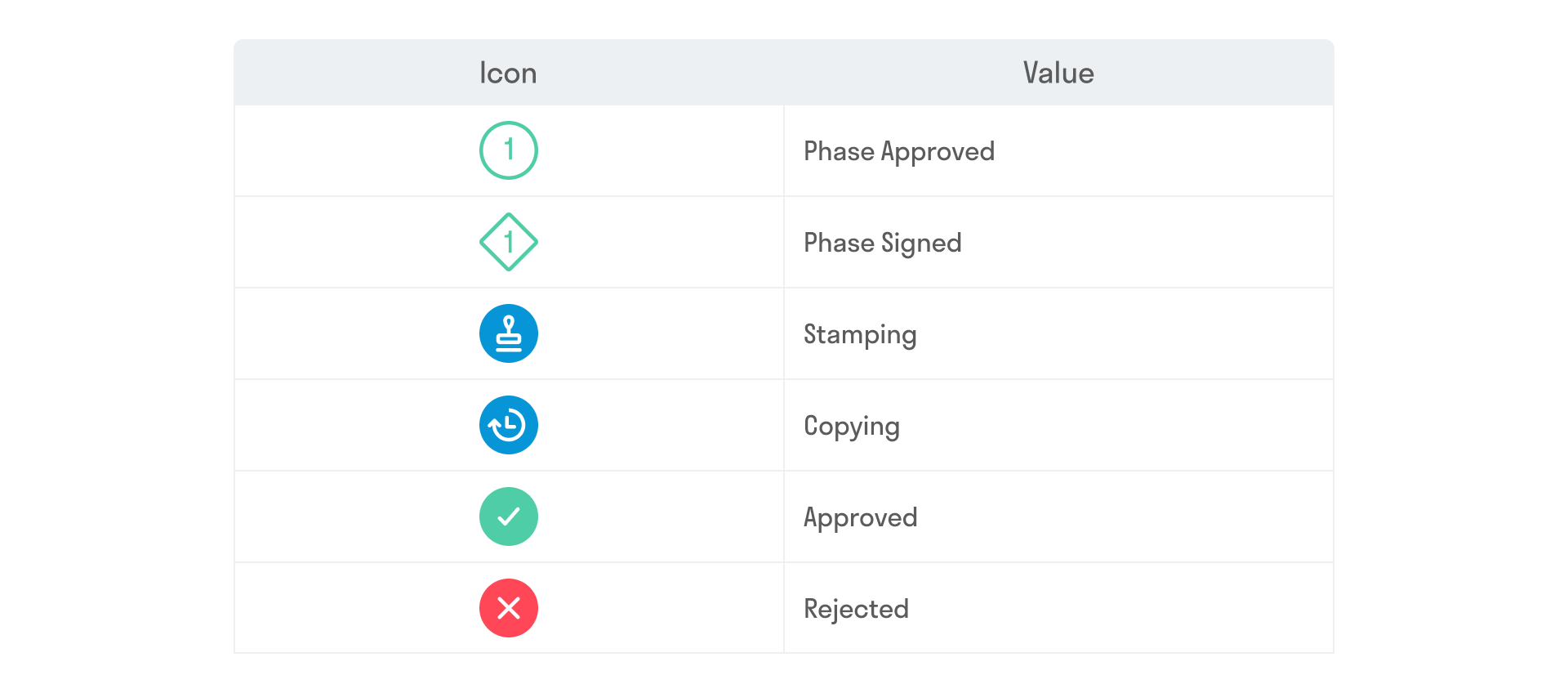
See further 2. Start Review
¶ 2. Starting the Review
The “Submit” button starts the Review process.

At the first stage, the person responsible receives an email notification stating that a set has been assigned to them for Review, along with the deadlines for reviewing this set. The link in the email opens the Review set itself.

Files are read-only for all participants in the Review process. The person responsible reviews the documents in the set, provides comments if necessary, and then assigns the appropriate statuses pre-configured by the project administrator to each file.

- To assign a status to multiple files, select them with checkboxes, and then assign a status in the toolbar.
- To assign a status to a single file, select the status on the right side of the screen.
After assigning statuses, click "Complete Stage" in the upper right part of the screen and leave a comment for the stage, for example, if the file was approved with comments. You can also copy a comment from a previous stage.

After completing a stage, the set will move to the next Review stage with the next responsible party. For detailed information about the previous stage, hover over the stage icon.

After creating comments on the document, a list of comments for this set is displayed in the Review window.
When the comment status changes to “Closed”, the comment is removed from the list of comments for the set and is displayed only in the general register of comments.
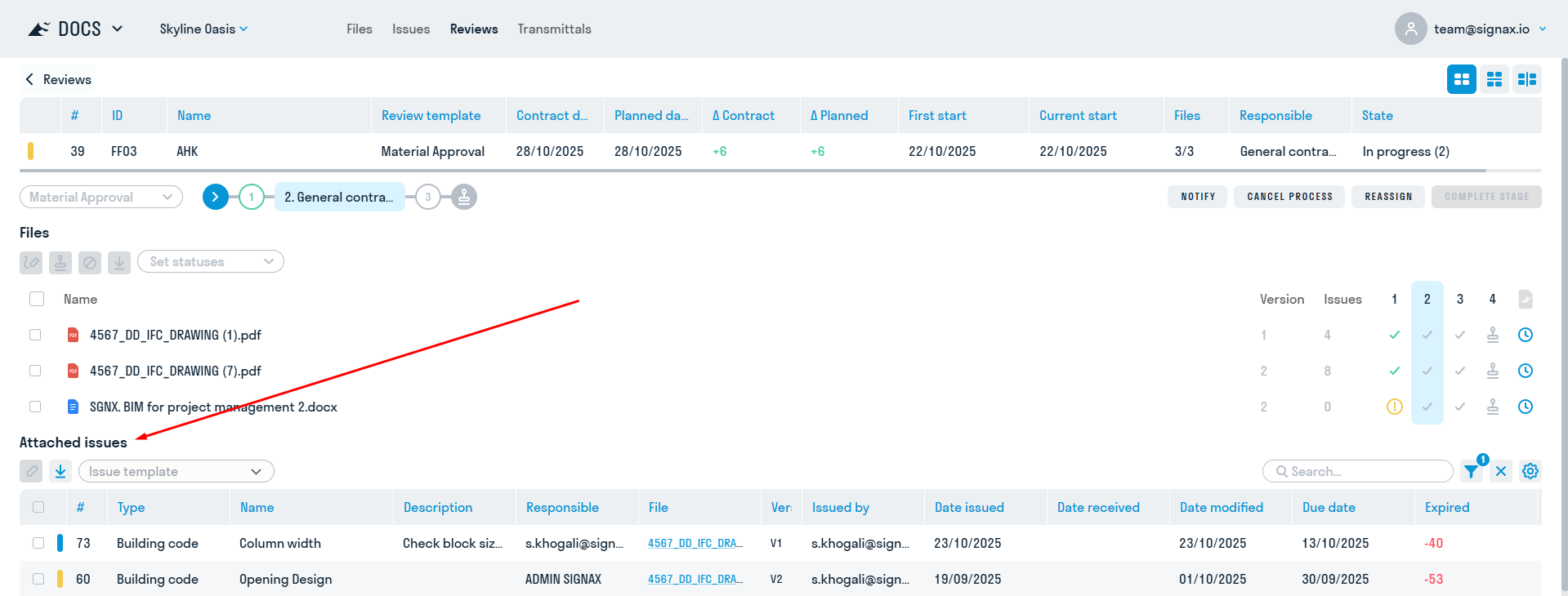
When uploading a new version for Review, you must go to the already created Review set, select the files and click

to update the version.
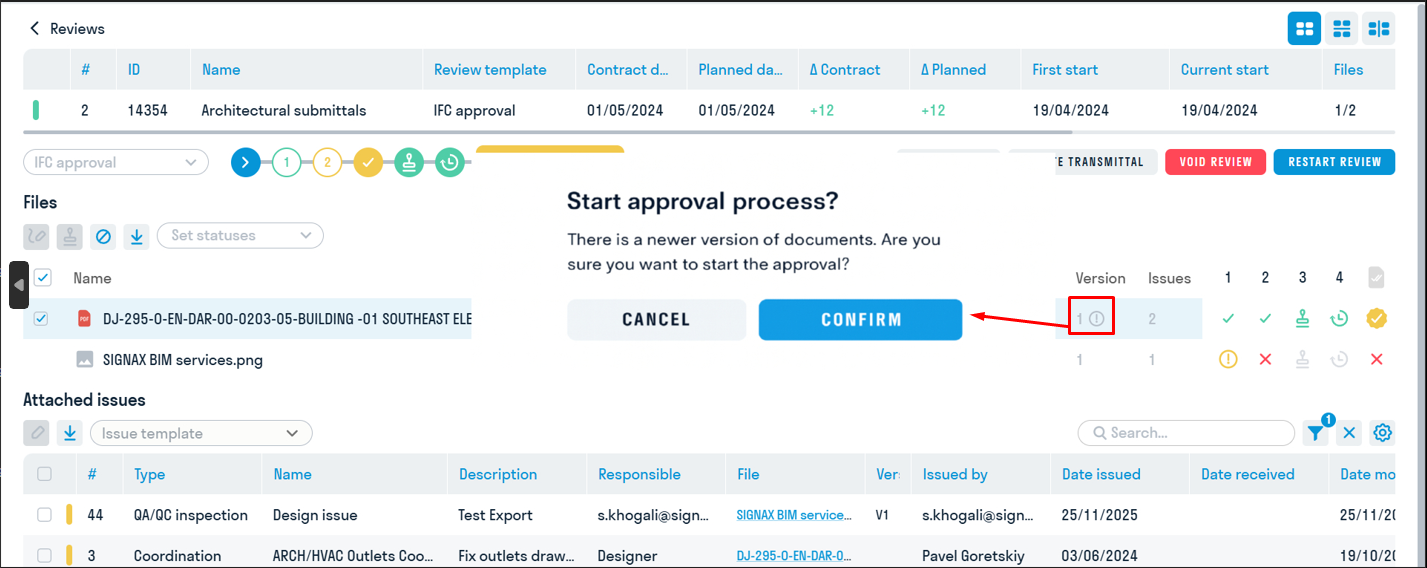
If you attempt to submit an outdated version of a document for Review, a warning window will appear
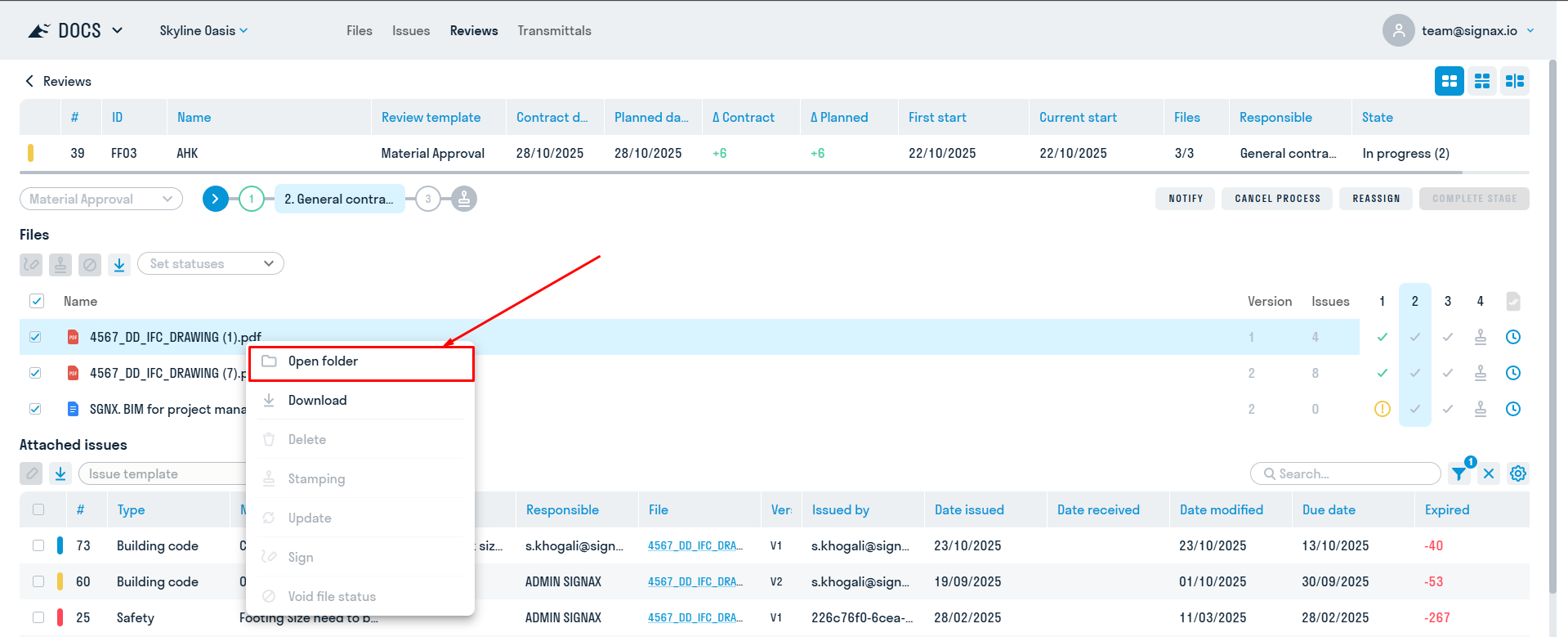
From the Review process, you can navigate to the folder where the files were uploaded. To do this, right-click on the file → Open folder.
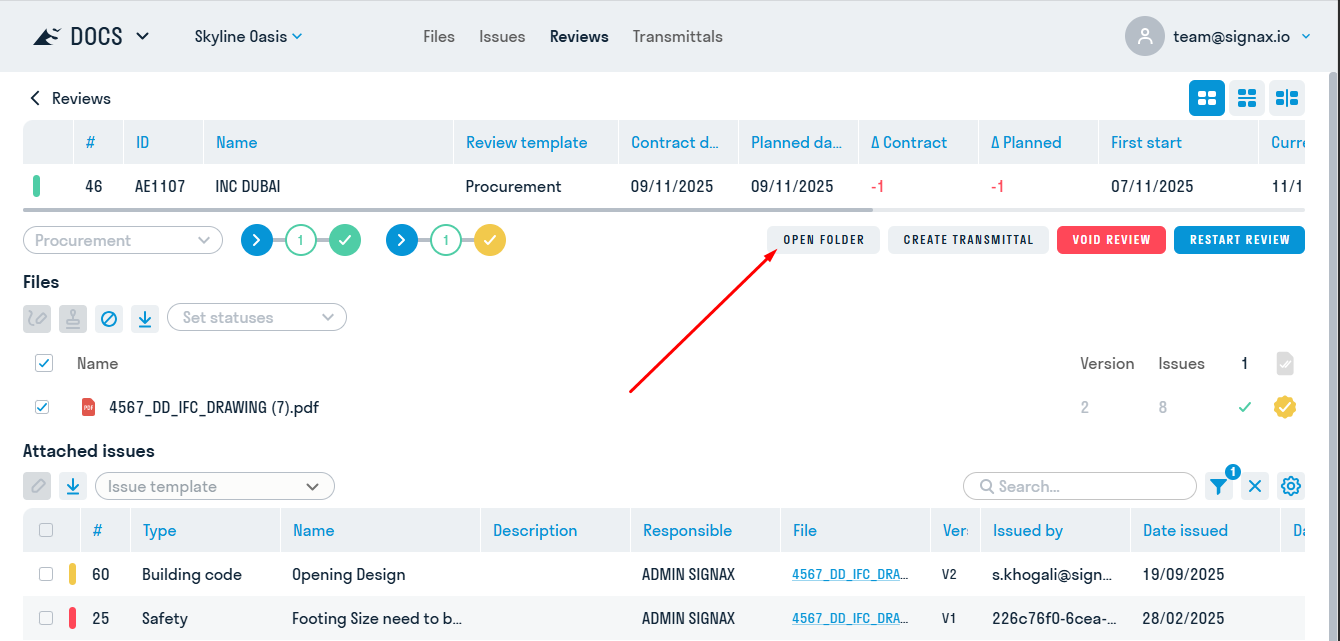
Once the Review process is complete, the "Open Folder" button appears, which redirects the user to the folder where the approved file was copied.
¶ 3. Review register
All Review sets created in the project are stored in a tabular form in the “Reviews” section.

The registry displays the necessary information about the kits:
- Kit number and status
- Kit code
- Kit name
- Review type
- Contractual date for completion of kit Review
- Planned date for completion of kit Review
- ΔD - difference between the current date and the contractual date
- ΔP - difference between the current date and the planned date
- Date of first sending the kit for Review
- Date of starting the Review of the current version of the kit
- Difference between the current date and the planned date of completion of Review
- Quantity
- Person responsible for the current Review stage
- Review process status
To view and edit a set, click on the Review line in the register.
To download the Review register, select “Export”.

When selecting “Export”, a table similar to the table in SIGNAX DOCS is downloaded.

When selecting “Export with files”, information on each file uploaded to the set, as well as on each Review stage, is downloaded.

¶ 4. Stamp and QR code
During the Review process, it is possible to affix the "In progress" stamp and a QR code to documents. To set this up, please contact the project administrator.
If the set has been approved with the comments, the QR code on the sheets is yellow.

When scanning the QR code with a phone camera, a page opens in a browser with a note about the document's validity.

Clicking a link on this page will open the document for viewing. You must have an account and access to this project.