< DOCS. Project Settings | DOCS. Working in Files >
¶ 1. Project tree
See also video instructions on authorization and access rights: ** Telegram YouTube
¶ 1.1. Creating a tree structure
There are several ways to create structure folders in your project:
Method 1. You can create folders manually.
To do this, right-click next to the folder → "Add folder"

Method 2. If you have a project structure on your computer, you can transfer it to DOCS.
For successful transfer, each folder must contain files, i.e. the folders must not be empty, otherwise they will not be transferred.
Drag your structure from the Explorer to the DOCS area

Method 3. The folder structure can also be transferred to a new project from a previous or standard project.
To do this, delete all the folders in your new project. Then right-click on the "Project Files" folder ➤ "Copy folder structure".

In the window that opens, select the standard project from which the folders will be copied from the list and click "Copy". This way, the folder structure will be copied from the standard project to your new project.

¶ 1.2. Setting up access rights to folders
In SIGNAX DOCS, project administrators can grant different access rights to users and roles for specific folders.
- View - users can only open and view files in folders
- Download - users can download files from folders
- Upload - users can upload their files to the folder
- Edit - users have full access to edit files in the folder (delete, rename, etc.)

¶ Method 1. Setting access rights through the folder structure
1. To access the access settings, right-click next to the folder ➤ “Edit access”

2. In the window that opens, click “Add”. Next, select a user or role from the list and click “Add”. Several users can belong to one role, for example, Designers. ( See Creating Roles )

3. After adding users, assign them specific access rights to the folder in the RIGHTS column. Subfolders inherit the access rights of the parent folder.

¶ Method 2. Access rights settings in the
settings > See DOCS. Project Settings → Access Rights
¶ 1.3. Subscribing to folders
A user can subscribe to folder updates in the SIGNAX DOCS system.
To do this, click on the dots next to the folder and select “Subscribe to updates”.

An example of an email notification.

You can unsubscribe from notifications either by clicking the link in the email or through the settings.

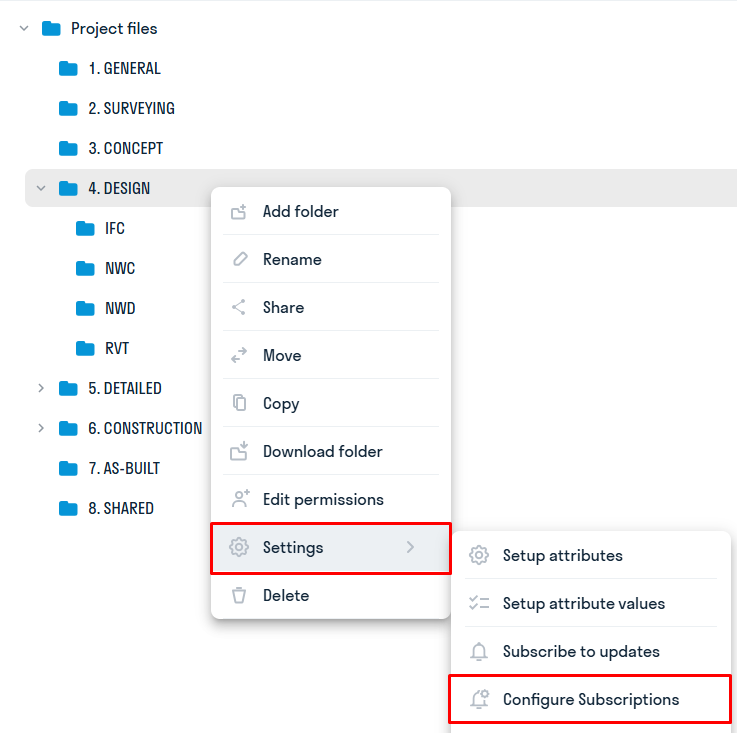
A project administrator can subscribe a role to a folder to receive notifications about changes that occur in the folder.
To do this, click the three dots → Configure subscriptions → Add role.
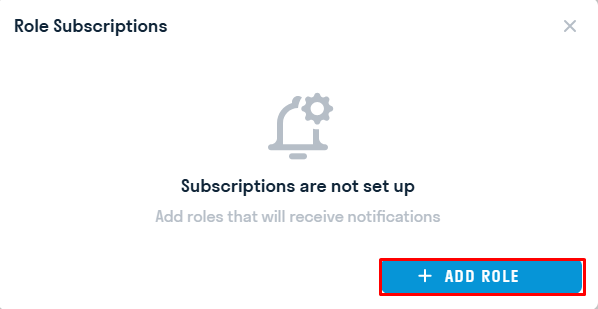
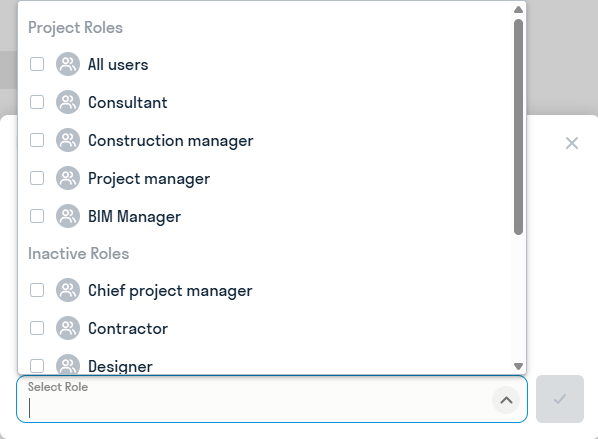
Select a role from the list:
¶ 2. Adding Files
¶ 2.1. Uploading files
Method 1. You can upload files by dragging and dropping them from File Explorer to SIGNAX DOCS.

Method 2. In the desired folder, click “+” → select file → in the window that opens, select the file to upload.

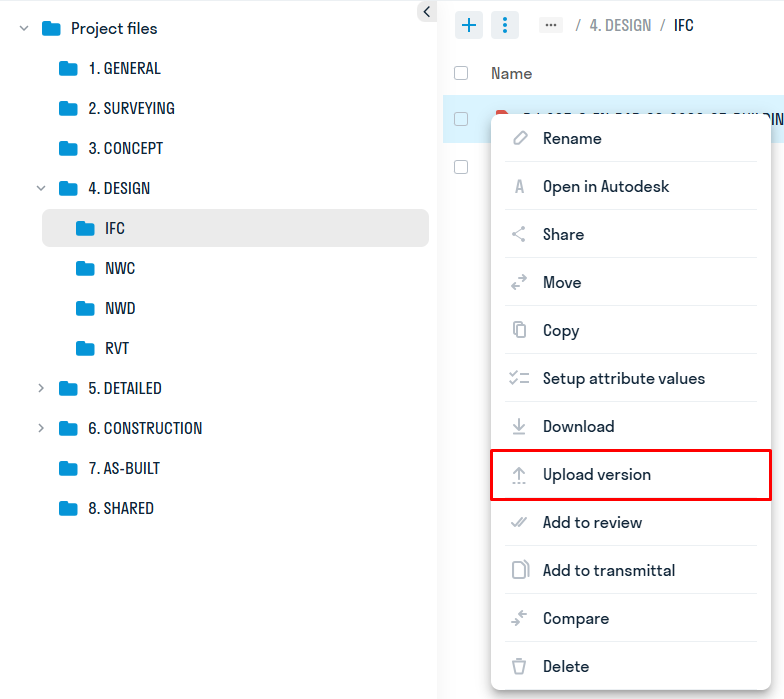
Method 3. If a file of the previous version is already uploaded to the system, you can upload the next version by right-clicking on the file → Upload version.
This method works even if the file name on your computer and the file name in the SIGNAX DOCS system do not match.
¶ 2.2. File Statuses
In the document work area, a status is assigned to files depending on the approvals of the sets in which the file participated.
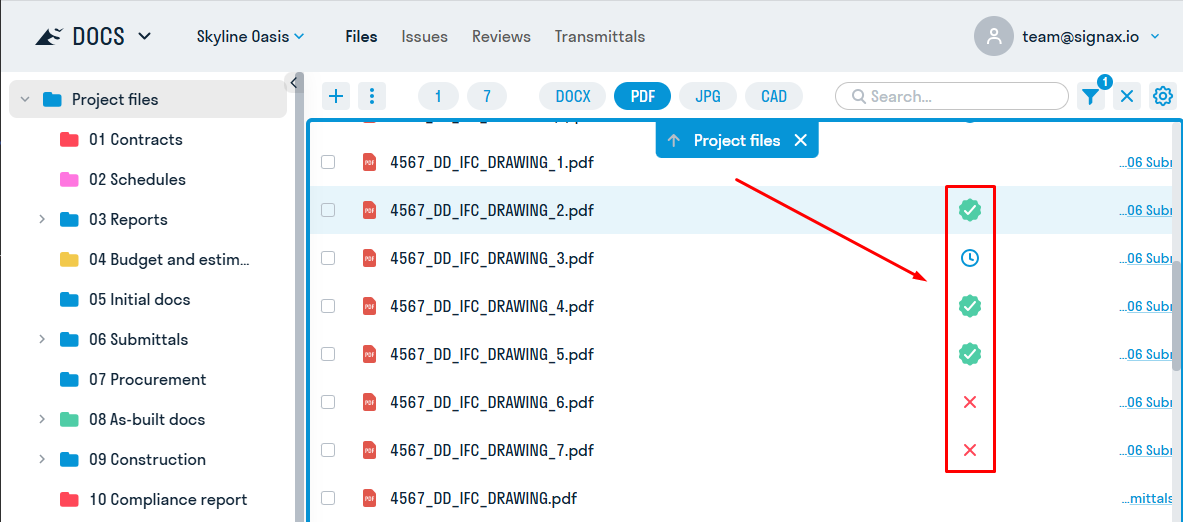
Statuses are also available in the version viewing window
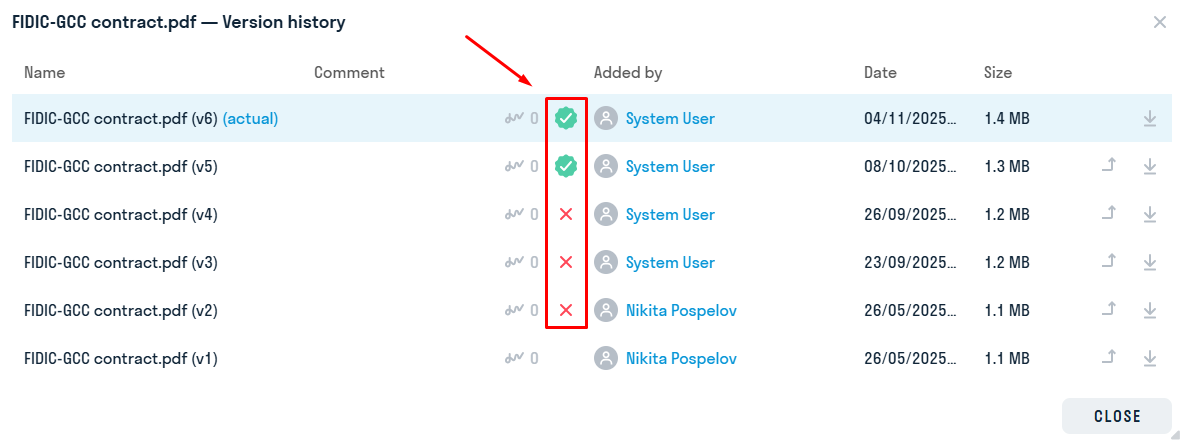
Clicking on a status opens the approval set.
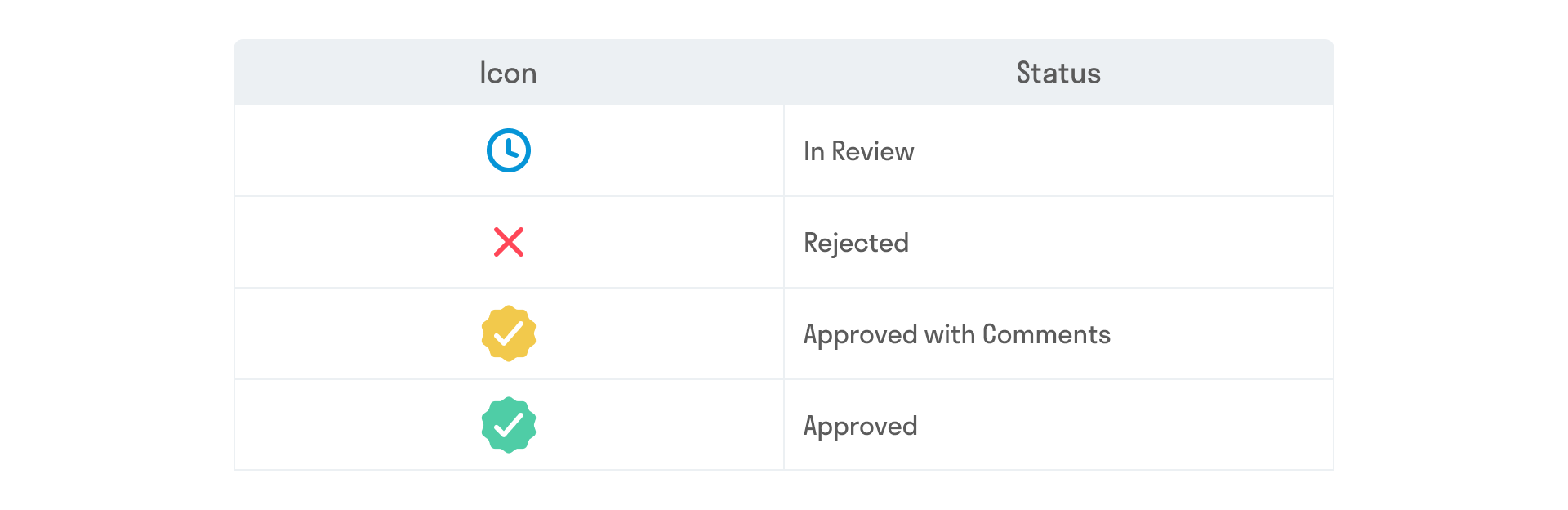
Available statuses:
¶ 2.3. File Versioning
The SIGNAX DOCS service allows you to work with file versions. The previous version of a file is saved in the history when a new file with the same name is uploaded. Thus, versioning allows you to track different versions of a file and revert to previous versions if necessary.
1. To open a file's history, click on the file's version number in the "Version" column

2. A window will open with a list of all file versions, along with information about who added the document and when. The current version of the file is marked (Current).

- Users with edit access rights can make an older version current. To do this, click . The version number will remain the same
- To download any version of the file, click


¶ 2.4. Adding links to Google
In the SIGNAX DOCS service, you can add links to Google Docs and Google Sheets.
1. Click + and select “Link”

2. In the window that appears, enter the file name and paste the copied link to docs.google into the "File link" field. Click "Download"

3. This will create a file. Clicking on it will open Google Docs and Sheets in the DOCS service; other links will open in a new browser tab.

¶ 5. Quick Filters
See also the video tutorial on working with filters, fields and attributes: Telegram YouTube
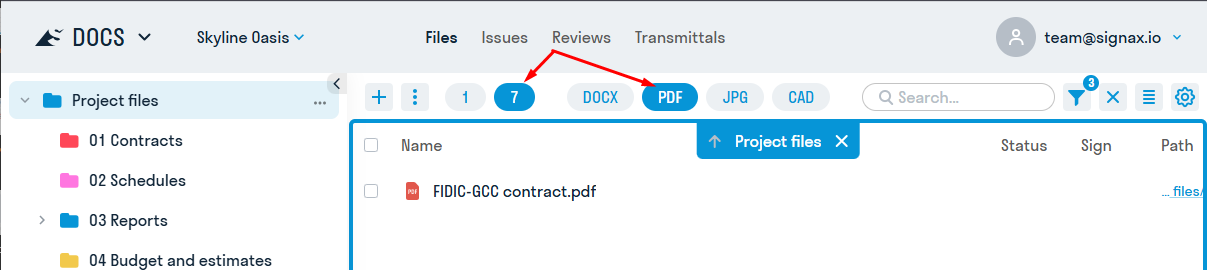
The quick filters panel, located at the top of the screen, is available for working with files.
When a quick filter is activated, files in the selected folder that match your query are displayed.

Legend:
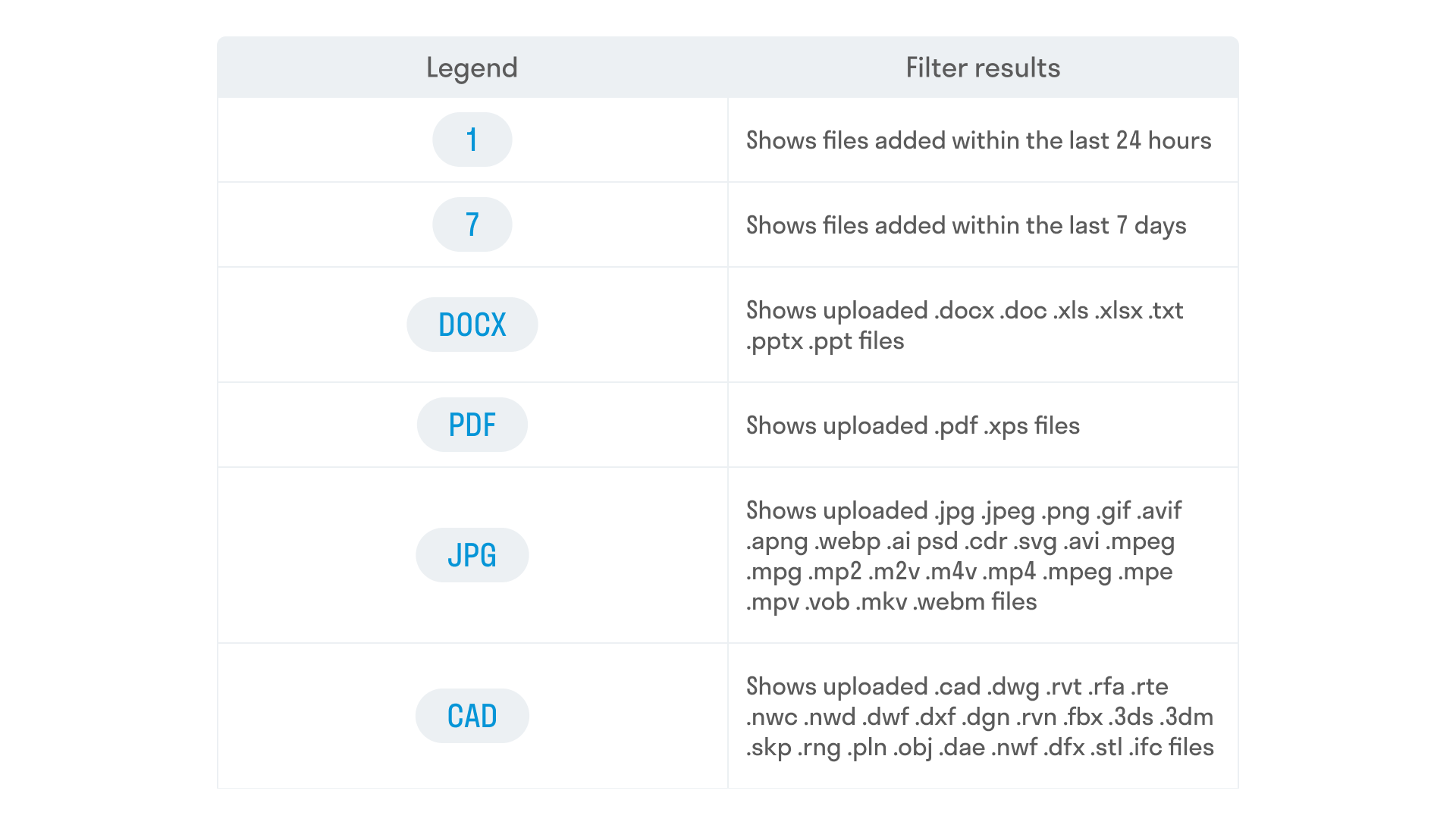
You can use day and format filters simultaneously. For example, find PDF files downloaded in the last week.
¶ 6. Exporting File Data
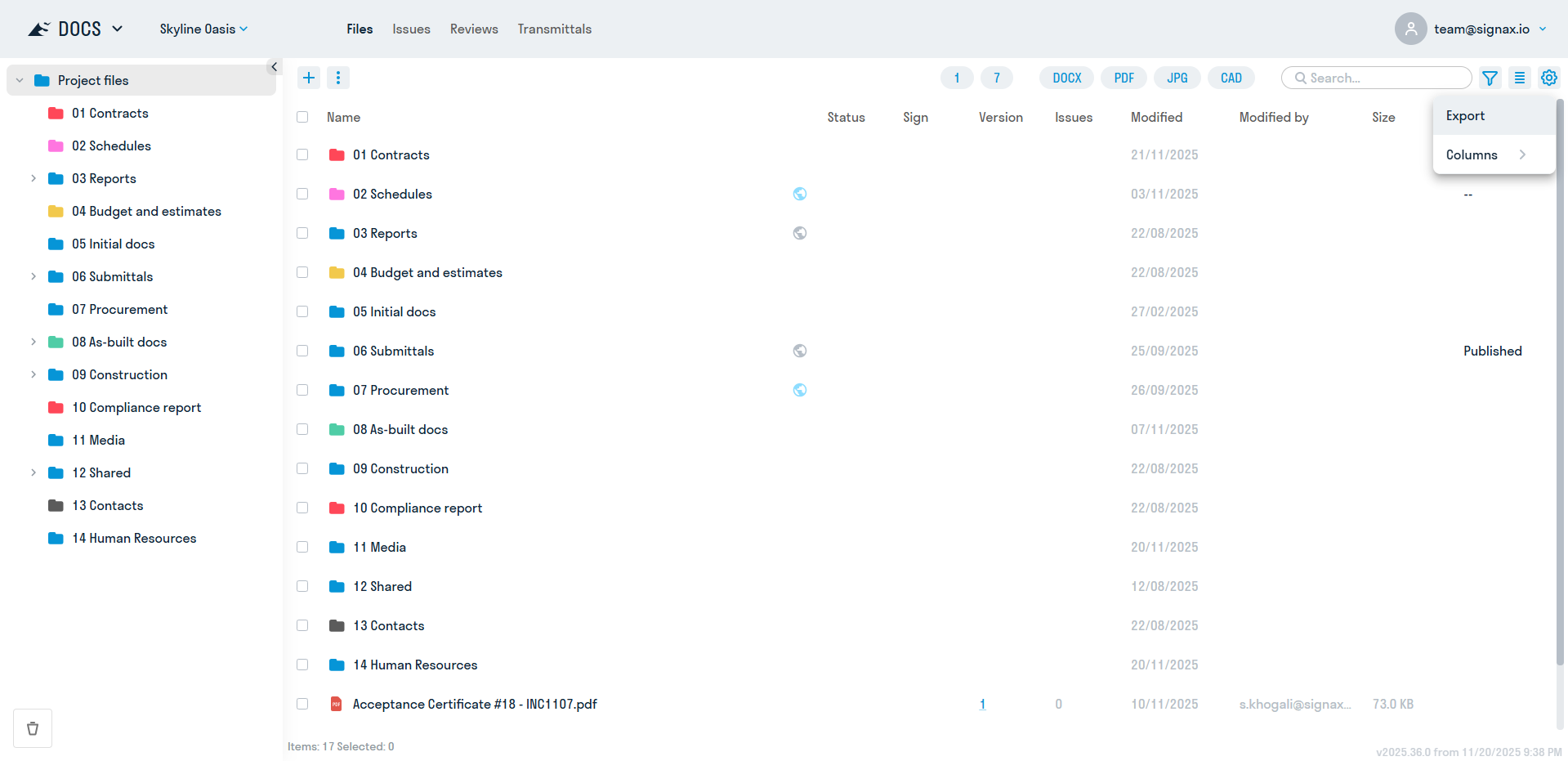
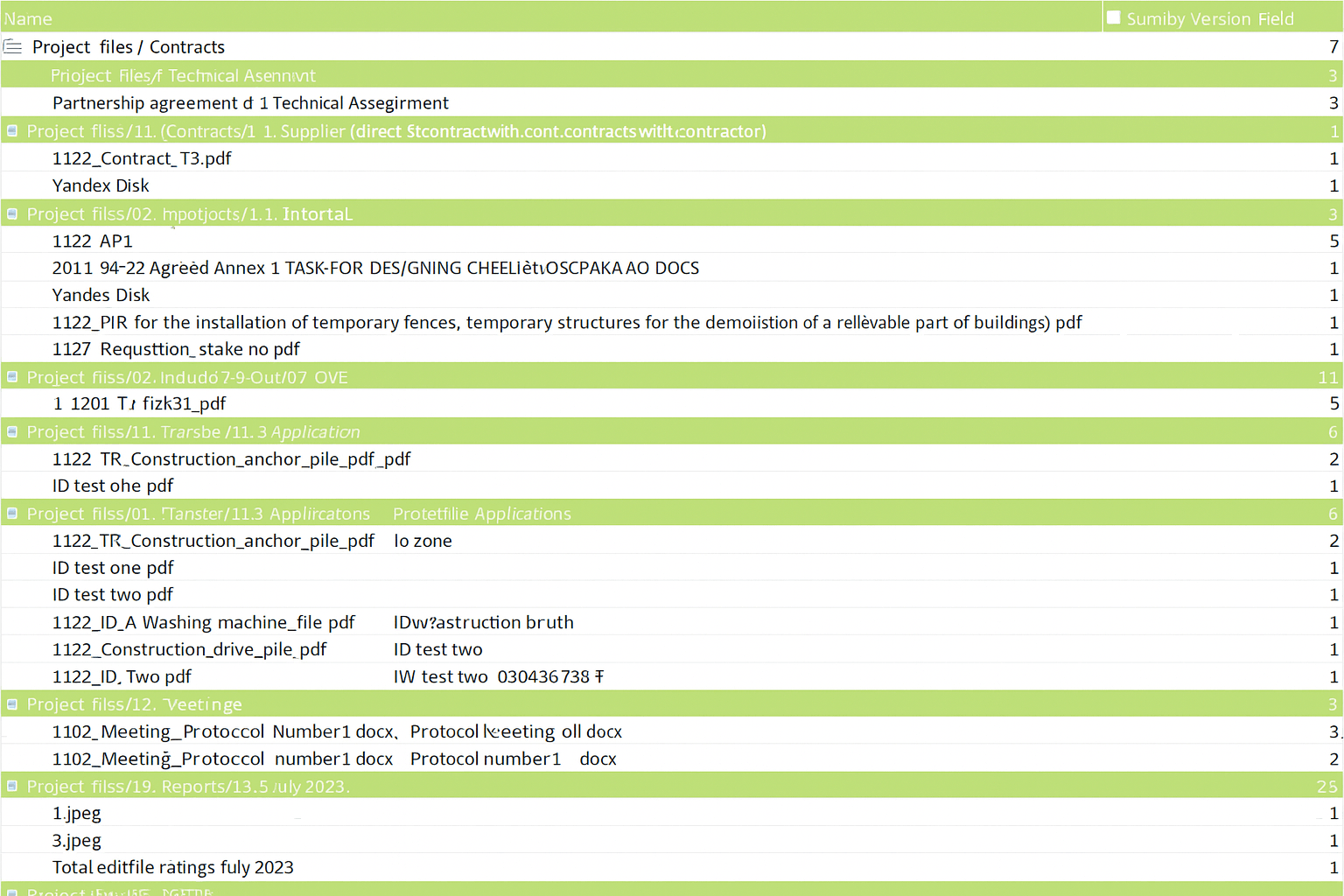
In SIGNAX DOCS, you can export data on all files in a project. The resulting data can be used for analytical purposes.
To export data, go to the documents section, and in the upper right corner click

→ Export
Result:
¶ 7. Trash
All deleted files are stored in the trash. Only the project administrator can restore files.
1. Go to the folder where the file was deleted and click "RESTALL" in the lower left corner

2. A list of files in the Recycle Bin will appear, along with information about who deleted the file and when. To restore, check the boxes next to the files and click "Restore." To restore a single file, right-click ➤ Restore.


3. To exit the cart, click “CARD” again