< TOOLS FOR NAVIS. Utilities | TOOLS FOR REVIT. Panel >
SIGNAX TOOLS for Revit plug-in settings are located in the Settings ➤ Settings panel


License check is performed when you start using the plug-in functionality. The TOOLS module is divided into TOOLS FREE and TOOLS PRO. TOOLS FREE is supplied with DASHBOARD and automatically picks up authorization from it. TOOLS PRO is supplied separately and has a separate authorization.
1. Click on the panel Settings ➤ Settings ➤ General
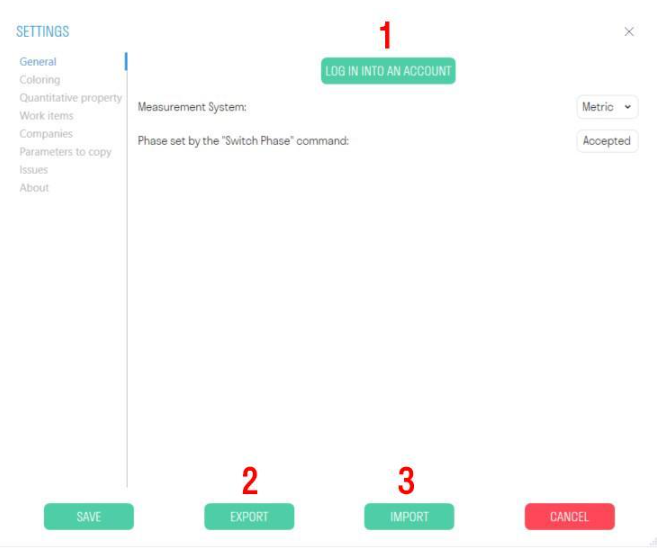
- Log in with your account
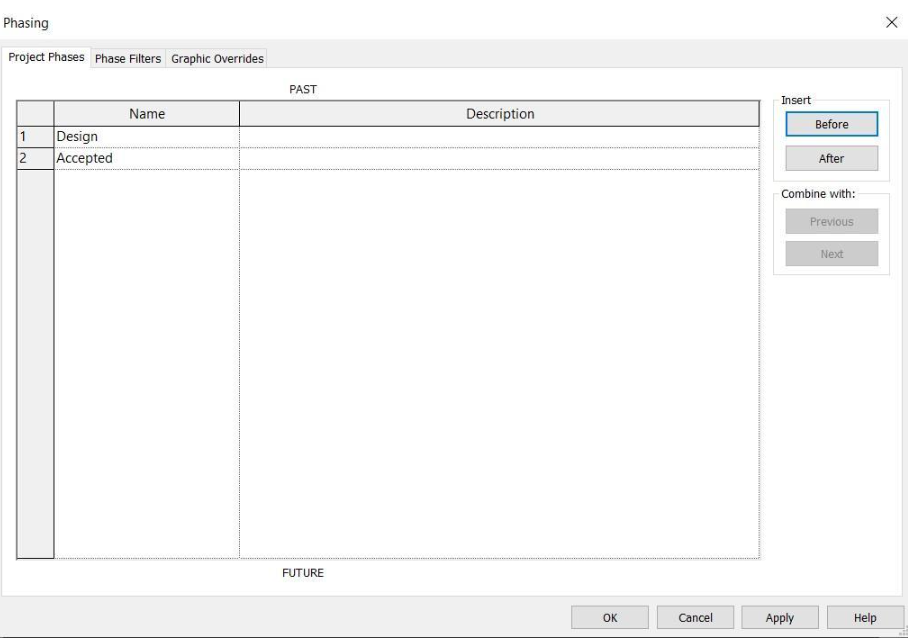
- Specify the name of the stage to which the value of the “Construction stage” parameter will change when using the Switch Stage tool. Default - Completed
Note: The stage name must also be specified in Management ➤ Stages
This setting allows you to specify colors for coloring elements by creating filters for views. By checking the box, you can activate automatic coloring when using the command, and also assign a color to the automatic assignment
1. Click on the Settings panel ➤ Settings ➤ Colorings
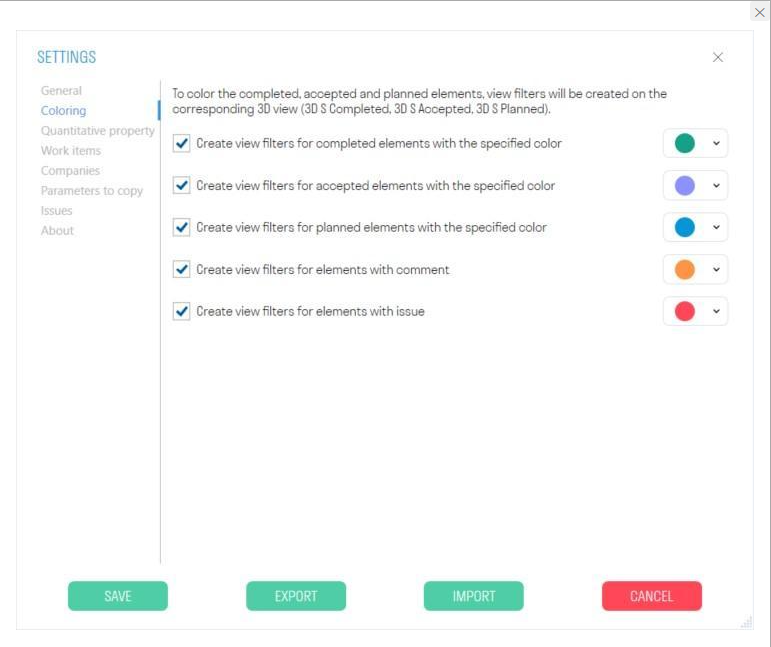
- When using the Complete/Accept/Schedule commands, writes the value to the “S Color” parameter
The current list specifies the names of the parameters used to collect the total numerical characteristics of the elements (Volume/Area/Length) when working with the Calculations section. If the element has at least one parameter from the list, then the value for the calculation is taken from this parameter. The order of the parameters in the list corresponds to the order in which the parameters are searched for in the
{.is-info} element
1. Click on the Settings panel ➤ Settings ➤ Quantitative property
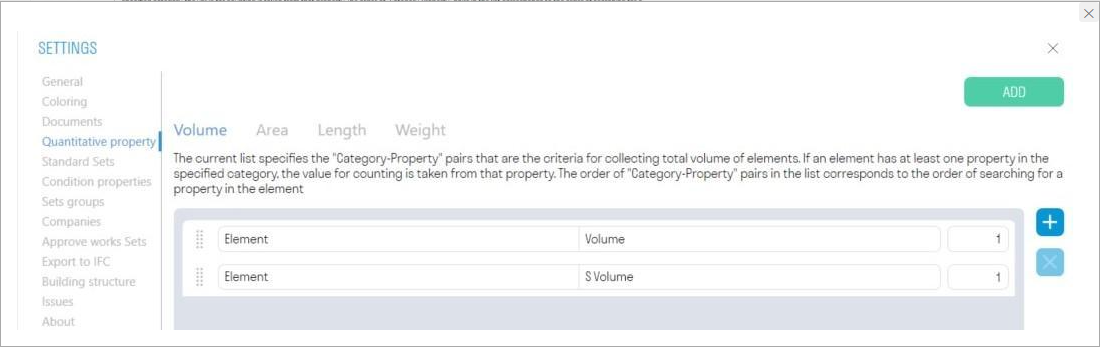
- To add a new parameter, click “+”. Then enter the parameter manually or select it from the list.
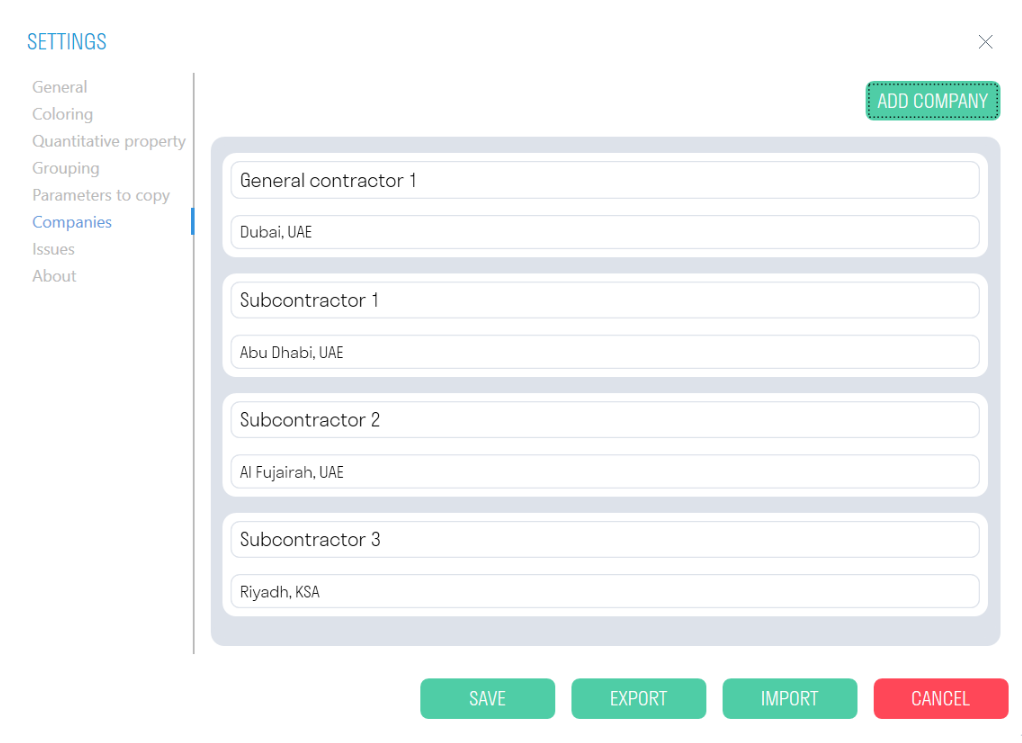
The setting allows you to add Companies that perform certain types of work at the facility and specify them when using tools Complete/Accept/Schedule.
1. Click on the Settings panel ➤ Settings ➤ Companies
The current list specifies the names of parameters that should be copied from the linked file when using the Element Fixations and Copy Parameters tools
1. Click on the panel Settings ➤ Settings ➤ Parameters to copy
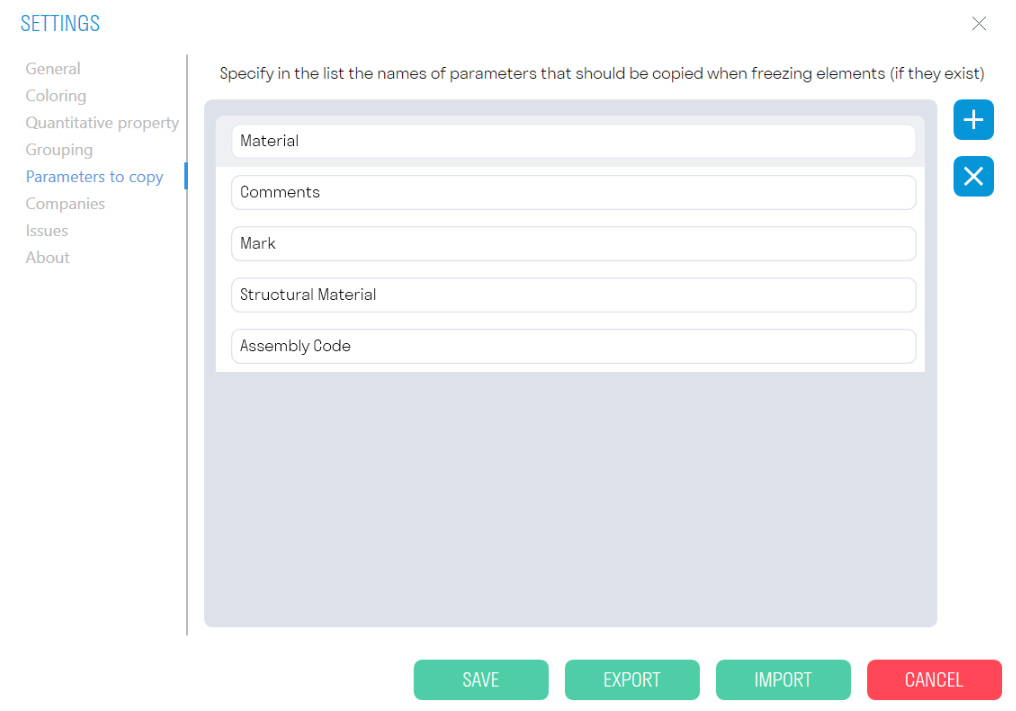
- Add the names of the parameters that should be copied when fixing elements