< TOOLS FOR REVIT. Check | TOOLS FOR REVIT. Utilities >
The Freeze Elements tool is used to copy elements from a linked file. When copying, NON-editable geometry with parameters is created in place of the element. Before freezing elements, it is recommended to specify Additional Options , which should be copied along with the geometry. Copying is performed in the “1. Copying Elements” view. It is recommended to use Construction Model Template
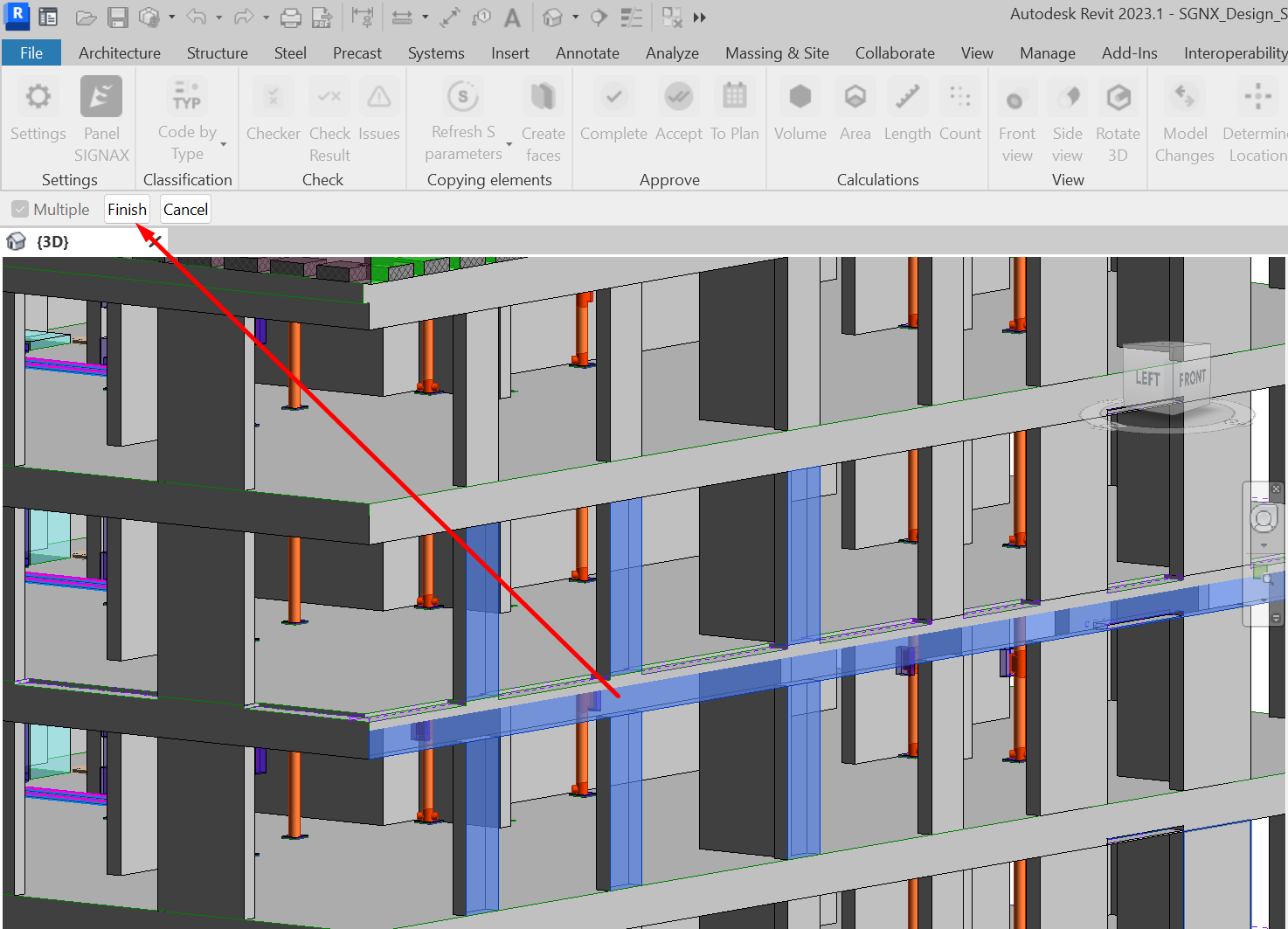
1. Click on the Copy Features panel ➤ Lock Features
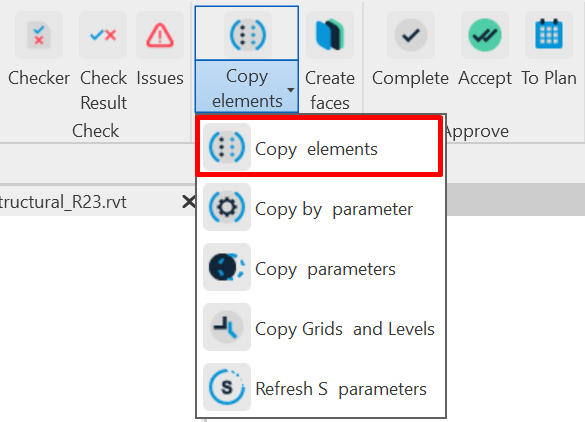
Tool Docker
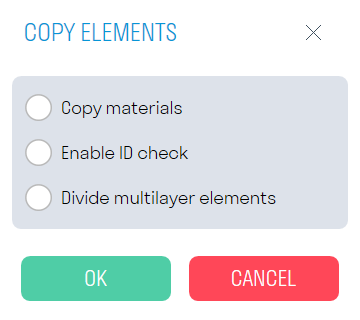
- The “Copy Materials” switch is responsible for the visual display of materials on the copied geometry. It is recommended to keep it off, since copying with materials increases the overall execution time of the command.
- The “Enable ID Check” switch prevents duplication of previously copied elements. If you need to replace previously copied elements, delete the obsolete version of the element before copying. In this case, replacing an element entails changing its ID in the construction model, therefore, due to the ID change, Navisworks will not be able to pull the SIGNAX data into the new element.
- The "Create Construction Pie" switch divides the multi-layer wall into layers and copies each layer with the Parts category
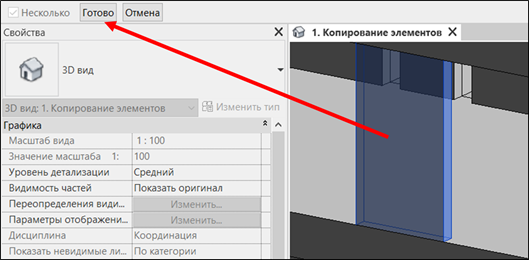
2. Select the elements from the linked model that need to be copied, and in the upper left corner, click Done
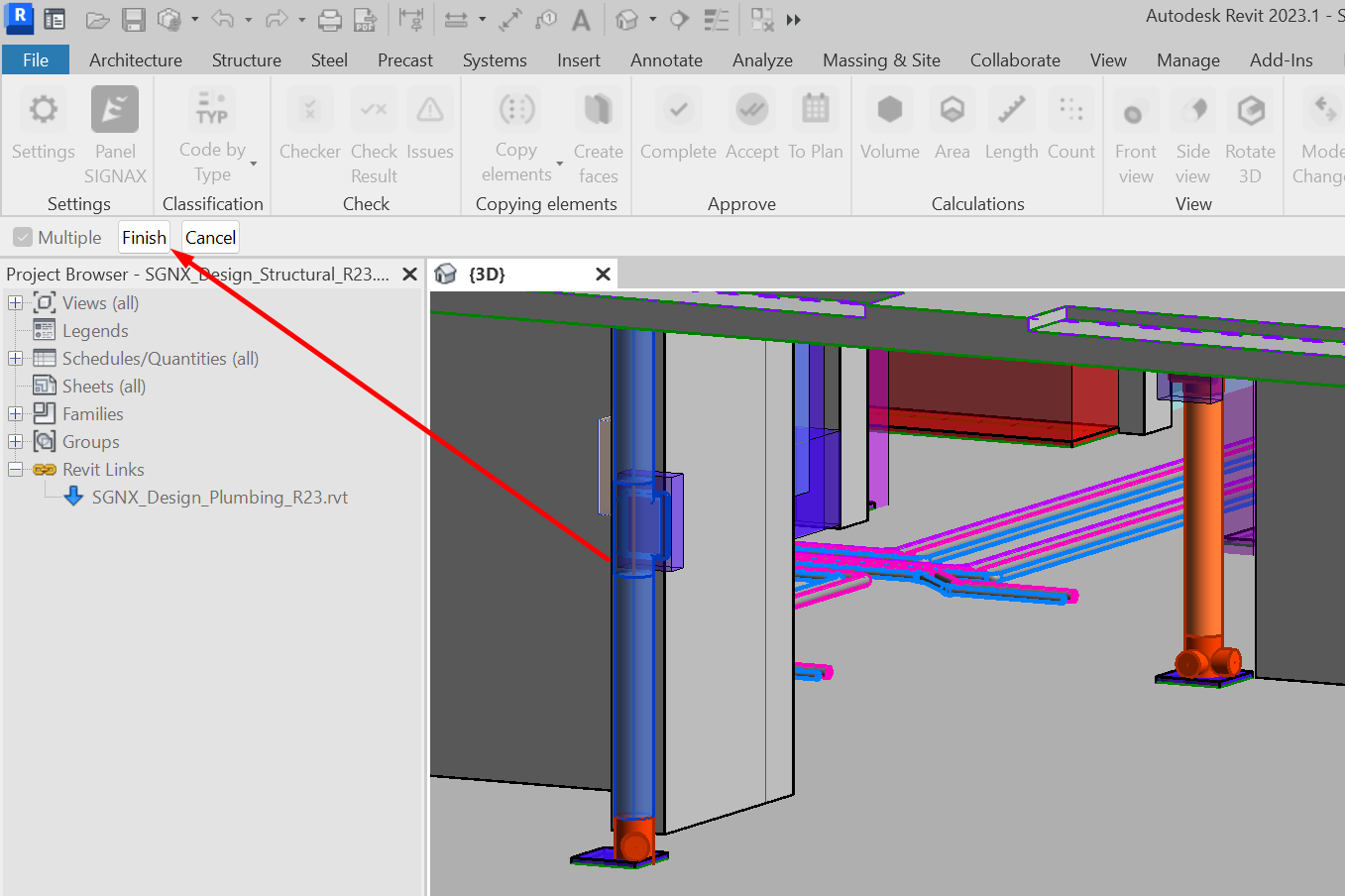
3. The selected elements will be copied from the linked file and appear in the "2. Create Construction Model" view. The elements will be NON-editable geometry with parameters.
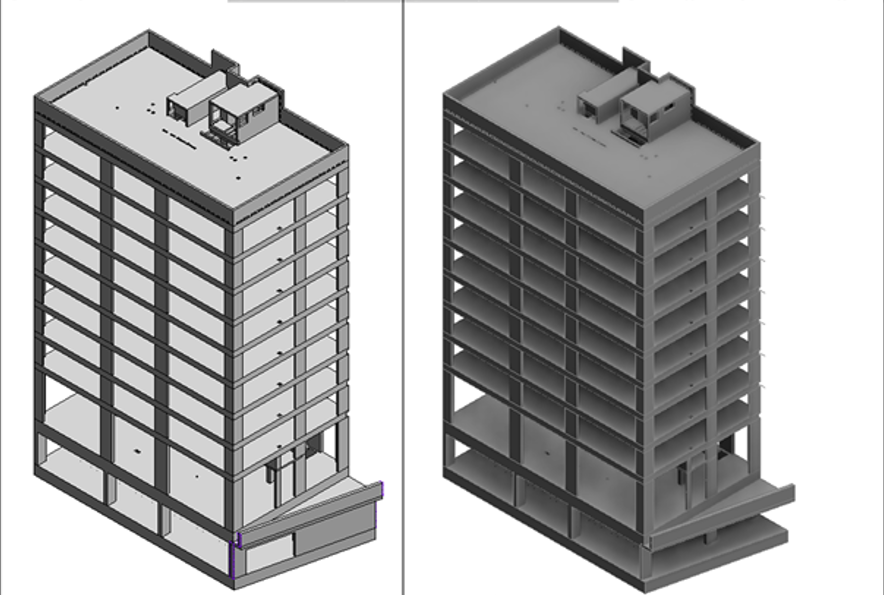
The Fix by Parameter tool is designed to copy elements from a linked file using specific parameters. When copying, NON-editable geometry with the parameters is created in place of the element. Before fixing the elements, it is recommended to specify Additional Options , which should be copied along with the geometry. Copying is performed in the “1. Copying Elements” view. It is recommended to use Construction Model Template
1. In the Copy Elements panel, click ➤ Fix by Parameter
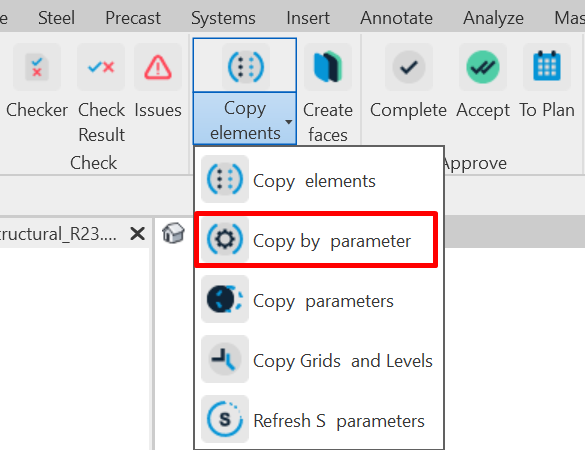
2. The tool settings window will open. Add parameters by clicking “+”. In the line with parameters, select the parameter name and parameter value by which elements from the linked model will be copied from the drop-down list.
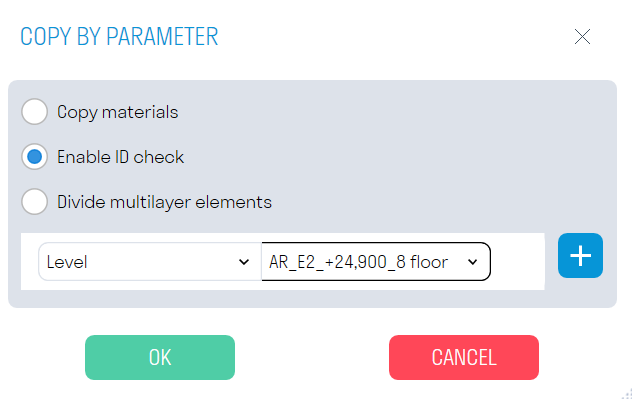
- The “Copy Materials” switch is responsible for the visual display of materials on the copied geometry. It is recommended to keep it off, since copying with materials increases the overall execution time of the command.
- The “Enable ID Check” switch prevents duplication of previously copied elements. If you need to replace previously copied elements, delete the outdated version of the element before copying. In this case, replacing an element entails replacing its id in the building model, therefore, due to the id change, Navisworks will not be able to pull data into the new element
- The "Create construction pie" switch divides the multi-layer wall into layers and copies each layer of the Parts category
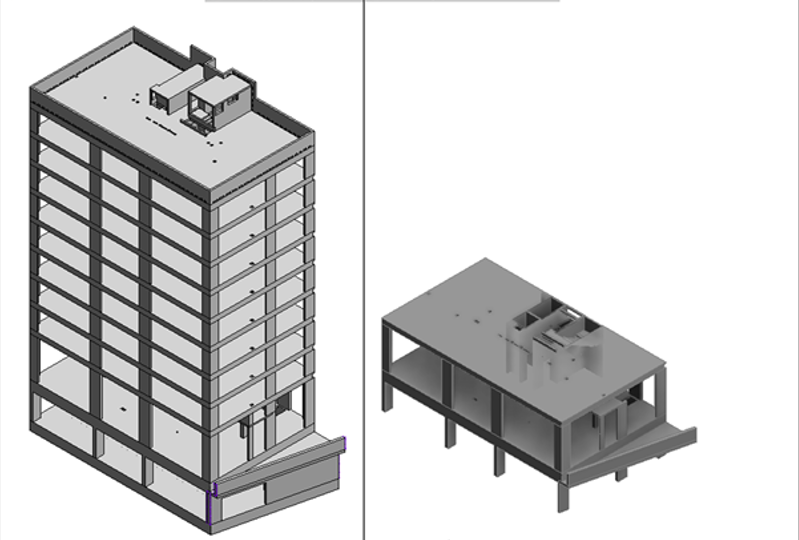
3. Elements with the specified parameters will be copied from the linked file and appear in the "2. Creating a Building Model" view. The elements will be NON-editable geometry with parameters.
Using the Copy parameters command, you can copy missing parameters for already fixed elements
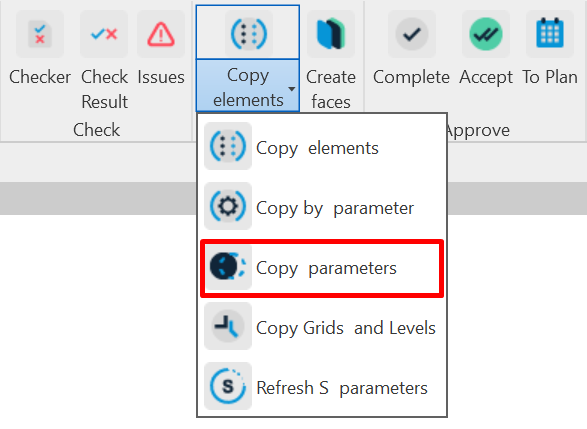
1. Click on the Copy Elements panel ➤ Copy Parameters
Tool Setup Dialog
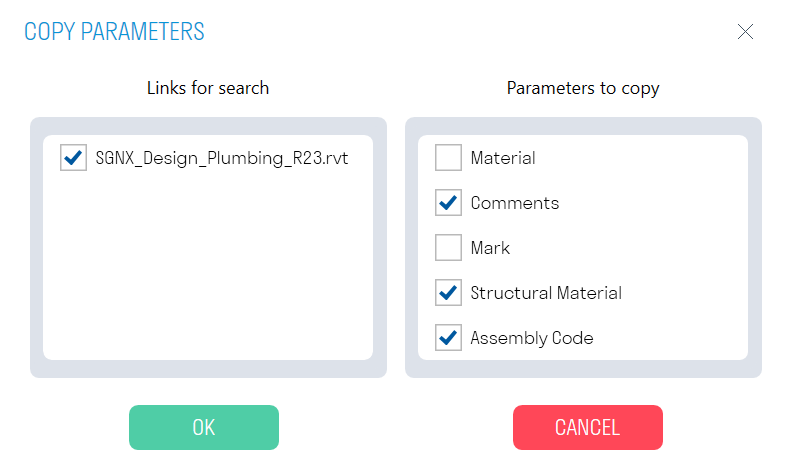
- In the “Links to search” block specify the linked model from which you want to copy the parameters.
- In the “Parameters to copy” block specify the parameters to copy from the linked file. The parameters to copy are filled in the SIGNAX Settings in the Copy Options
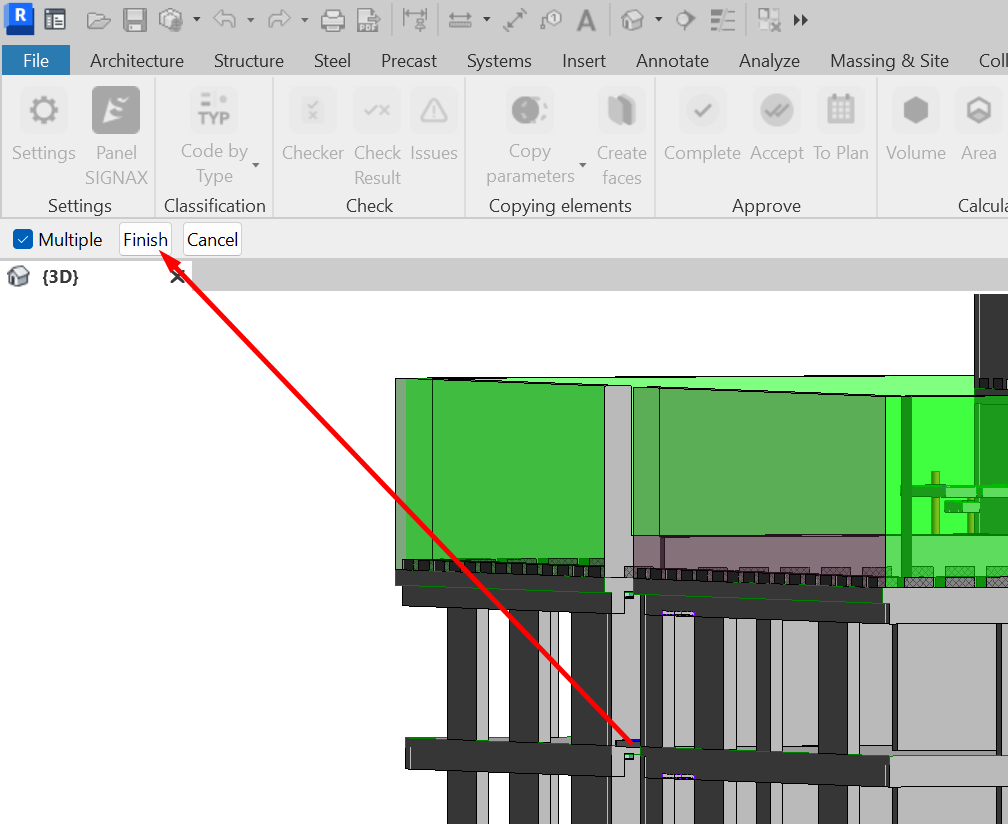
2. section. Select the elements to which you want to copy the parameters and click Done in the upper left corner
This tool allows you to copy axes and levels from a linked file to the construction model. Necessary for creating plans by levels of the design model or cutting elements into pieces along the axes
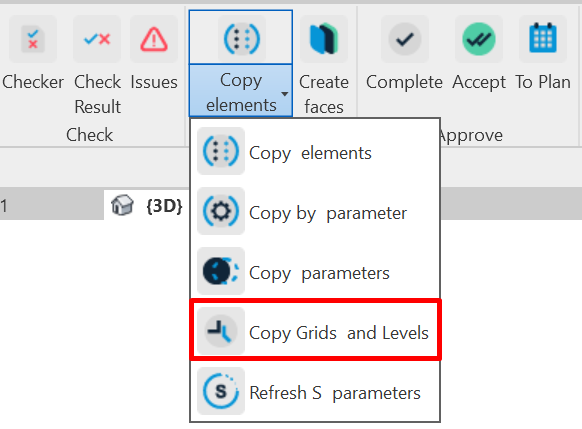
1. Click on the Copy Elements panel ➤ Copy Axes, Levels
Tool Settings Dialog
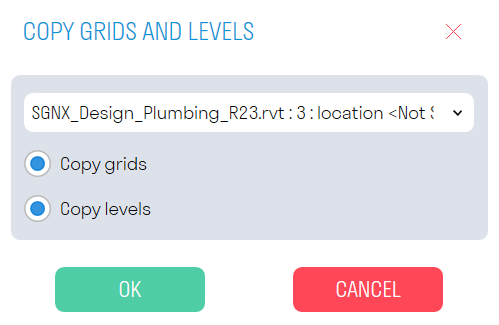
- Specify the linked file from which the axes and levels will be copied
- The “Copy Axes” switch is responsible for copying the axes
- The “Copy Levels” switch is responsible for copying the levels
The tool updates the geometric parameters (S Volume, S Area, S Length) and S id history for the Parts category elements. Required when changing the geometry of the
1. Click on the Element Copying toolbar ➤ Update Parameters
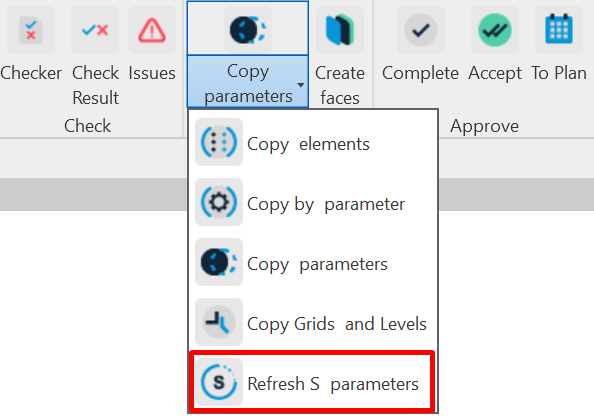
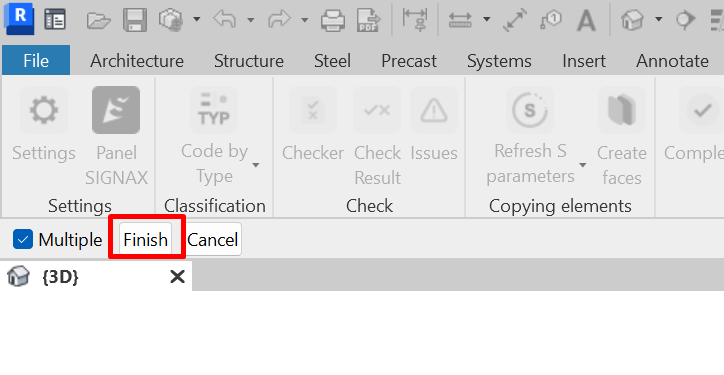
2. Select the Parts category elements that need to update their parameters and click Done
The tool allows you to create surfaces from selected faces. With its help it is possible to maintain a cumulative construction model on facades or interior finishing, when they are made of a single-layer wall or are not modeled
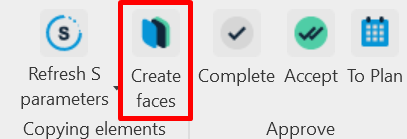
1. Click on the panel Copy elements ➤ Create surfaces
Tool settings window
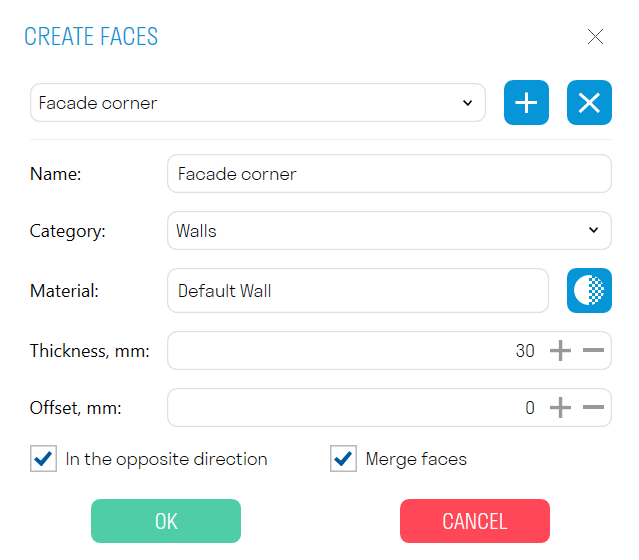
- You can add and delete different variants of surfaces with their own parameters.
- In the line “Name” specify the name of your variant.
- In the line “Category” select the category of the created surface.
Note: Some categories are not suitable for creating surfaces, such as Analytical Column Models or Concentrated Loads. - In the “Material” line select the material for the surface being created.
- In the “Thickness” line specify the surface thickness in mm.
- In the “Offset” line specify the surface offset from the selected face in mm.
- The “Inverse direction” switch allows you to select the direction in which the surface will be extruded.
- The “Merge faces” switch allows you to build the surface as a single unit when selecting multiple faces.
2. Select one or more faces and click Done