< TOOLS FOR REVIT. Panel | TOOLS FOR REVIT. Copy Elements >
A comprehensive tool that allows you to check the model for the presence of parameters in elements and the completion of values for these parameters. For example, before uploading a model to Navisworks, a designer can check the model for the completion of important parameters
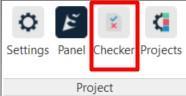
1. Click on the Check panel ➤ Checker
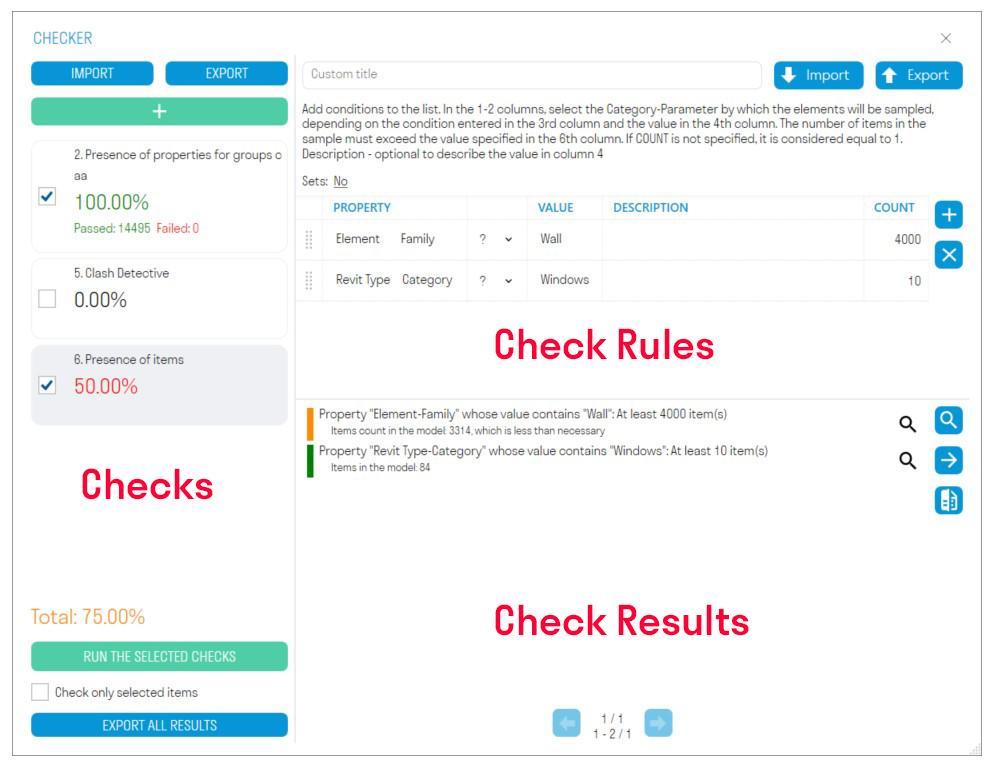
The Checker window is divided into three areas: checks, rules, and results
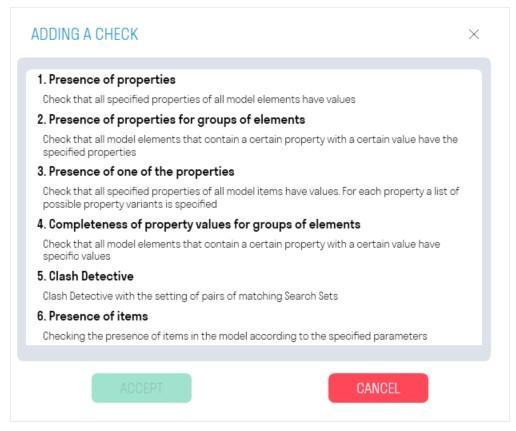
2. Add one of the three checks by clicking

3. Add rules and run the check by clicking “RUN SELECTED CHECKS”.
4. View elements with errors in the model to make comments and fix errors. Export check results to Excel or XML. Compare results with the results of the previous check to see which issues were fixed.
¶ Check area:
this area displays the percentage of completed checks, the number of items that passed and failed the check
- Click “Add Check” to add one of the three checks.
- “EXPORT” allows you to export all checks with their rules to XML. You can send this file with the checks to your colleagues.
- “IMPORT” allows you to upload an XML file with the checks.
- “RUN SELECTED CHECKS” runs the check next to which there is a check mark.
- The “Check only selected elements” switch allows you to check only the elements selected in the model
- “EXPORT ALL RESULTS” allows you to export the results of all checks to a single Excel file, which can be shared with colleagues to correct elements that did not pass the check
¶ Rules Zone:
in this zone, you create the rules that will be used for checking. Rules created in Navisworks are compatible with rules in Revit.
- When creating rules, you must select their type from the drop-down list - Type or Instance Parameter
- The button allows you to select a parameter from the list
- “EXPORT” allows you to export the check rules to an Excel file. This file can be supplemented with rules and uploaded back to Checker or shared with colleagues.
- “IMPORT” allows you to upload an Excel file with check rules. If you already have rules created in Navisworks, you can import them into Checker in Revit
¶ Results Area:
this area displays the check results as element names and a description of why the elements failed the check
- Click “Select All” to select all elements in the model that failed the check
- Click next to a result to select one or a group of elements in the model that failed the check.
- Click “Group Results” to group check results by repeating element names and result descriptions. This will reduce the number of items in the list and make it easier to view the elements in the model that failed the check.
- Click “Export Results**”** to export the check results in Excel or XML format. After correcting the issues, this XML can be compared with the new results using the “Compare” command.
- Click “Compare” and upload the XML file with the results of the previous check to see which issues have been corrected.
¶ Checker Checks
1.Property Presence
Checks whether the value of the check parameter is filled in. Suitable for checking parameters that must be filled in for all model elements.
For example, let's check that the "Classifier Code" parameter is filled in for all model elements
- Add a parameter by clicking +.
- Select the parameter type (Type or Instance)
- Enter the parameter name, for example, Classifier Code, or select the parameter from the list by clicking .
- Run the check ➤ the elements that failed the check will be shown in the results area.
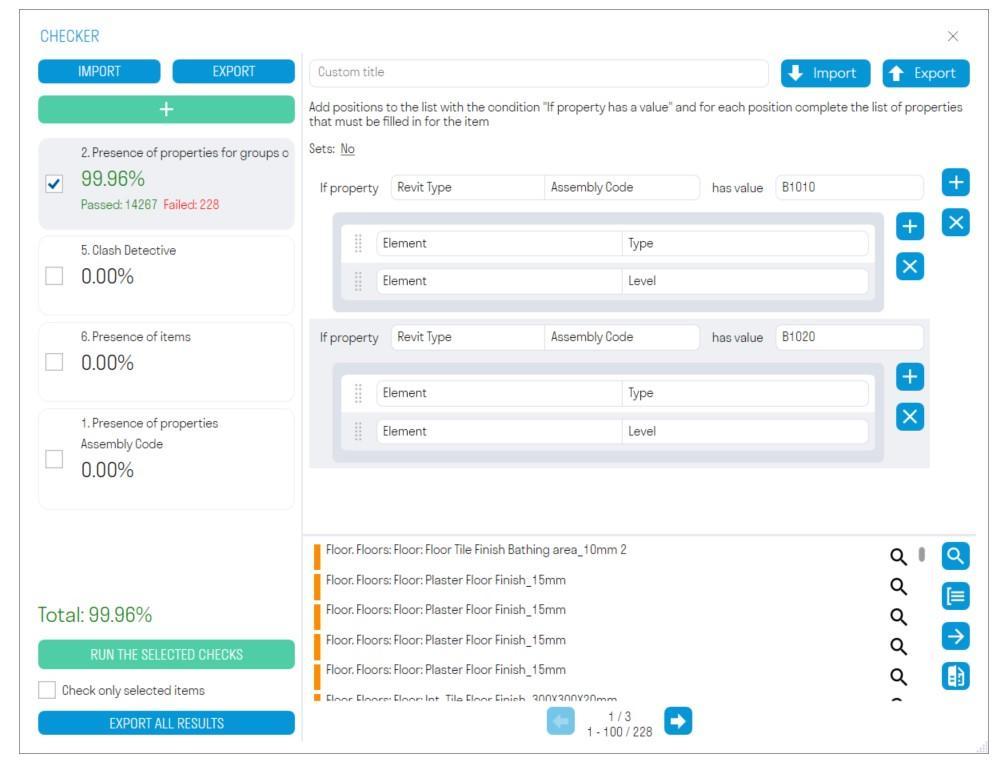
2.Availability of properties for element groups
Checks that all model elements containing a conditional parameter with a certain value have their check parameters filled in. (In this context, a conditional parameter is a parameter that specifies the initial condition: If the “Category” property has the value “Walls”. Validation parameters are parameters that are checked for the presence of a filled-in value)
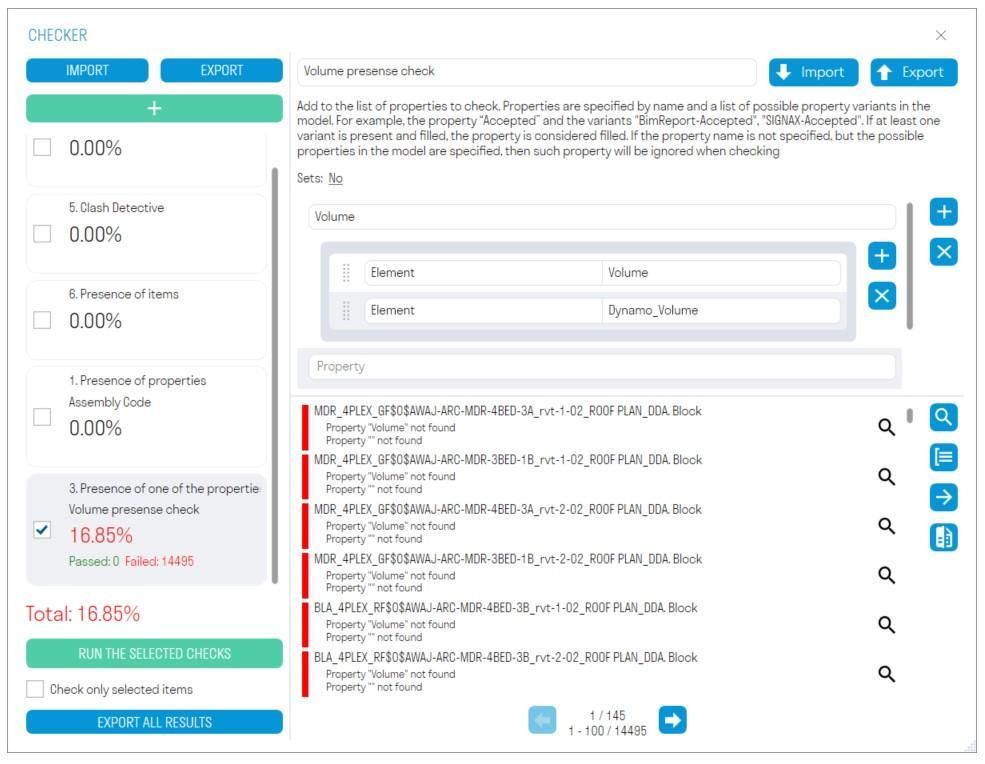
- Add a conditional parameter by selecting its type (Type or Instance) and the value of this parameter.
- Add validation parameters and run the check ➤ The results area will show the elements that failed the check
It is more convenient to create rules for this check in an Excel spreadsheet: all Excel rules from Checker in Navisworks are compatible with Checker in Revit. If you already have created rules in Navisworks, you can import them into Checker in Revit or create new ones:
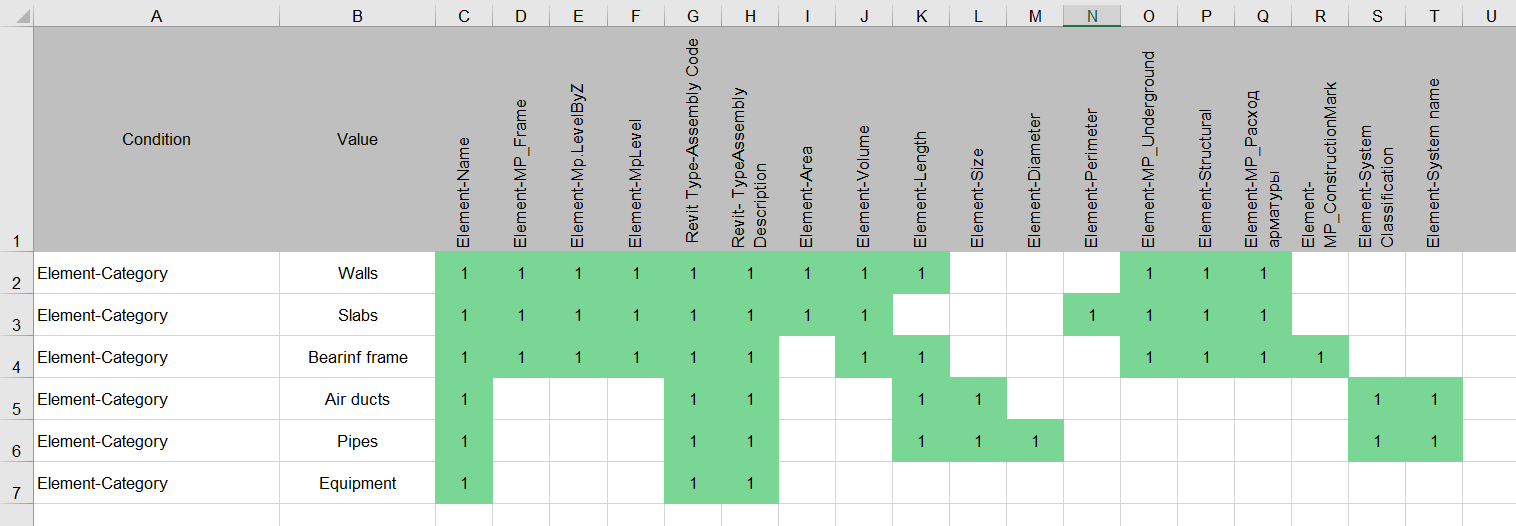
- In column A (Rule), list the conditional parameters as a “Parameter Type-Parameter” pair separated by a hyphen, without spaces, and in column B (Value), specify the values for these conditional parameters.
- Next, in row 1, starting with column C, list the validation parameters as a "Parameter Type-Parameter" pair, separated by a hyphen, without spaces.
- Then, fill in the cells in the matrix with any values, for example, "1", to link the validation parameter to the conditional parameter.
- Thus, it will turn out: "If the "Category" parameter has the value "Walls", then check the parameters "Name", "MP_Building", etc., for completeness."
You can also check by other conditions, for example by Classifier Code
Templates can be downloaded from the following links:
4. Completeness of property values for element groups
Checks that all model elements containing a conditional parameter with a certain value have the specified value for the check parameters.
For example, let's check that the elements with the conditional parameter "Category" set to "Walls" have the check parameter "Thickness" equal to "0.200".
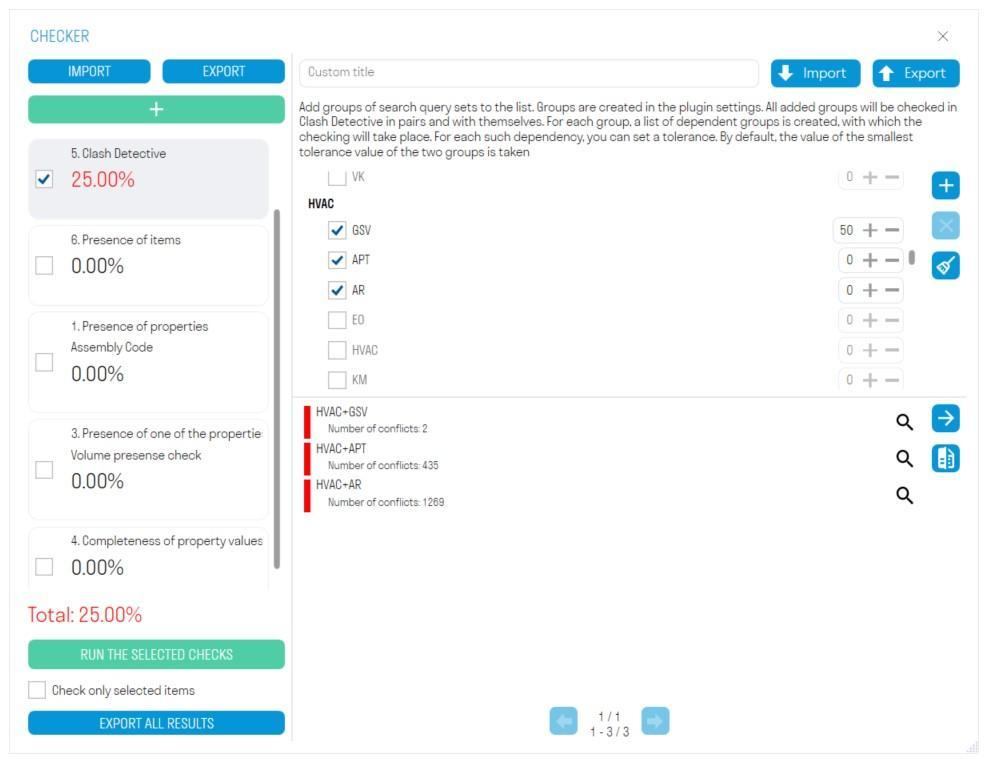
-
Add a conditional parameter, selecting its type (Type or Instance) and the value of this parameter.
-
Add a check parameter and the value that this parameter must have.
-
Run the check ➤ the elements that failed the check will be shown in the results area.
-
"Equals" (=) and "Not equal" (!=) - The check is considered passed if the value of the property being checked completely matches or does not match the specified value. You can specify either a numeric or a string value.
-
"Contains" (?) and "Does not contain" (!?) - The check is passed if the value of the property being checked contains or does not contain the specified string value.
-
"Greater than" (>) and "Less than" ( <) - The check is passed if the value of the property being checked is greater than or less than the specified numeric value.
-
"Greater than or equal to" (> =) and "Less than or equal to" (<=) -The check is passed if the value of the property being checked is "greater than or equal to" or "less than or equal to" the specified numeric value.
-
"In range" - The check is passed if the value of the property being checked is in the specified range. The range is specified by two numbers (minimum and maximum), separated by two periods. In Excel, the value is written as follows: [value1..value2]
-
"Equal to from list" and "Not equal to from list" - The check is passed if the value of the property being checked exactly matches one of the specified values. You can specify both numeric and string values. List multiple values, separating them with commas without spaces. If the specified values can be converted to numbers, they will be checked as numbers. In Excel, the value is written as follows: [value1,value2] or ![value1,value2]
-
"Contains from list" and "Does not contain from list" - The check is passed if the value of the property being checked contains or does not contain at least one of the specified string values. List multiple values, separating them with commas without spaces. In Excel, the value is written as follows: ?[value1,value2] or !?[value1,value2]
The tool allows you to show the elements in the current model based on the results of the check using the command Checker from Navisworks
1. Click on the Check panel ➤ Check Result
[
2. Select the file with the check result in XML format and click "Open"


3. The elements in the model that failed the check will be highlighted


** < TOOLS FOR REVIT. Panel | [TOOLS FOR REVIT. Copy items >