< TOOLS FOR REVIT. Calculations | TOOLS FOR REVIT. View >
The tool allows you to assign a code by classifier to all element standard sizes. First, you need to define two parameters of the element standard size, in which the code by classifier and the code description will be entered. For example, the code will be entered in the “Code by classifier” parameter, and the code description will be entered in the “Comment on standard size” parameter. The names of the parameters are assigned at the discretion of the users.
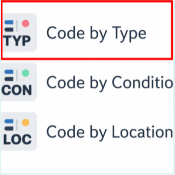
1. Click on the Classification panel ➤ Code by type
Tool settings window
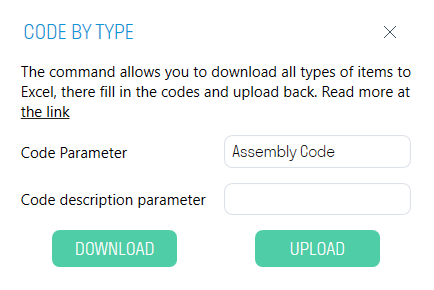
2. Specify the names of the element size parameters, which will contain the code number and code description
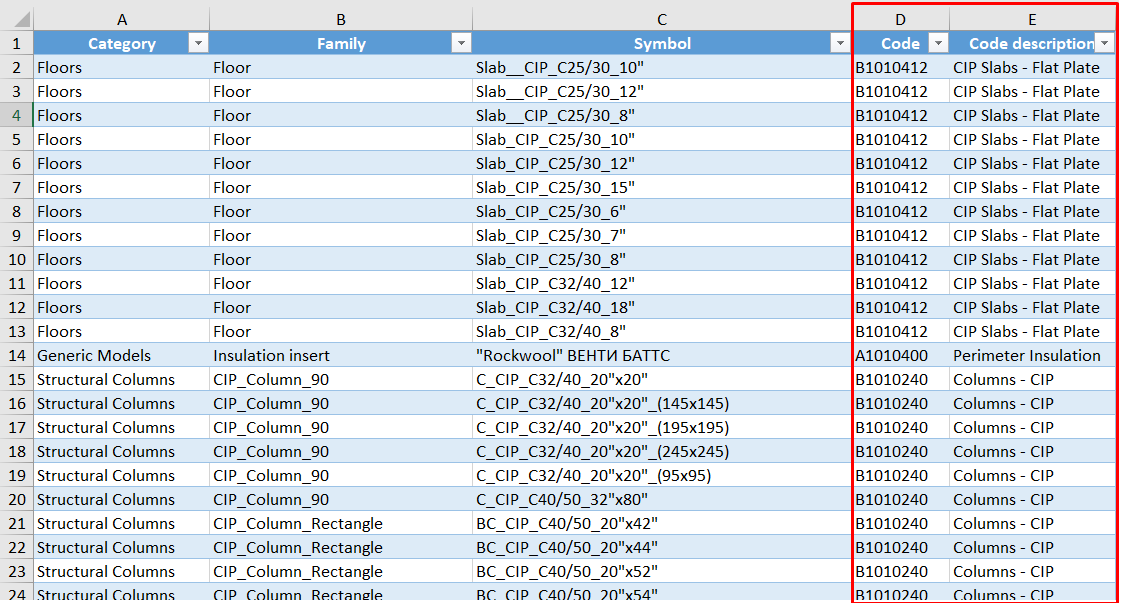
3. Click Download. All element sizes are downloaded in Excel table form. The “Code” and “Code description” columns must be filled in independently for each element size based on the applied classifier. Save and close the Excel file.
The tool allows you to assign a classifier code to all elements based on certain conditions. You can fill in both standard size parameters and instance parameters. For example, you can assign a code and code description to elements of the Load-bearing Columns category located on the fifth floor.
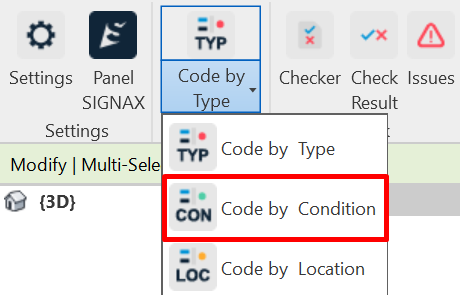
1. Click on the Classification panel ➤ Code by Condition
Tool Settings Dialog
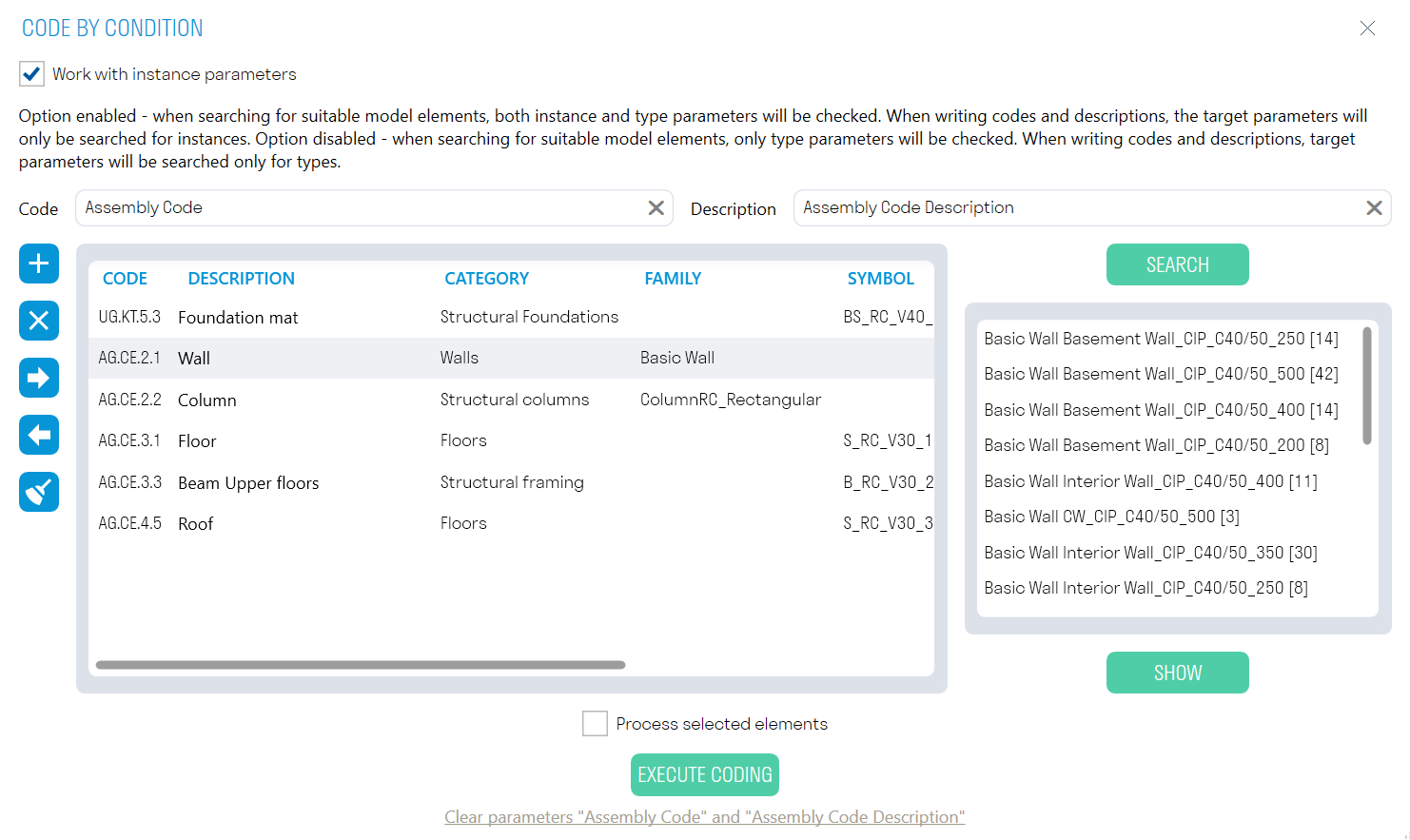
- The “Work with instance parameters” switch allows you to write the code and code description to the instance parameters or to the size type parameters.
- The “Process selected elements” switch allows you to write the code and code description to the manually selected elements
- In the “Code” and “Description” lines write the name of the parameters to which the classifier code and code description will be written, respectively. These can be instance parameters or size type parameters.
2. You can add and fill in the rules by which the model will be classified directly in the plugin, or fill in the rules in an Excel table and import it
Structure of an Excel table with classification rules
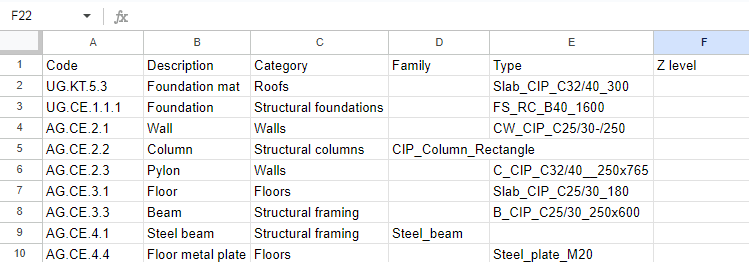
- In the “Code” column, enter the classifier code that you want to write to the elements.
- In the “Description” column, enter the description of the code.
- In the “Category” column, enter the category of elements related to the code.
- In the “Family” column, enter the name of the family to which you want to assign a classifier code (Fill in as needed).
- In the “Standard size” column, enter the name of the standard size to which you want to assign a code according to the classifier (Fill in as necessary).
- In the “Z” column, enter “+” if you want to assign a code to elements above the 0.000 level, or enter “-” if you want to assign a code to elements below the 0.000 level (Fill in as necessary).
- In the “Parameter” column, enter an additional parameter by which you want to classify elements.
- In the “Condition” column, enter one of the operators (Equals: =), (Not equal: !=), (Contains: ?), (Does not contain: !?).
- In the “Value” column, enter the parameter value.
Note: The "Parameter", "Condition", "Value" columns specify one additional condition by which the elements should be classified. Specify these columns as many times as there are additional conditions you want to add
3. To preview the elements that match the specified classification rules, select the rule and click SEARCH
4. To display the element in the model, select the element and click SHOW
5. Click Run Coding ➤ the plugin will write the code and code description to the specified parameters