< TOOLS FOR NAVIS. Notes | TOOLS FOR NAVIS. Utilities >
The tool allows you to create search sets (SS) according to pre-configured rules specified in "settings Standard MON”
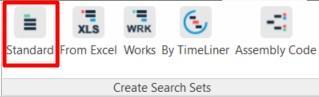
1. On the SIGNAX PRO tab, in the PI Creation panel, click ➤ Standard
2. A window will open with the names of the rules that were added in the “Standard MON” settings. Select the desired rules for creating search sets and click “OK”
- To select all rules in the list, click .
- To deselect all rules, click .
- To quickly jump to the “Standard MON” settings, click .
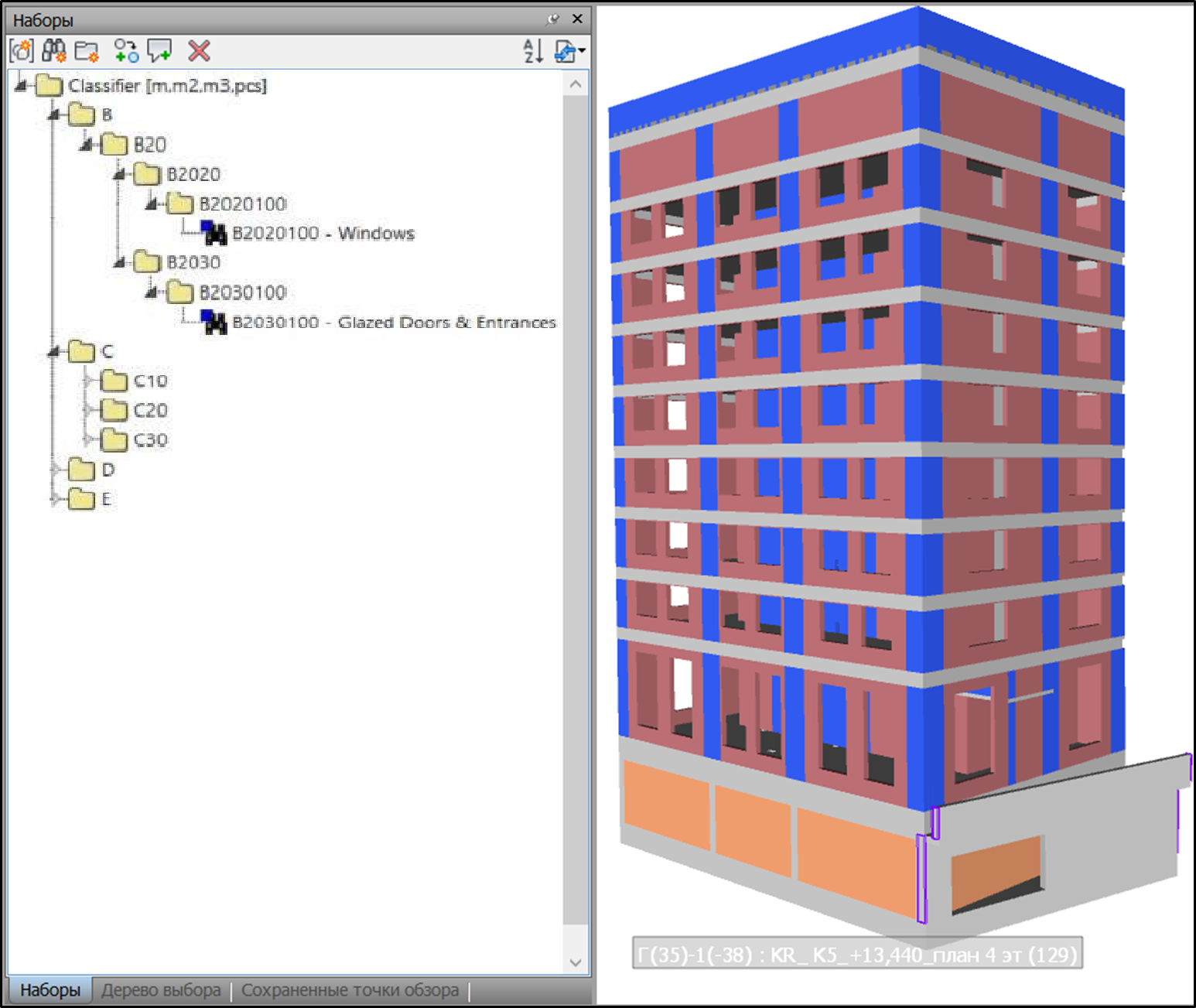
3. The selected search sets will be created in the Sets panel
The tool allows you to create search sets (SS) according to certain rules specified in the Excel file.
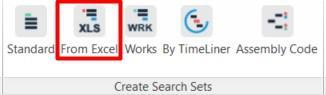
1. Click on the SIGNAX PRO tab in the Create Search Sets panel ➤ Sets from Excel
2. The Create Search Sets window will open, where you need to specify the Excel loading option.
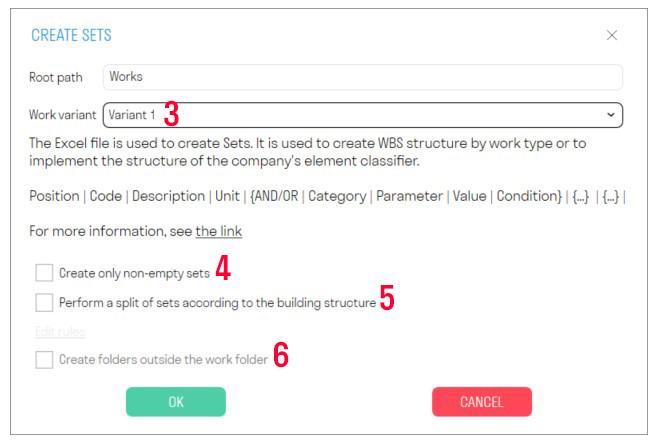
3. Options for creating search sets:
This option is used to create a structure by types of work or to implement the structure of the company element classifier.
You can download the template file by link
The principle of filling the Excel table is as follows:
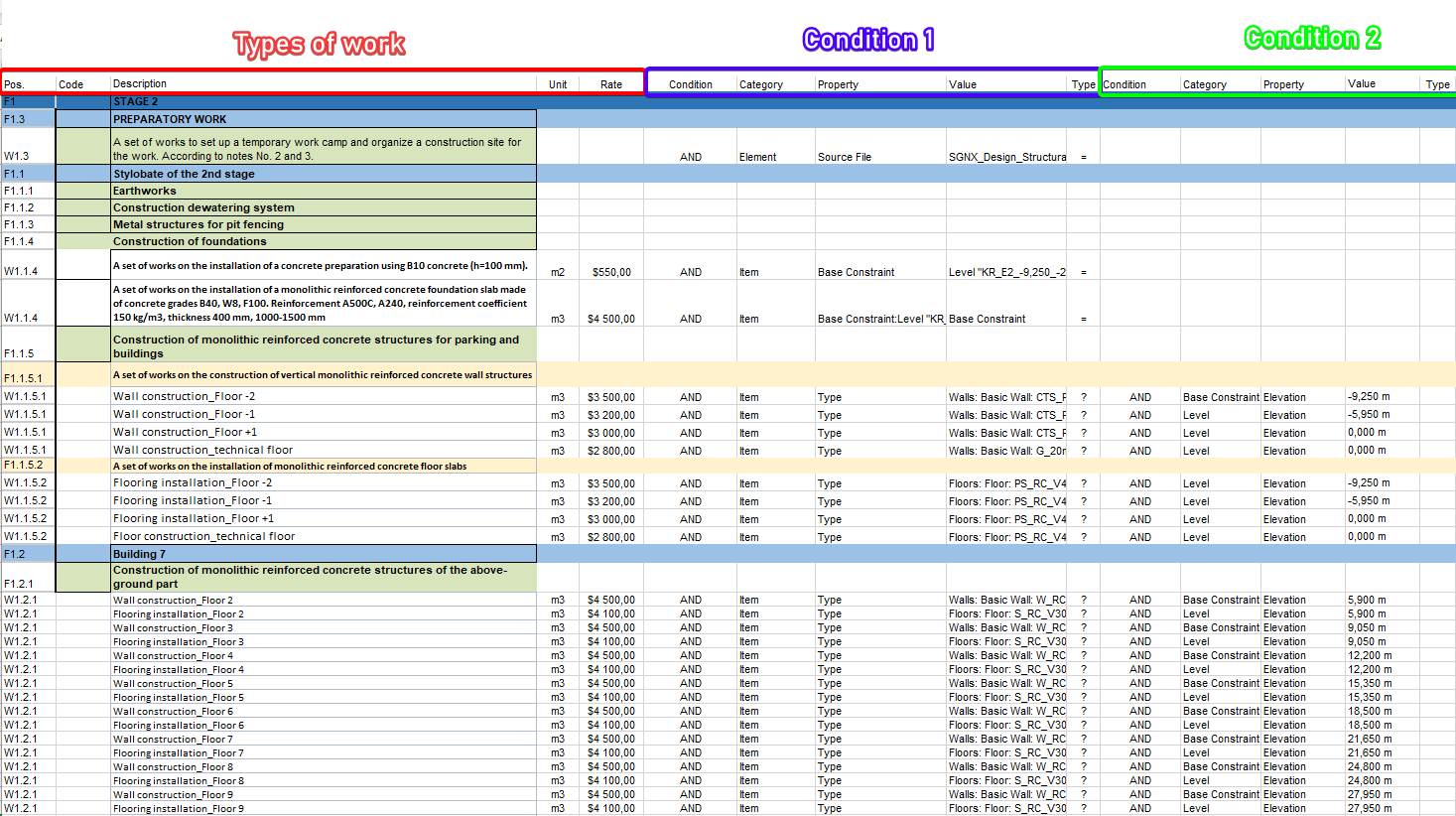
- The “Pos.” column contains a value in the format F1, F1.1, F2, F2.1, F2.1.1 or W1, W1.1, W1.2, W2.1.1, where F means that this line specifies a folder, and W creates a search set (hereinafter SS).
1.1, 2.1, 2.1.1 - specifies the nesting of folders, i.e. F2.1.1 will be nested in F2.1, and that in turn in F2.
W2.1.1 - means that the PN must be created inside the F2.1.1 folder
Attention! W2.1.1 can and must be repeated for all PNs that are placed in one folder, i.e. it is not increased by the last digit - this is not a sequential number, but an indicator of the PN location.
- The “Code” column indicates the PN code (for example, the work type code). This column may be empty.
- The “Description” column indicates the name of the folder or PN.
- The “Unit” column indicates the unit of measurement that is taken into account when uploading using the “Volumes by PN” tool. Unit of measurement can be m, m2, m3, pcs, kg or empty. Units of measurement are not specified for a folder.
Conditions for creating search sets: The columns “Condition”, “Category”, “Property”, “Value”, and “Operator” specify one condition by which search sets will be created. Specify these columns as many times as there are conditions to add.
- The “Condition” column specifies the AND / OR condition.
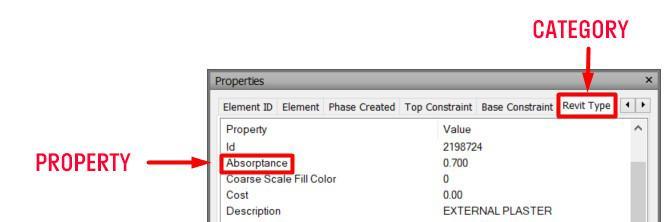
- The “Category” column specifies the name of the tab in which the property for the condition is located.
- The “Property” column specifies the property required for the condition.
- The “Value” column indicates the value of the property.
- The “Operator” column specifies the operator (Equal to: =), (Not equal to: !=), (Contains: ?), (Does not contain: !?), (Defined: d), (Undefined: !d), (Greater than: >), (Greater than or equal to: >=), (Less than: ** <**), (Less than or equal to: <=).
Note: The “Condition”, “Category”, “Property”, and “Value” columns specify one additional condition by which search sets will be created. Specify these columns as many times as there are additional conditions you want to add.
After importing this file, PNs will be created in the Work folder
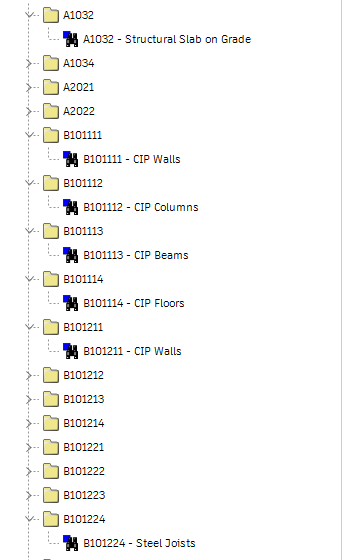
Option 2
This option differs from the first option in that the Code and Description are written in one column, separated by a hyphen.
You can download the template file by link
The principle of filling out the Excel table is as follows:
- The Code and Description columns are written in one column, separated by a hyphen.
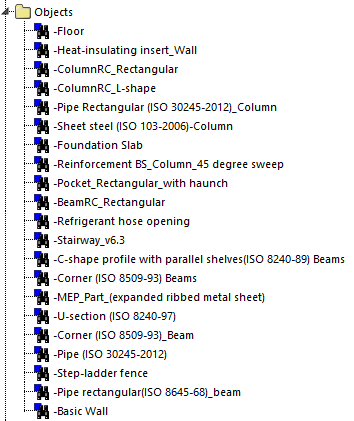
After importing this file, PNs will be created in the Works folder
Option 3
This option is used to group known size names into groups or for other groupings of values into one PN.
You can download the template file by link
- The “Pos.” column contains a value in the format F1, F1.1, F2, F2.1, F2.1.1 or W1, W1.1, W1.2, W2.1.1, where F means that this line specifies a folder, and W creates a search set (hereinafter PN).
1.1, 2.1, 2.1.1 - specifies the nesting of folders, i.e. F2.1.1 will be nested in F2.1, and that in turn in F2.
W2.1.1 - means that the PN should be created inside the F2.1.1 folder
Attention! W2.1.1 can and should be repeated for all PNs that are located in one folder, i.e. it is not increased by the last digit - this is not a sequential number, but a pointer to the location of the PN.
- In the “Description” column, the name of the search set is indicated.
- In the “Unit” column specifies the unit of measurement that is taken into account when uploading using the “Volumes by PN” tool. Units of measurement can be m, m2, m3, pcs, kg, or empty. Units of measurement are not specified for a folder.
- The “Category” column indicates the name of the tab in which the property is located.
- The “Property” column indicates the name of the property.
- The “Value” column indicates the value of the property.
After importing this file, PNs will be created in the Equipment folder:
4. "Create only non-empty sets" - Empty search sets will not be created
5. "Break down the search sets by object structure" - allows you to additionally break down the search sets using conditional properties.
Check the box next to this field and then click "Edit rules" below to configure the rules. A window with the settings will open
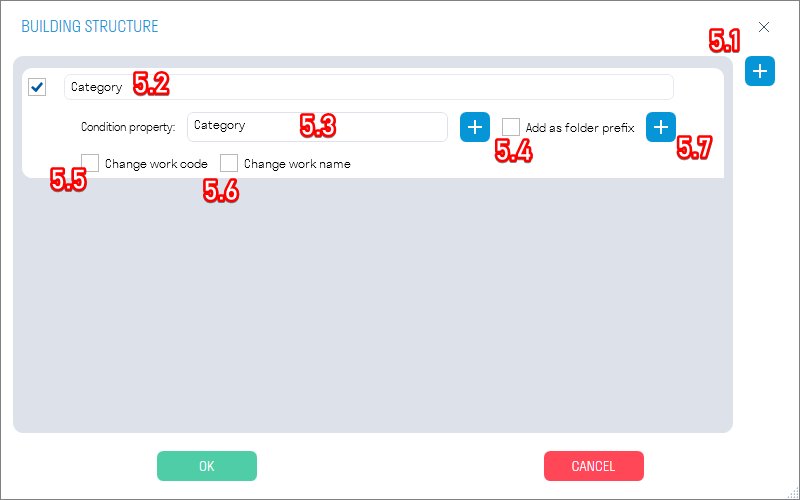
5.1. Click + to add a rule.
5.2. Specify the name of the rule.
5.3. In the "Conditional property" field, click + and select the conditional property by which the search set should be broken down. Conditional properties are specified in _SIGNAL settings .
Attention: The specified conditional property must be written in the file at the end of all conditions

5.4. "Add as folder prefix" adds the name of the conditional property and its value to the folder name, for example, Floor Foundation, where Floor is the name of the property, and Foundation is the value of this property
5.5. "Change job code" adds the value of the conditional property to the code name, for example, 4.1.1.1.Foundation, where 4.1.1.1 is the job code, and Foundation is the value of the conditional property
5.6. "Change job name" adds the value to the job name conditional property, for example, (Floor Foundation), where Floor is the name of the property, and Foundation is the value of this property

5.7. If necessary, add additional nesting by rules using the same principle. For nested rules, it is not necessary to include subsequent conditional properties in the file.
6. "Create folders outside the work folder" - creates folders with a breakdown by PT one level above the Work folders. For example, the "Aboveground Part" work folder will be located inside the folder with the "Floor" conditional property
The tool allows you to create search sets (MON) by conditions of work types
1. Click on the SIGNAX PRO tab in the MON Creation panel ➤ Jobs
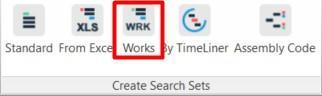
2. Search sets will be created in the “Sets” panel based on the conditions specified in the job types. (see Work types )
The tool, using data from the standard Navisworks TimeLiner, breaks the model into elements before and after the selected date, creating Before, After search sets and Null. This allows you to see which items should already be completed according to the plan on the selected date, and which items are still to be completed according to the plan. The tool also creates Planned search sets based on the Planned Completion tab data from the standard Navisworks TimeLiner, so this model can be loaded into the Plan-Actual cards of the DASHBOARD module as a model with planned work.
1. Click on the SIGNAX PRO tab in the MON Creation panel ➤ TimeLiner

2. Select the date

3. In all model elements in the properties in In the “SIGNAX” tab, a TimeLiner property will be created with one of the values before (the element is executed before the selected date), after (the element will be executed after the selected date), or null (the element does not contain information about when it will be executed). Corresponding search sets with the values before, after, and null will be created in the “Sets” panel based on this property.
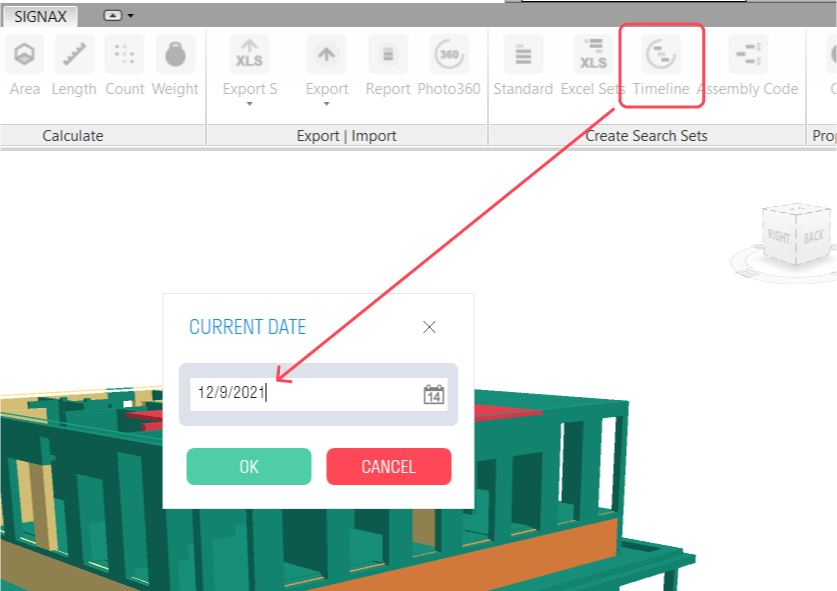
Also, a Planned property will be created in the elements in the “SIGNAX” tab. Corresponding search sets with planned dates will be created in the “Sets” panel based on this property. This model can be used as a planned model for the “Plan-Actual” cards of the DASHBOARD module.
The tool allows you to create search sets (SS) by classifier.
1. Click on the SIGNAX PRO tab in the Create PI panel ➤ Classifier
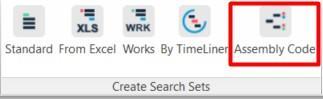
2. Set up a breakdown by classifier and click “OK”
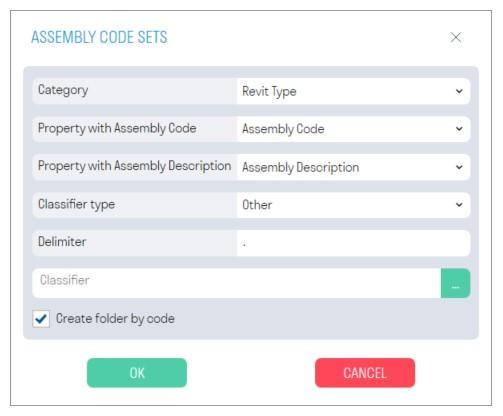
- In the “Category” line, select the tab from the drop-down list that contains the property with the classifier code
- In the “Property with classifier code” line, select the property with the classifier code from the drop-down list.
- In the “Property with description by classifier” from the drop-down list, select the property that contains the description of the classifier code.
- In the “Classifier Type” line from the drop-down list, select the type of classifier by which PNs will be created. If you want to upload your own classifier, then select “Other”.
- In the “Separator” line, specify what is the separator in your classifier. For example, a period “.”
- In the “Classifier” line, upload your classifier in .txt format by clicking the ellipsis.
- The “Create folder by code” switch creates a separate folder for each code.
3. In the “Sets” panel, search sets will be created broken down by classifier code