< TOOLS FOR NAVIS. Calculation | TOOLS FOR NAVIS. Export | Import >
The tool assigns a custom color to an element. For example, you can mark the execution of a model with certain colors.
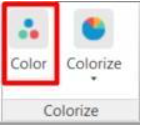
1. Select the element(s) and click on the SIGNAX tab in the Coloring panel ➤ Color
2. Select a color from the list and click “OK”

3. After assigning the color, the following will happen:
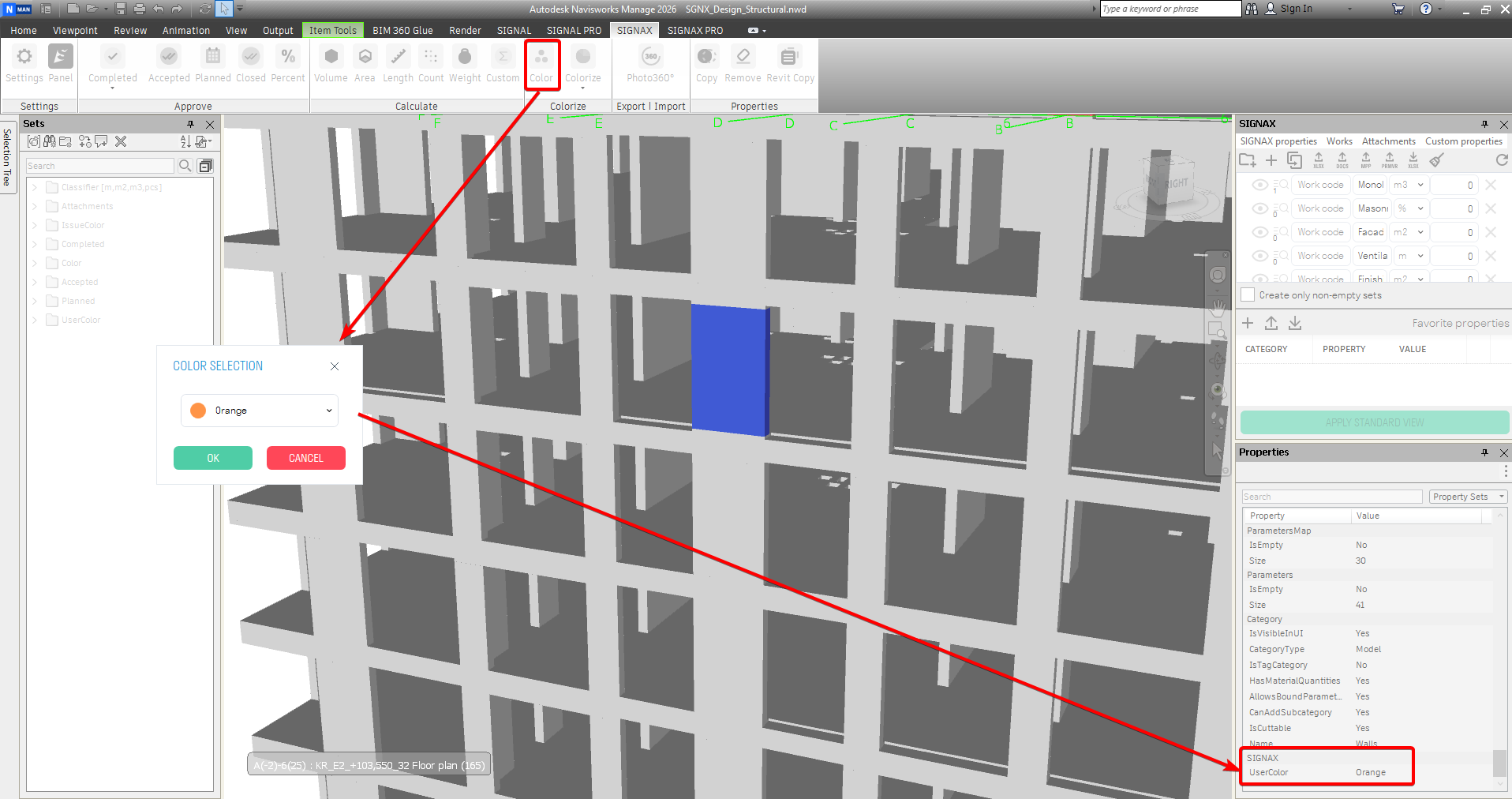
- The selected elements are painted in the user-defined color.
- In the element properties, in the “SIGNAX” tab, the “UserColor” parameter is created.
- The “UserColor” search set corresponding to the user-defined color is created.
The tool colors elements according to the value of SIGNAX properties.
1. Click on the SIGNAX tab in the Colorize panel ➤ Colorize
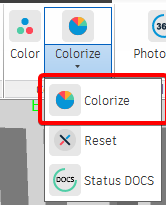
2. Select the property by which to color the elements: “UserColor”, “Color”, “IssueColor”, or by percentage, and click “OK”.
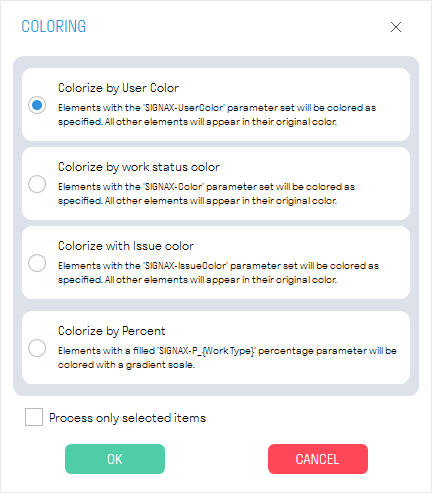
- The “Process only selected elements” switch allows you to color only the selected elements.
Note: elements that do not have the selected property filled in are colored gray
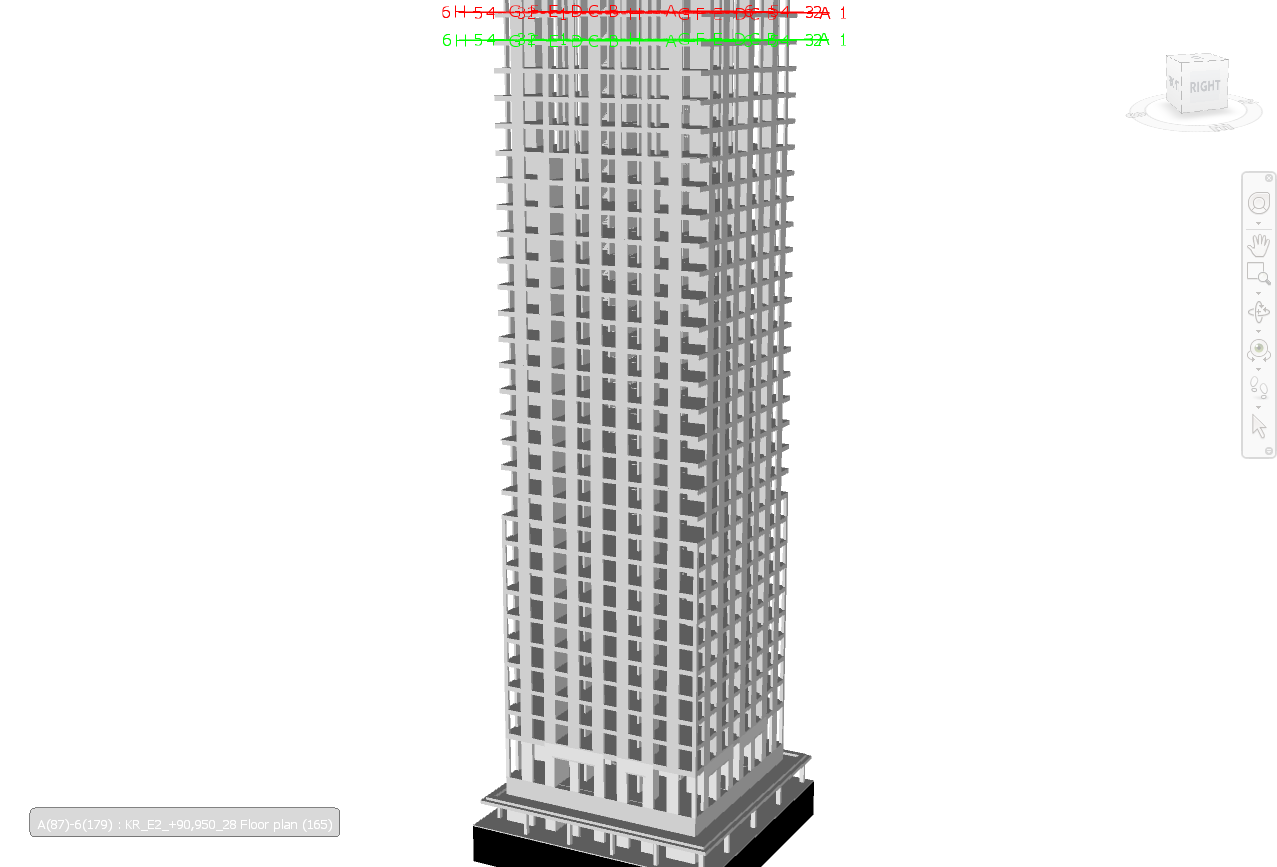
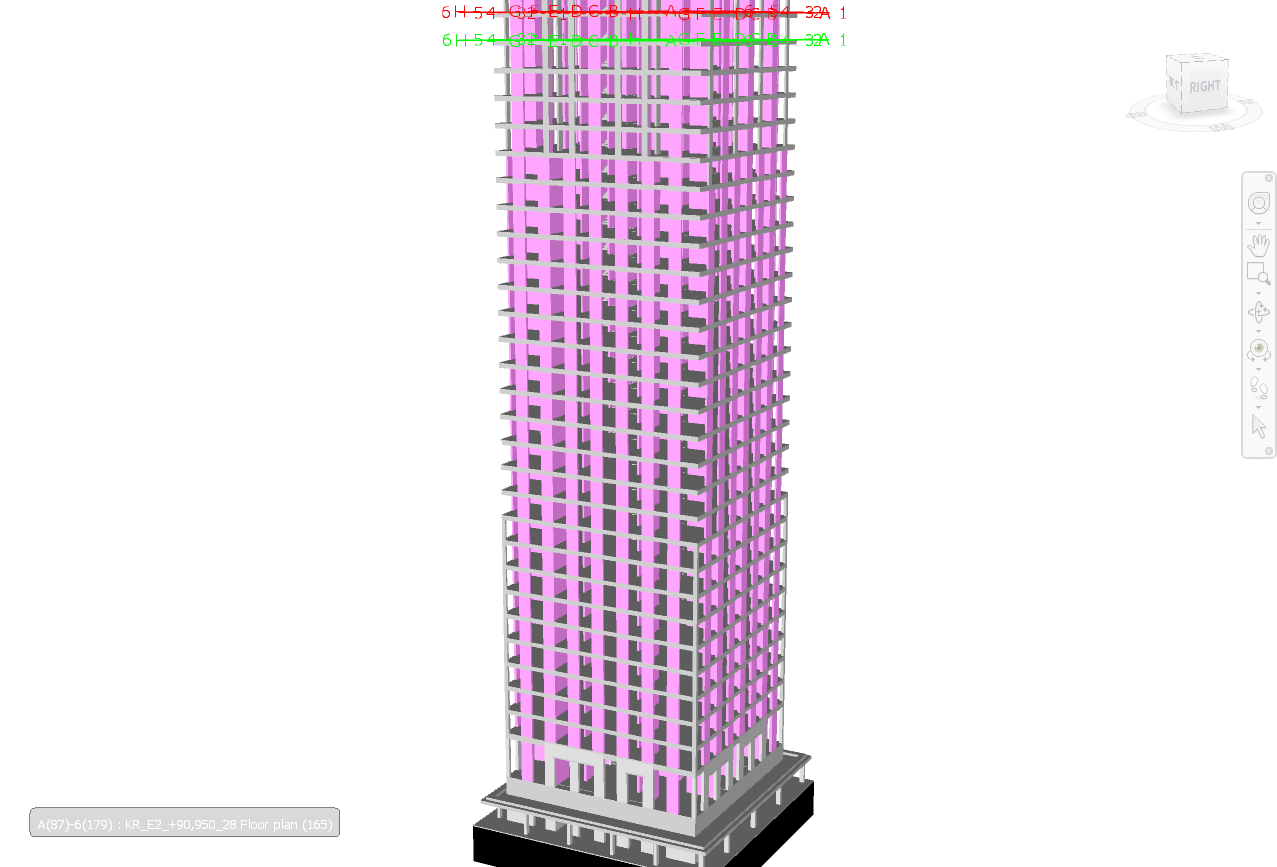
Use this tool to restore the coloring of elements in an existing .nwf or .nwd document based on the previously filled in "Color" / "UserColor" / "IssueColor" parameters to continue working with the file.
Before
After
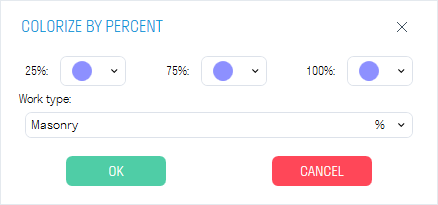
To color by percentage, select the colors that will correspond to the percentage of work completed: first color from 0% to 25%; second color from 25% to 75%; third color from 75% to 100%. Select the type of work to be colored from the list. Elements that have the “P_{Work Type}” property on the “SIGNAX” tab will be colored (see Percentage and Import Percentage)
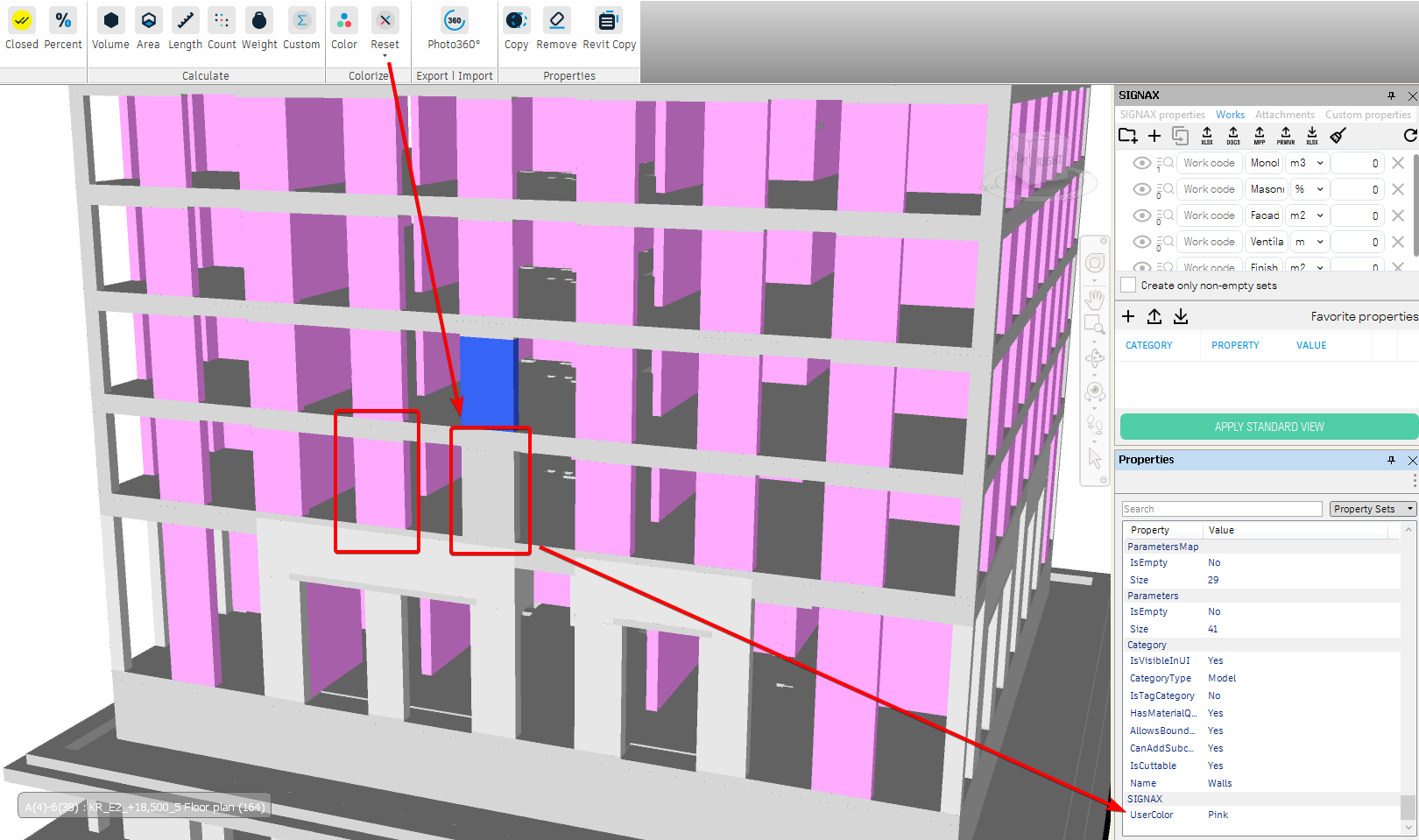
The tool resets the element color to the default value. The values of the “UserColor”, “Color”, and “IssueColor” parameters do not change.
1. Select the elements and click on the SIGNAX tab in the Coloring panel ➤ Reset
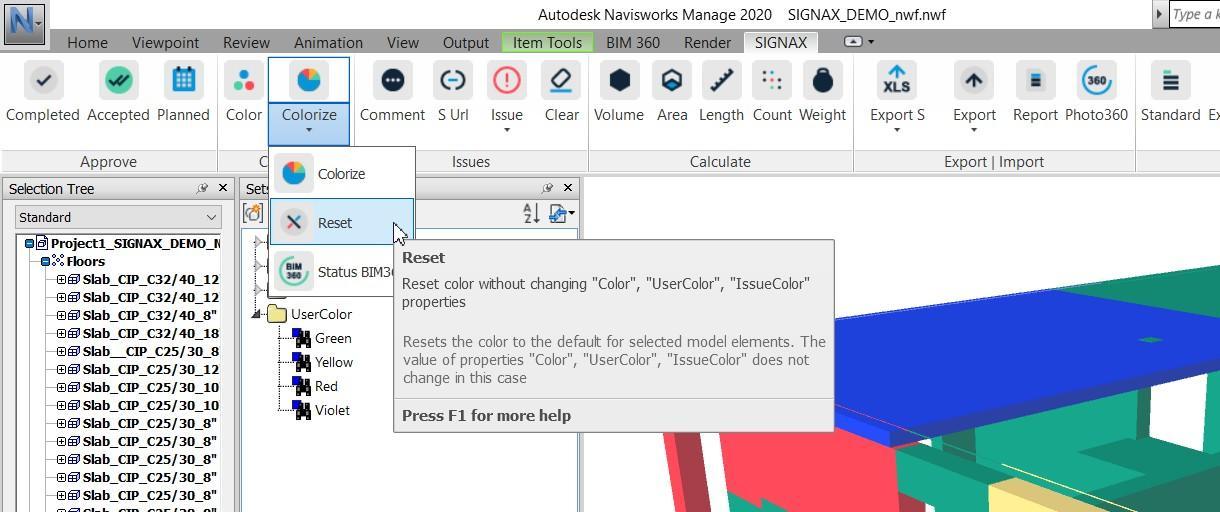
2. The color of the selected elements will be reset to the default value. The values of the “UserColor”, “Color”, and “IssueColor” parameters will not be changed.
The tool updates the color of the element according to its status in the BIM 360 environment (ACC Docs), obtained from the link specified in the “S URL” property. Used when the remark colors are missing from the model, but the “S URL” properties remain filled in, which can be used to restore the colors.
1. Click on the SIGNAX tab in the Coloring panel ➤ B360 Status
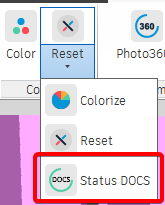
2. The elements will be colored according to their remark status in BIM 360 (ACC Docs). The relationship between colors and statuses is specified in the “Coloring” settings.
The tool allows you to color model elements by the specified properties
1. Click on the SIGNAX PRO tab in the Coloring panel ➤ By parameters
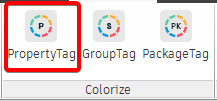
2. A window with coloring settings will open. Add properties manually or import an Excel file and click “OK”
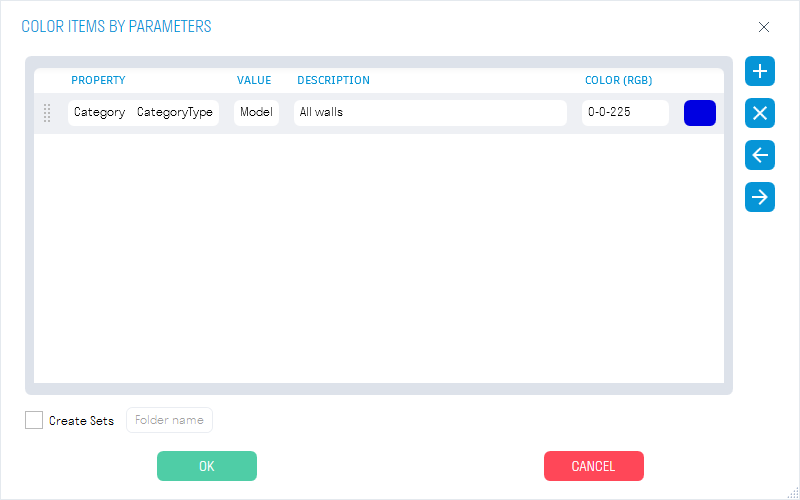
- In the “Property” column, specify the “Category-Property” pair.
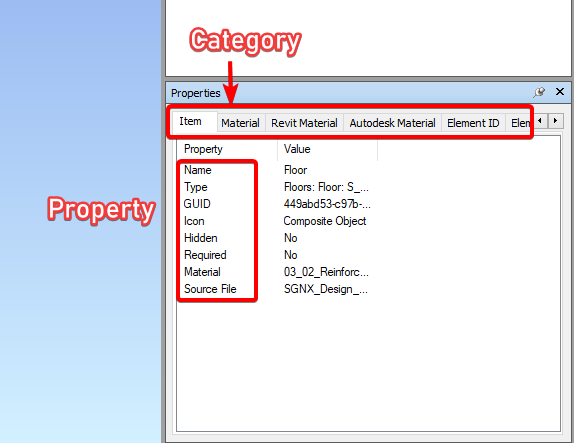
- In the “Value” column, specify the property value by which you want to color the elements.
- In the “Description” column, specify the description for the search sets.
- In the “Color” column, specify the color in which you want to color the elements. The color is specified using the RGB palette, separated by a hyphen, for example “252-82-3”.
- The “Create PU” switch allows you to create search sets by the specified properties. Specify the Folder Name.
3. After assigning the color, the following will happen:
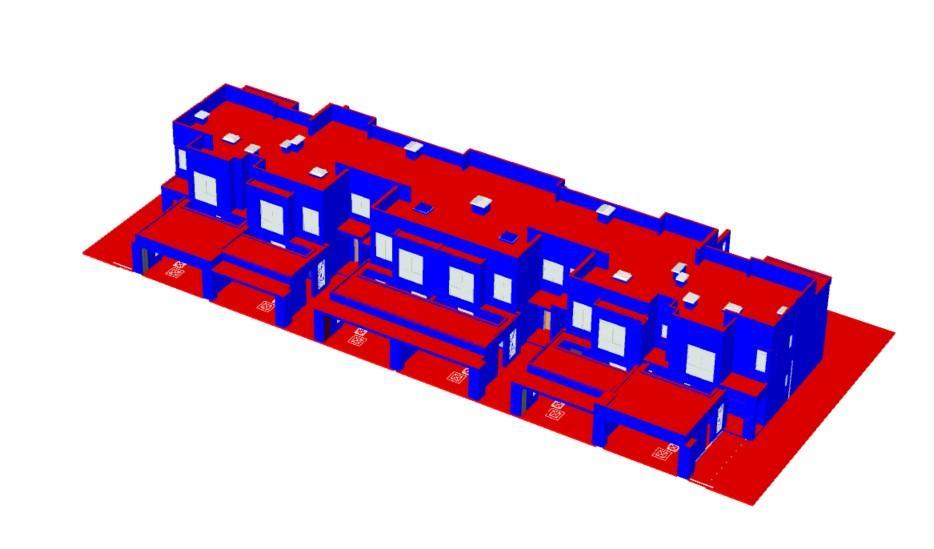
- The elements will be colored in the colors specified in the settings
- A PU will be created in the “Sets” panel by the specified properties
The tool allows you to color the model elements by previously created search sets
1. In the SIGNAX PRO tab, on the Coloring panel, click ➤ By Sets
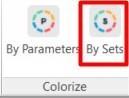
2. A window with coloring settings will open. Click

to add a search set.
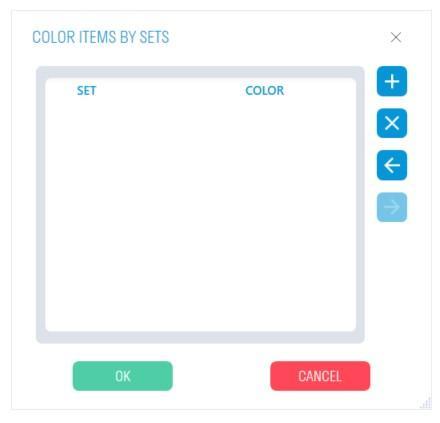
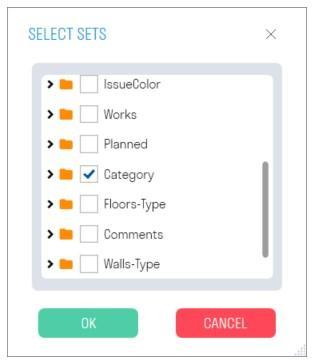
2. Select a previously created search set from the list and click “OK”
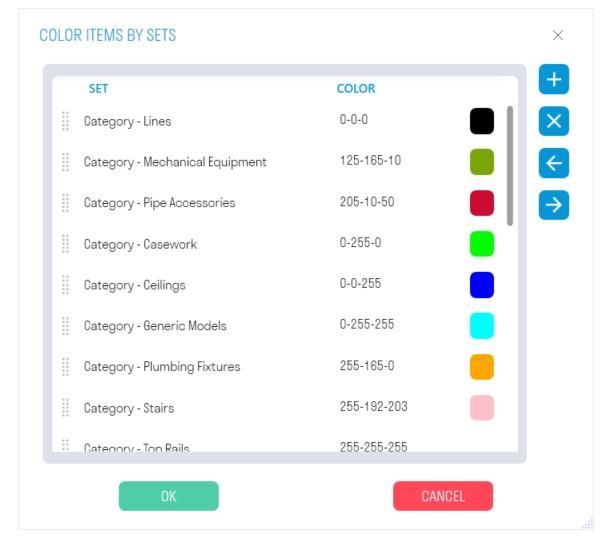
4. In the "Color" column, specify the color you want to paint the elements in and click "OK". The color is specified using the RGB palette, separated by a hyphen, for example "252-82-3".
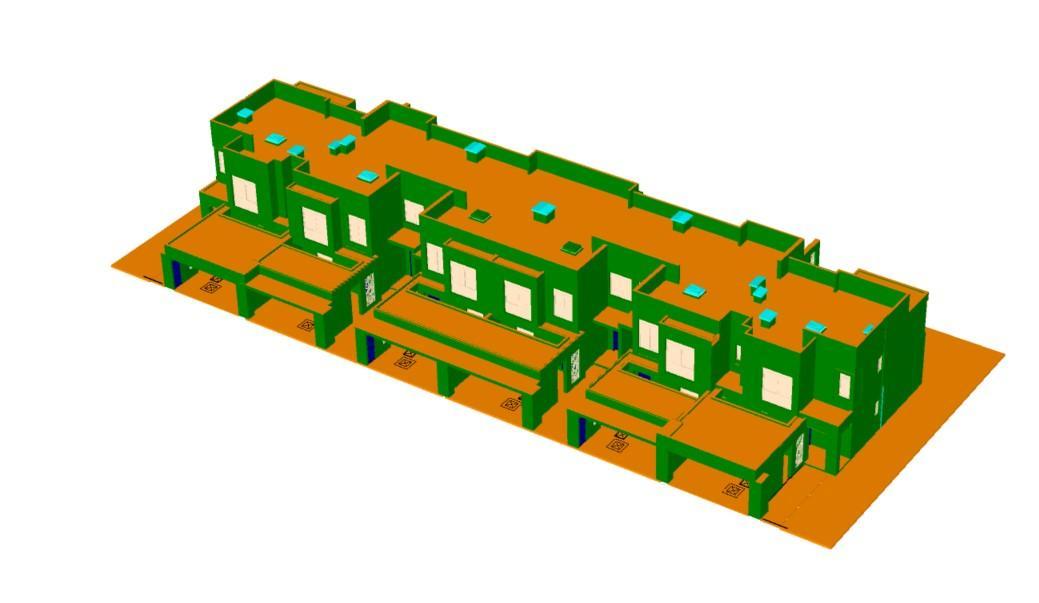
5. The elements will be painted in the specified colors

< TOOLS FOR NAVIS. Calculation | TOOLS FOR NAVIS. Export | Import >