¶ < FORMS. Form Builder | FORMS. Completing Forms >
The functions described on this page are available only to the Organization Administrator.
After the Super Administrator creates form types and fields in the Form Builder, a Project Administrator adds them to a specific project.
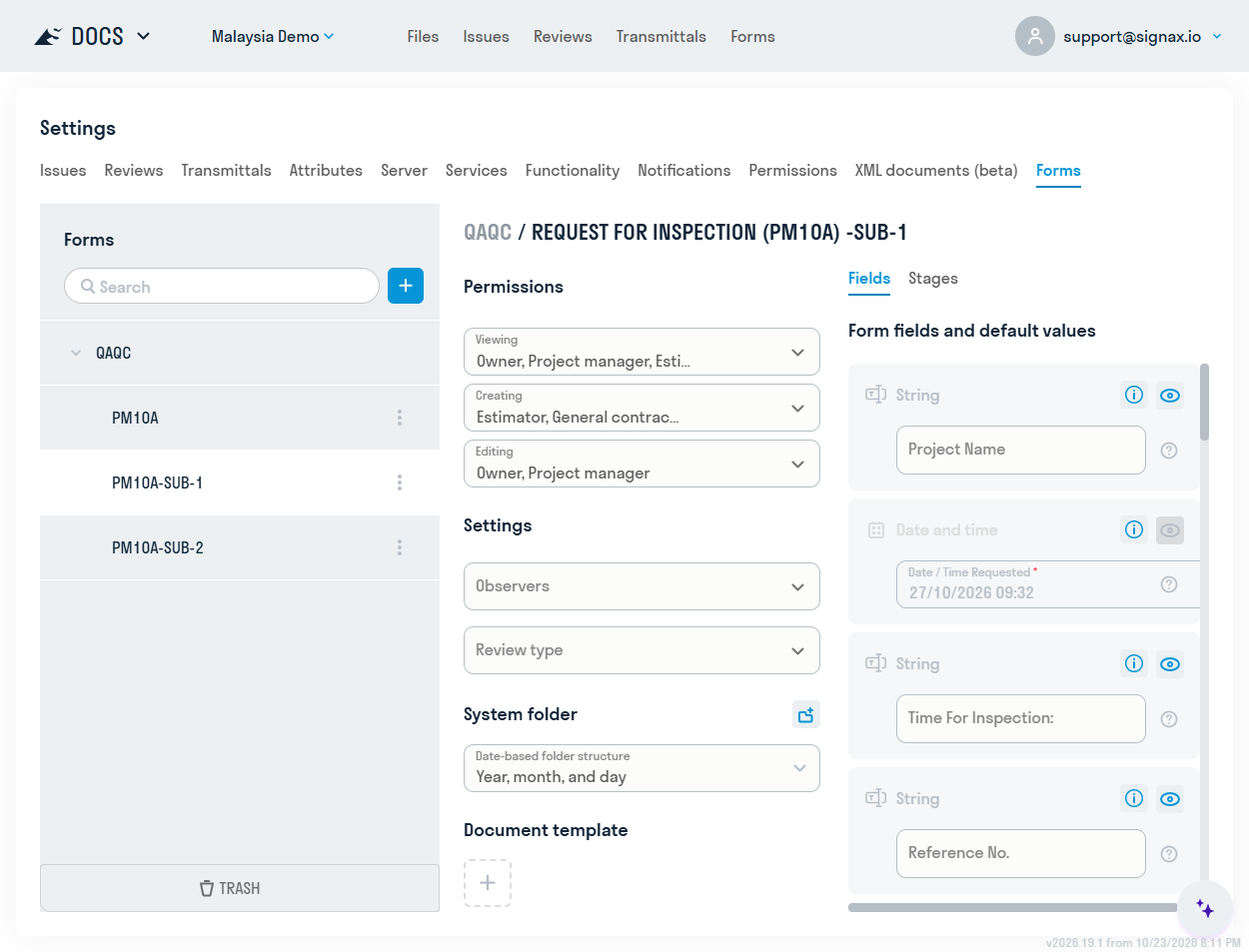
Select +, then choose the required form types from the Form Builder.
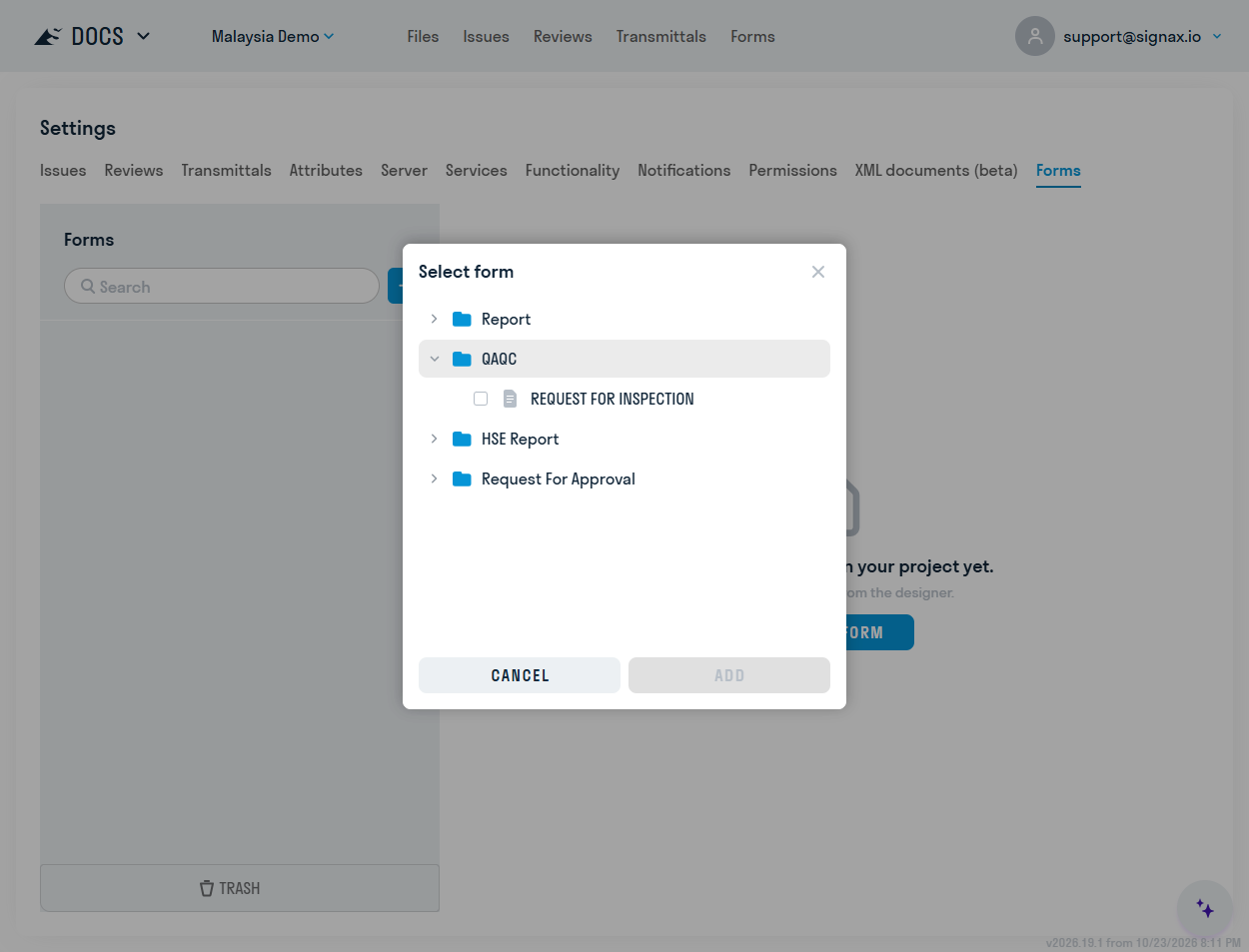
By default, the All Users role receives read and create permissions after the form type is added. Adjust access for project roles where required.
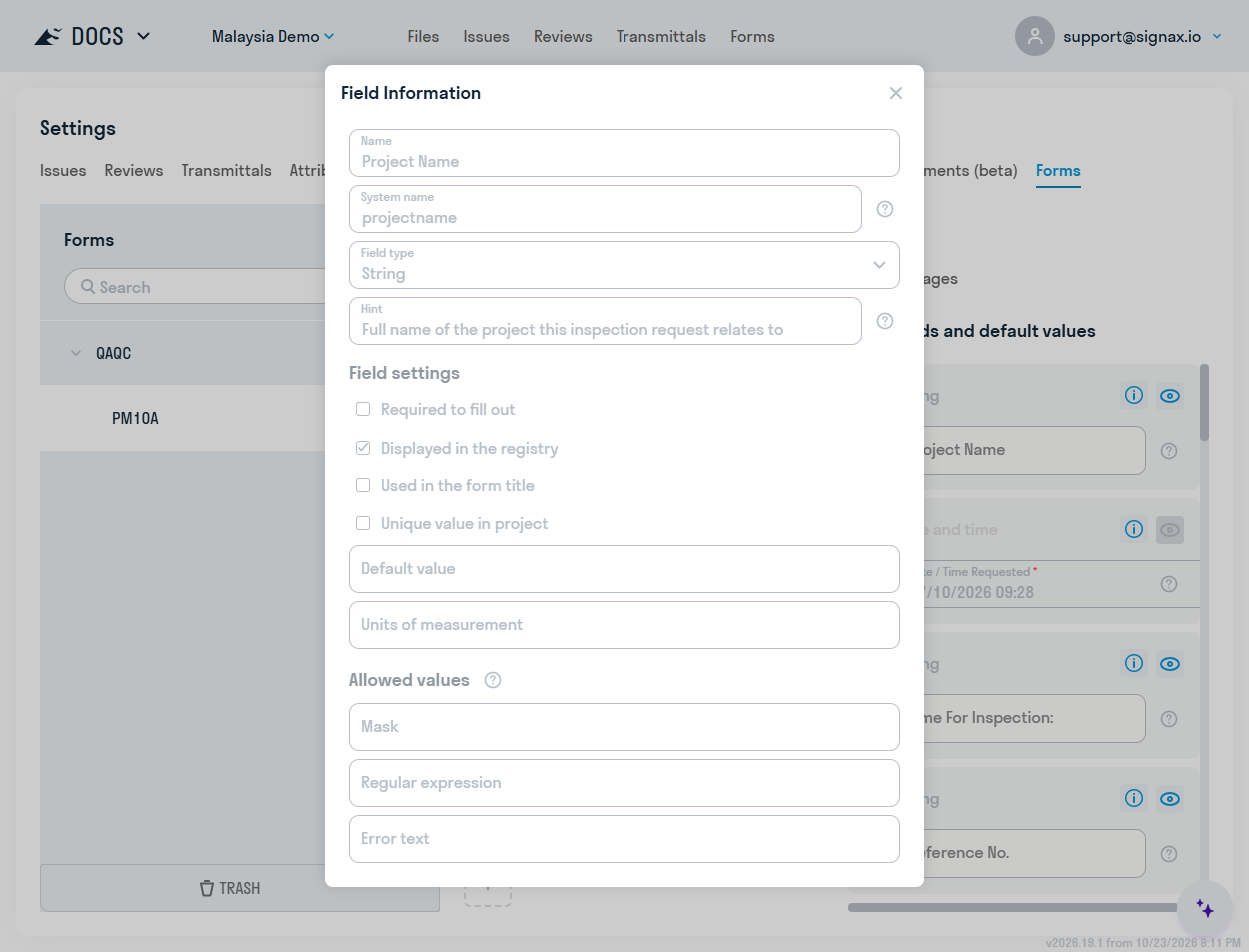
To view the form's field list and field properties, select the information icon.
¶ Document template and system folder
When a form type is added to a project, its default DOCX template is copied from the Form Builder to the project settings. Here you can replace the template or restore the original.
The form-type settings can create a system folder for attachments and template-generated documents. Once created, the folder can be opened in Project Files, and its access permissions can be synchronized. Files can be grouped with no subfolders, by year, by year and month, or by year, month, and day.
¶ Recycle Bin
Select Recycle Bin at the bottom of the form-type list to open deleted form types. A form type can be restored from the Recycle Bin. If the project already contains a form type with the same prefix and suffix, the system will prompt you to change the suffix during recovery.
¶ Access permissions
Three permissions can be configured for each form type in a project:
- Read — view existing form instances;
- Create — create a new form draft and edit it until completion;
- Edit — modify existing form instances created by other authors.
Permissions are assigned to user roles.
¶ Field visibility
Optional fields can be hidden for a project form type by selecting the eye icon. A hidden field is not shown during form completion and cannot be populated. This is useful when a particular attribute is not required for the project or contractor.
¶ Default field values
On the Fields tab, configure values that will be populated automatically when form instances are created in the project.
Initially, the default values defined in the Form Builder are displayed. A changed value applies only to the selected form type in the current project and does not affect the Form Builder configuration.
Values can be configured for all field types, including source fields that reference linked forms, files, issues, review packages, transmittals, HUB directories, users, and contractors.
Select ✓ above the field list to apply the changes. The reset button for an individual field restores the value from the Form Builder; the reset button above the list restores all modified fields.
A default value cannot be changed for a hidden field or for a date field configured in the Form Builder to populate the current date automatically.
¶ Stage configuration
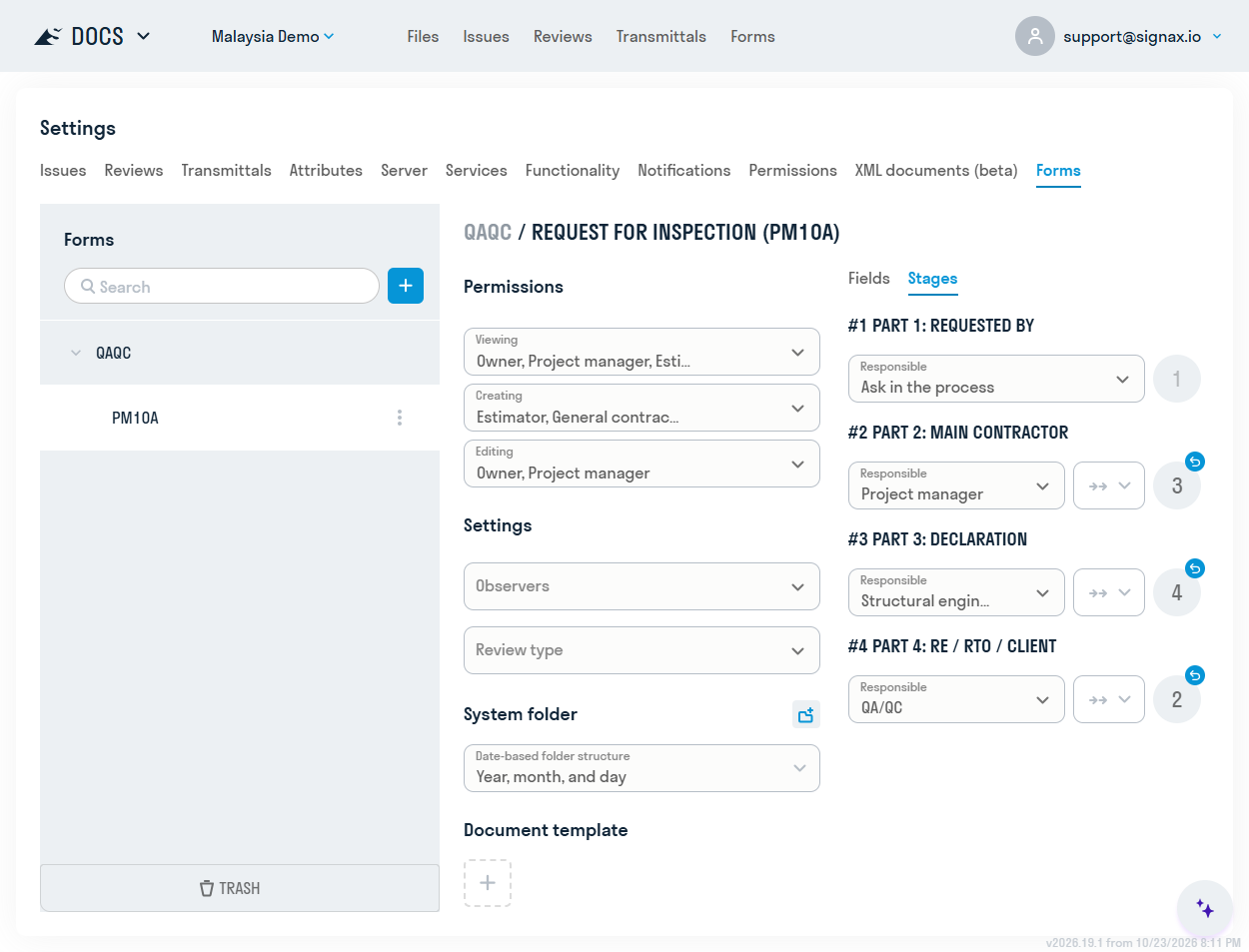
If approval stages are configured for the form type in the Form Builder, each stage can be assigned to a user, a role, or the form author, or left as Assign during workflow.
You can also replace the stage deadline with a fixed number of days or restore the default settings, including the deadline formula from the Form Builder.
¶ Watchers
Users or roles can be assigned as watchers for each form type in the project. They receive approval-workflow notifications but are not required to participate in stages. Watchers have read-only access to the form throughout the workflow.
This is useful for managers and other project participants who need to monitor progress without taking part in approval.
The same form type can be duplicated within a project for separate document streams:
- to separate access between project participants, such as subcontractors who must each create and view their own list of forms;
- to separate form instances logically, such as using the same works-log form for different work types while displaying the records in separate tables.
Select Copy and enter a suffix. For example, for a contractor named Subcontractor 1, use the suffix -SUB-1.
Access permissions, field visibility, and all stage settings are copied, but each copy can be configured independently.