¶ < FORMS. Project Settings | FORMS. Document Generation >
Users with the appropriate permissions create and complete form instances, referred to below as forms. Each form is associated with a specific project and form type.
Select a form type from the drop-down list. Each form type in the project has a register, shown as a table, containing its created forms.
The table columns include fields marked for register display in the Form Builder and system properties: number, project form type, author, last editor, creation date, and last modified date. If the form type has approval stages, the table also shows the current stage, its assignee, and the planned completion date. A column is hidden if the corresponding field is unavailable to the user in every project form type.
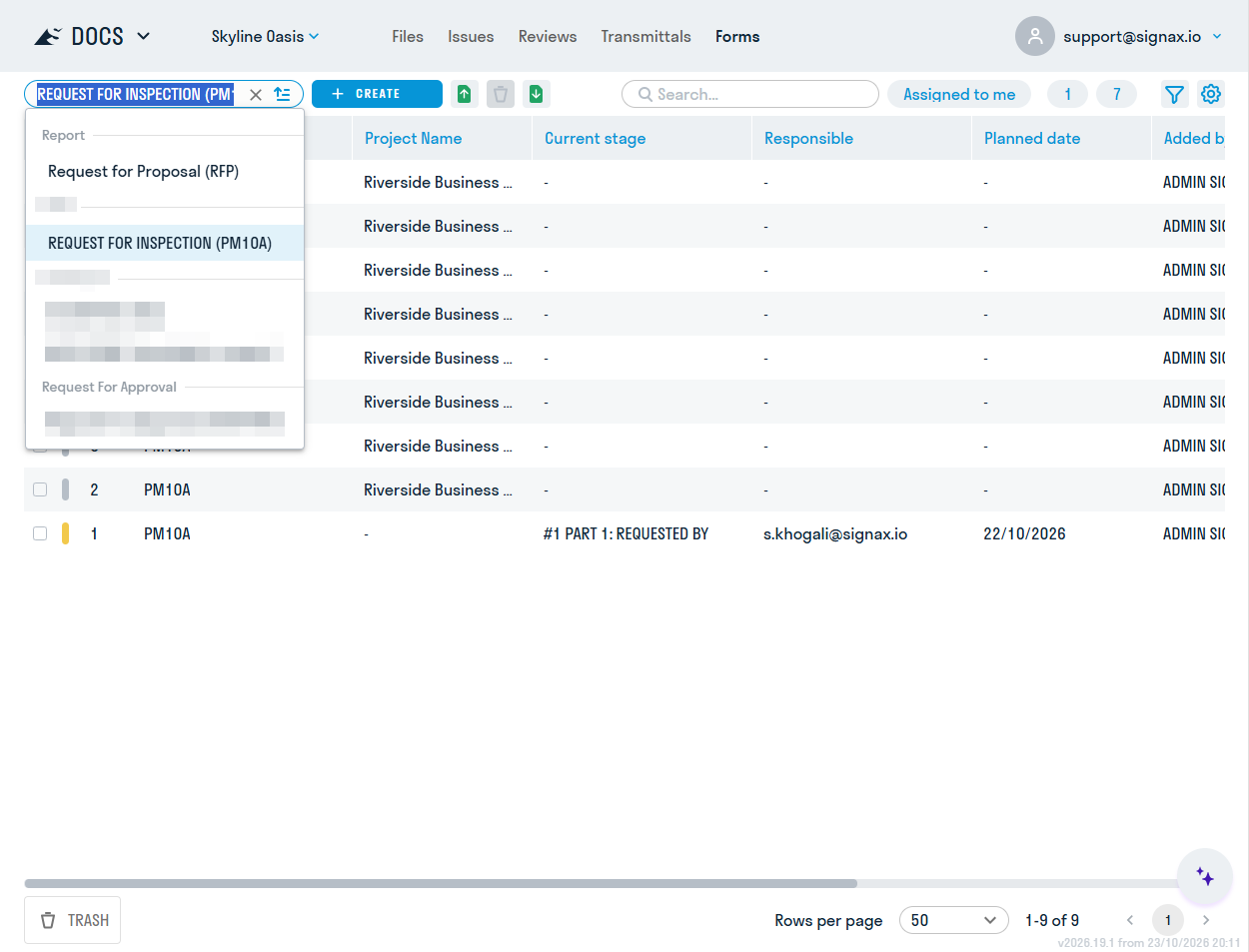
You can select the visible columns, change their order, and save the display configuration.
In the register, you can:
- search by form number, form name, date, or assignee;
- sort by number, creation date, modification date, or form type;
- open a form for viewing or editing if you have the required permission;
- open forms referenced by field values and return to the original form.
¶ Exporting to XLSX
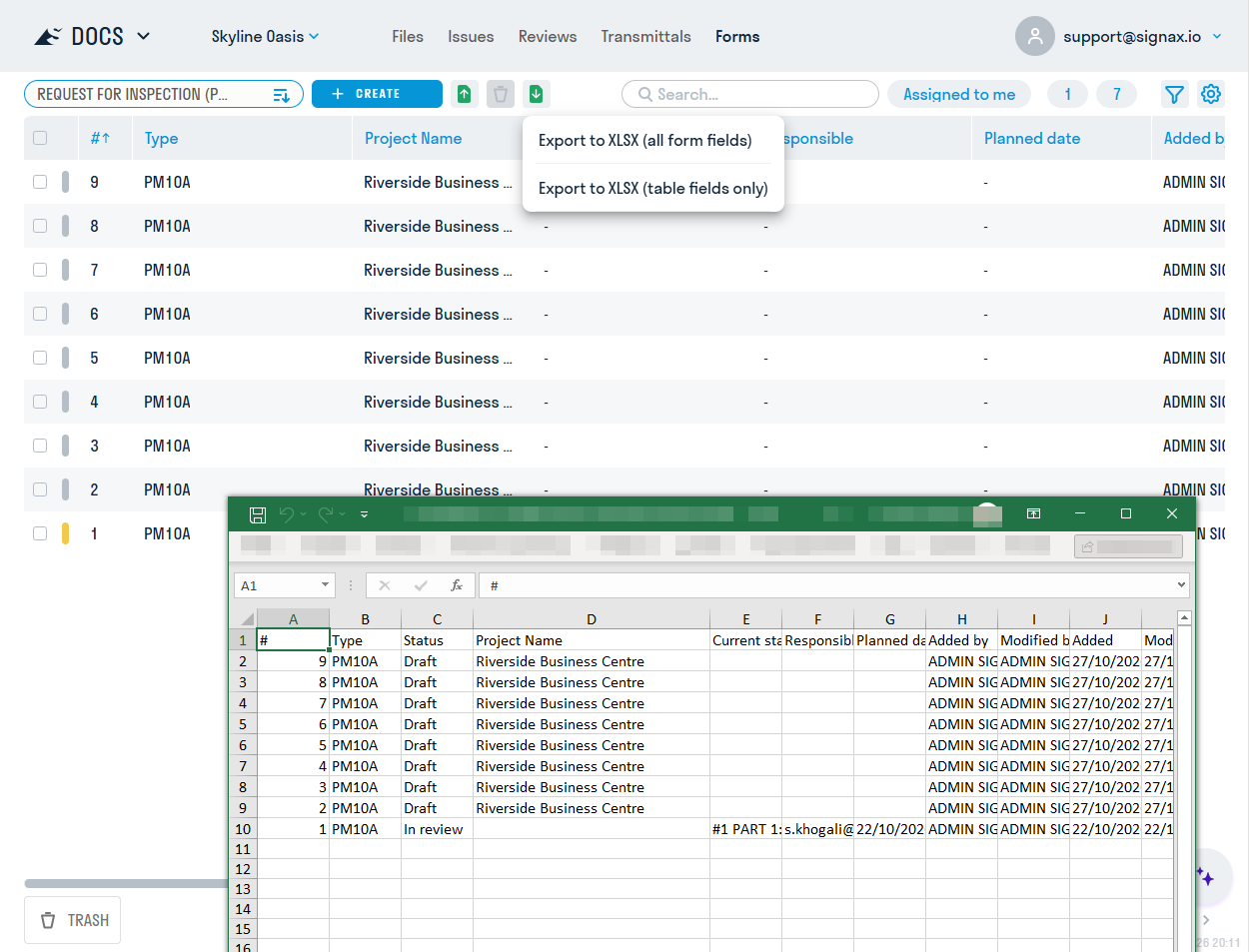
Select a form type and then select the export button. In the menu, choose whether the file will contain all form fields or only the fields displayed in the register. The system exports either all records of the selected type or only the rows selected in the table. In addition to field values, the file contains form and current-stage system properties.
¶ Importing from XLSX
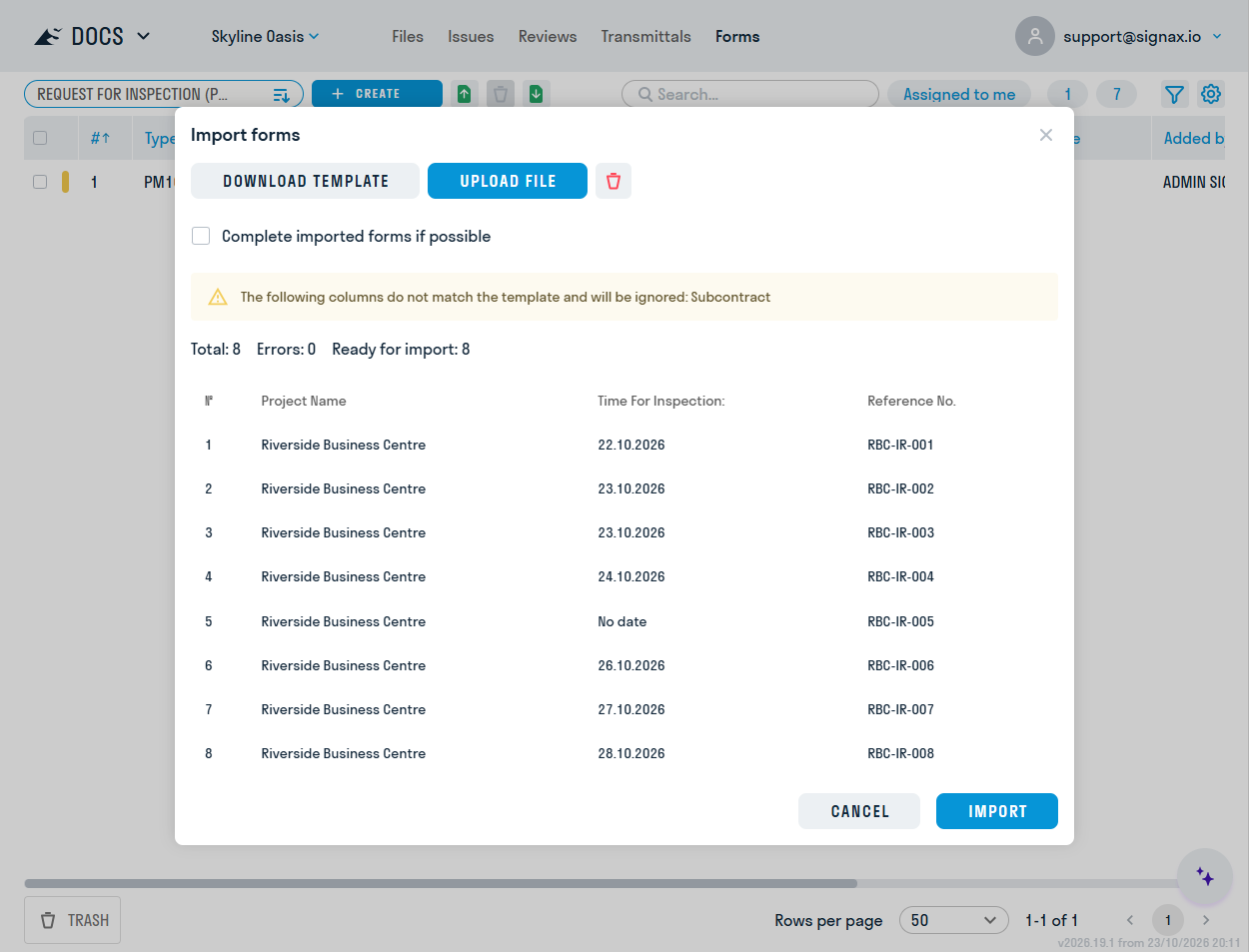
Select the import button and, if the project contains several copies of the form type, choose the required copy. Before uploading a file, you can download an XLSX template containing the available fields.
Import supports Text, Number, Yes/No, Date and time, Date range, and Options list fields. Other file columns are ignored. Invalid values are highlighted in red, and the affected records are not imported.
You can enable Complete imported forms where possible. Forms without stages and with all required fields completed are then created with the status Completed; all others are created as Draft. Import requires permission to create the selected form type. If the file contains more than 200 forms, the system processes them in sequential batches of 200 records.
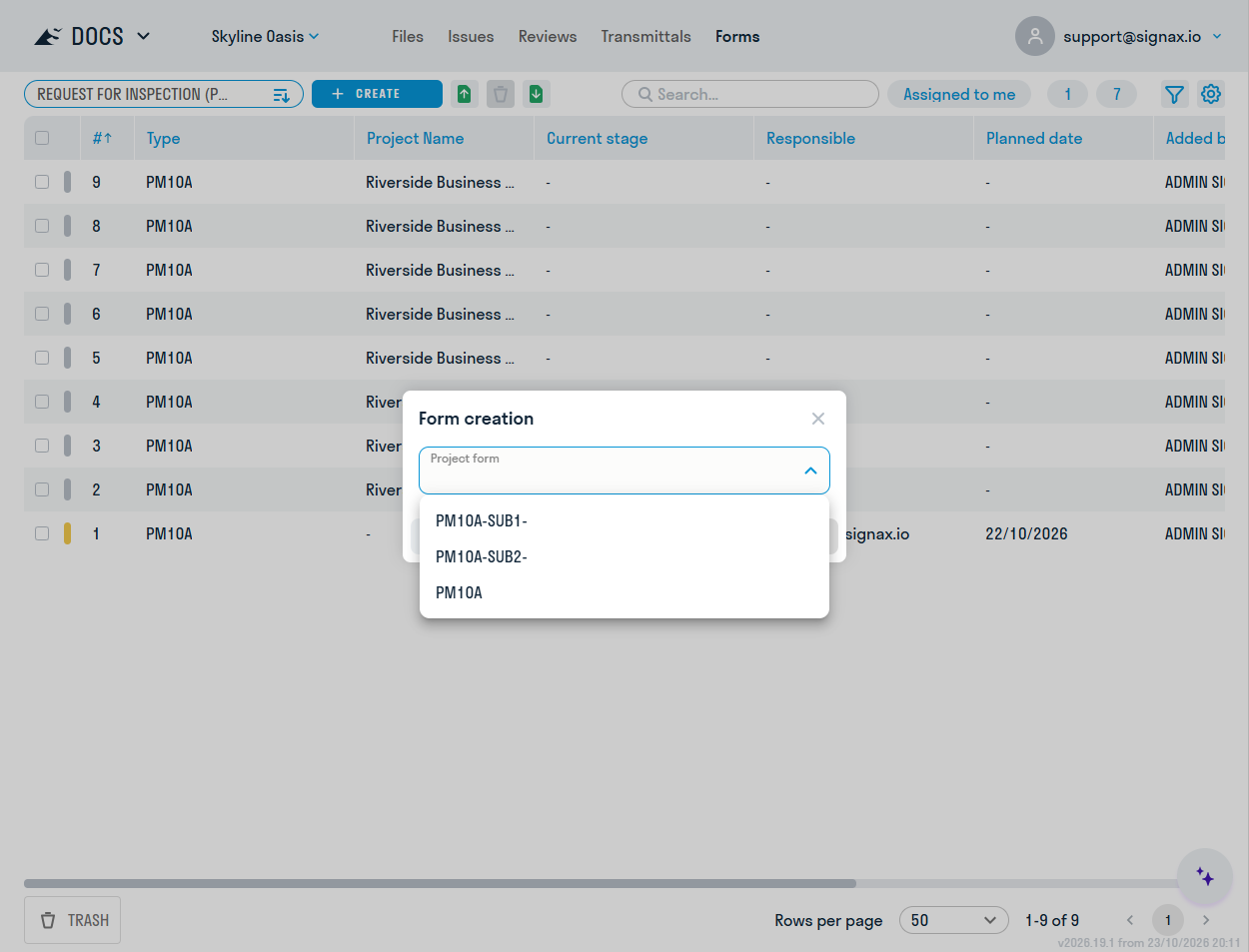
In the required register, select + Add. If you have permission to create more than one copy of the form type, select the required copy using its suffix.
The system assigns the next sequential number for the project form type automatically.
The form is created with the status Draft. Any values can be saved in a draft even when required fields are empty. An author with create permission can edit their own draft. If the form has an approval workflow, starting the workflow changes the status to In approval. After all stages are completed successfully, the status changes to Completed.
When completing a form, you see only fields that are not hidden in the project settings and whose visibility conditions are satisfied.
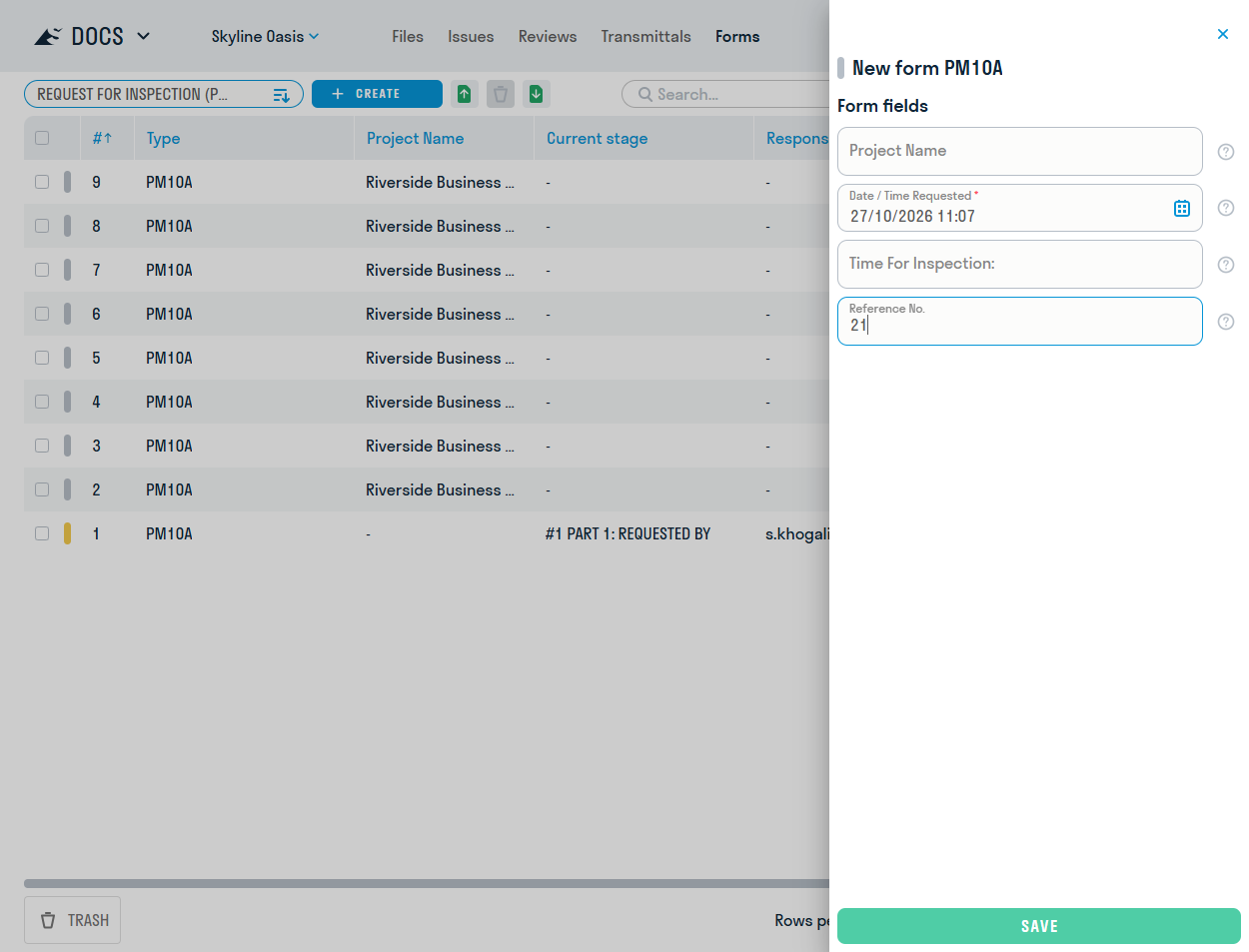
When a form is created, some fields may already contain default values from the Form Builder or project settings. You can change them if the fields are editable.
Field types use the corresponding controls:
- a text box with an optional input mask, such as a telephone-number mask;
- a number field showing its unit and enforcing permitted ranges;
- a Yes/No toggle;
- a calendar containing either a date or a date and time;
- two calendars for the start and end of a date range;
- a single- or multiple-selection options list, displayed directly in the form or in a drop-down list according to the field setting;
- selection of one or more files from DOCS or upload from the device. Uploaded files are stored in the form type's system folder;
- selection of one or more completed forms of a specified type, such as selecting a
Quality Compliance Documentas the value of aMaterial Incoming Inspection Log Entry; - selection of project issues, review packages, and transmittals from DOCS;
- selection of work types, materials, and regulatory and technical documents from HUB company directories;
- selection of company contractors and users.
Values from linked forms and directories can appear in the form's display name when Include in title is enabled for the field in the Form Builder.
Fields that select data from other objects are configured under Value from source in the Form Builder. A Form field lists only completed forms of the configured type. When filters are configured, the available list is restricted automatically. For example, an Applied materials field can show only materials whose Material type matches the current form.
¶ Creating a linked form
A linked form can be created directly from a Form field without opening another register. If you have create permission for the required form type, expand the list and select Add. Complete the new form in the panel that opens, then select it in the original field.
¶ Working with issues
In a field whose source is Issues, you can open the selected issue card without closing the form.
If the form is editable and you have permission to create at least one project issue type, the expanded field list includes a command to add an issue. The issue-creation card opens over the form.
Forms with an approval workflow configured in the Form Builder pass through a stage-based completion and approval process.
¶ Starting approval
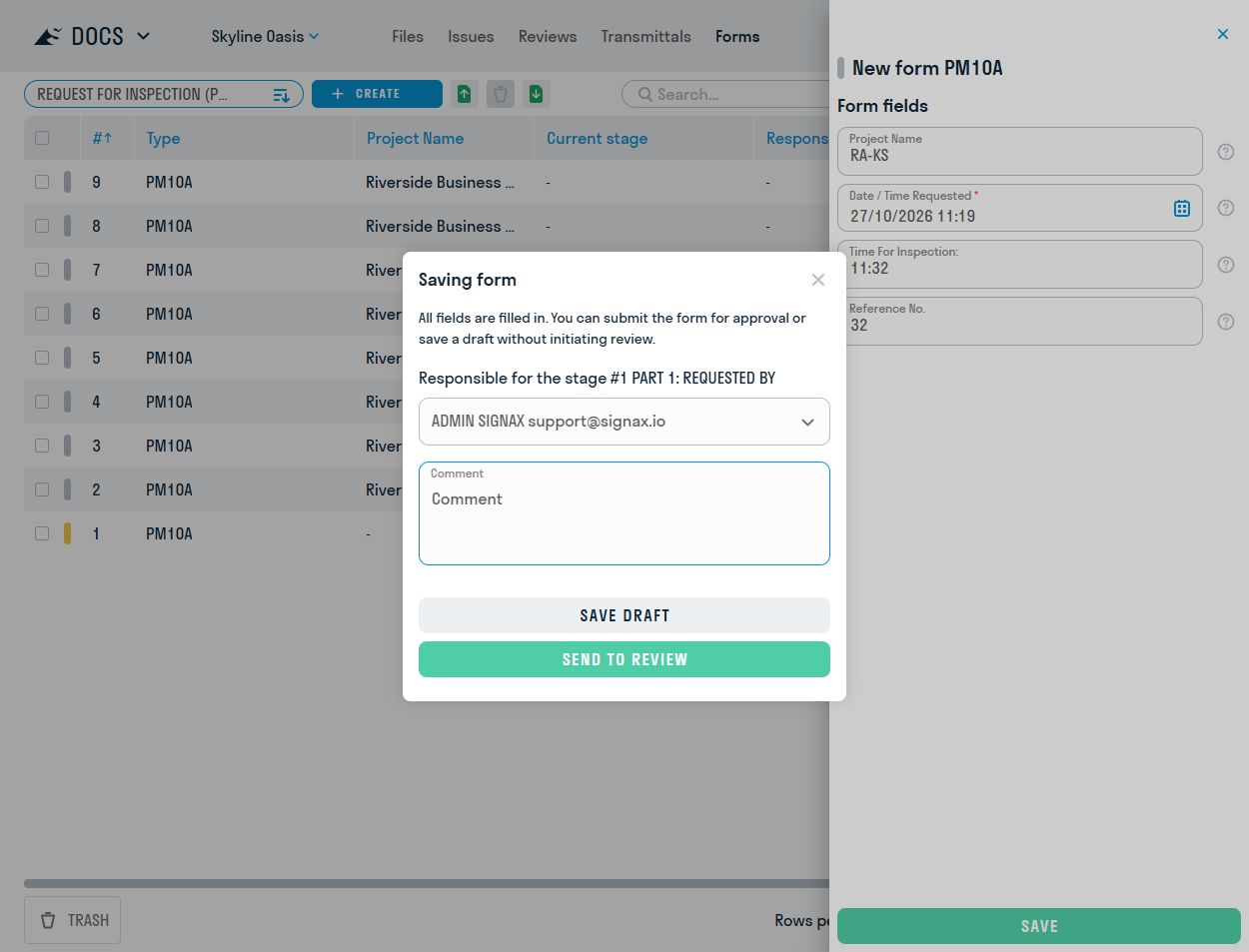
After all required draft fields are completed, the author can submit the form to the first stage.
If an assignee was not defined in the project settings, the system prompts the author to assign the next stage, or several stages when they run in parallel. The author can also enter an optional comment.
After confirmation, the form status changes to In approval, and the assignees receive notifications.
¶ Processing stages
The form card displays:
- the form status and name;
- the workflow chain with completed and current stages;
- the current-stage assignee;
- the planned completion date calculated for the current stage;
- fields from previous stages, which are read-only;
- fields for the current stage, editable by the assignee. If all stage fields are hidden, its heading is not shown in the field list;
- action buttons.
Viewing actions
- Hover over a stage in the workflow chain to display its details.
- Select a stage to scroll the form to its fields, when the stage has fields that are outside the visible area.
- Right-click a stage to copy its information to the clipboard.
Assignee actions
- Save draft — complete some fields without passing the form to the next stage. The button is unavailable when there are no changes.
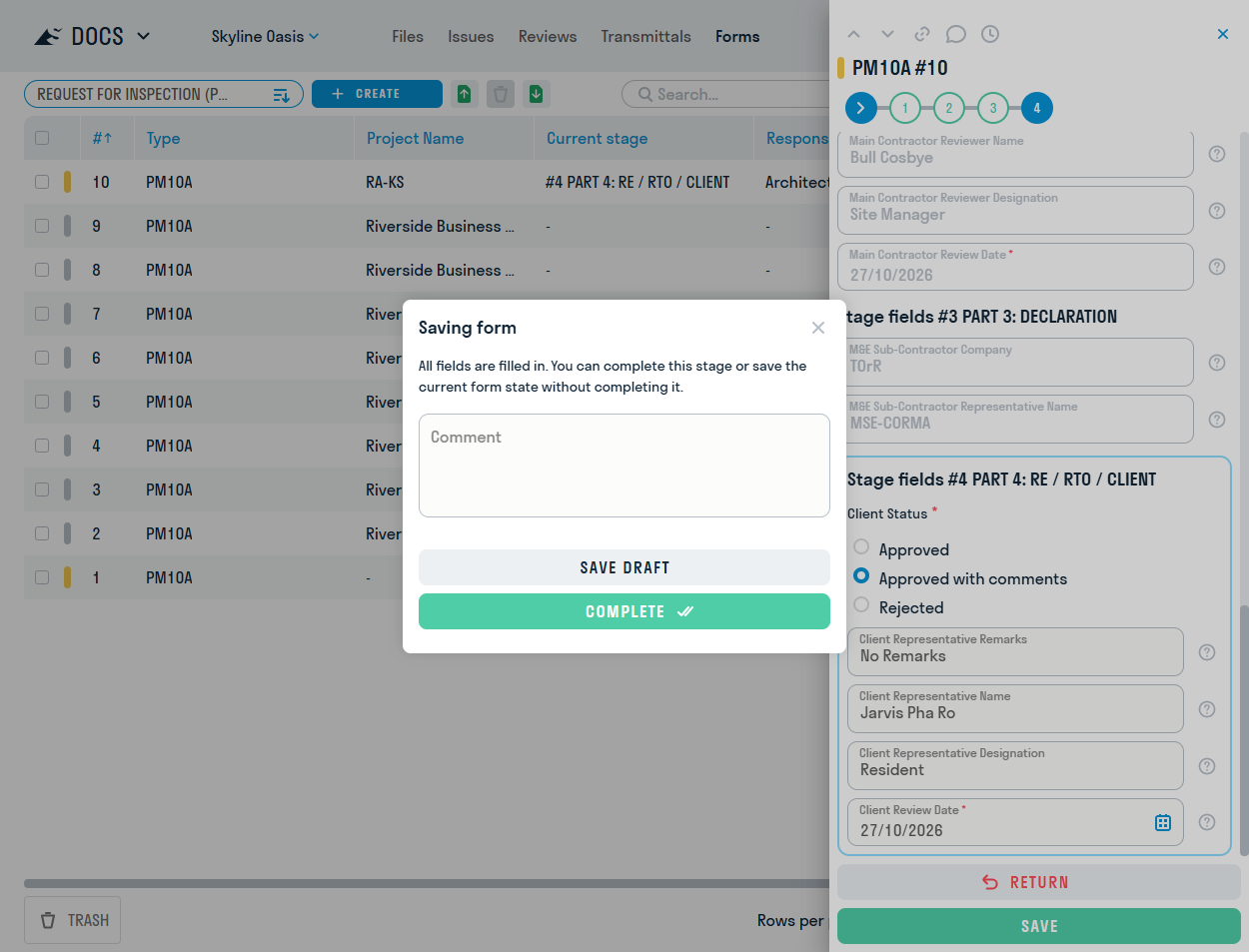
- Complete stage — enter an optional comment and, where required, assign the following stages. An assignee can complete a stage without separate edit permission if the stage has no fields or its values were not changed. The process advances after every active stage, including parallel stages, is completed.
- Reject stage — return the stage for revision. A comment is required. The form returns to the previous stage or to Draft if the first stage is rejected.
Administrator and editor actions
- change the current-stage assignee;
- change the current-stage planned completion date;
- Cancel approval — an editor or administrator can stop the workflow completely. A comment is required, and the form returns to Draft.
¶ Parallel stages
When a workflow contains parallel stages, several stages can be active at the same time. Each assignee works independently with their own fields. The system completes the group automatically after all parallel stages have been completed.
¶ Example workflow
- The Author creates a Concealed Works Inspection Certificate, completes the general information such as location, dates, and materials, and selects Submit for approval.
- The Construction Control Engineer receives a notification and opens the form. The fields for the Inspection stage are available. The engineer records the conclusion and completes the stage.
- The Chief Engineer receives the Approval stage, reviews the data, and completes the stage. The form status changes automatically to Completed.
- If an error is found, the assignee selects Reject stage. The form returns to the author or the previous-stage assignee with a comment. The approval process is restarted after the corrections are made.
For a form without an approval workflow, Complete becomes available as soon as all required fields are populated. A form with stages is completed automatically after all stages have been passed. No comment field is shown when completing a form without a workflow.
After completion, the form cannot be edited and can be used as the value of a Form field in another form.
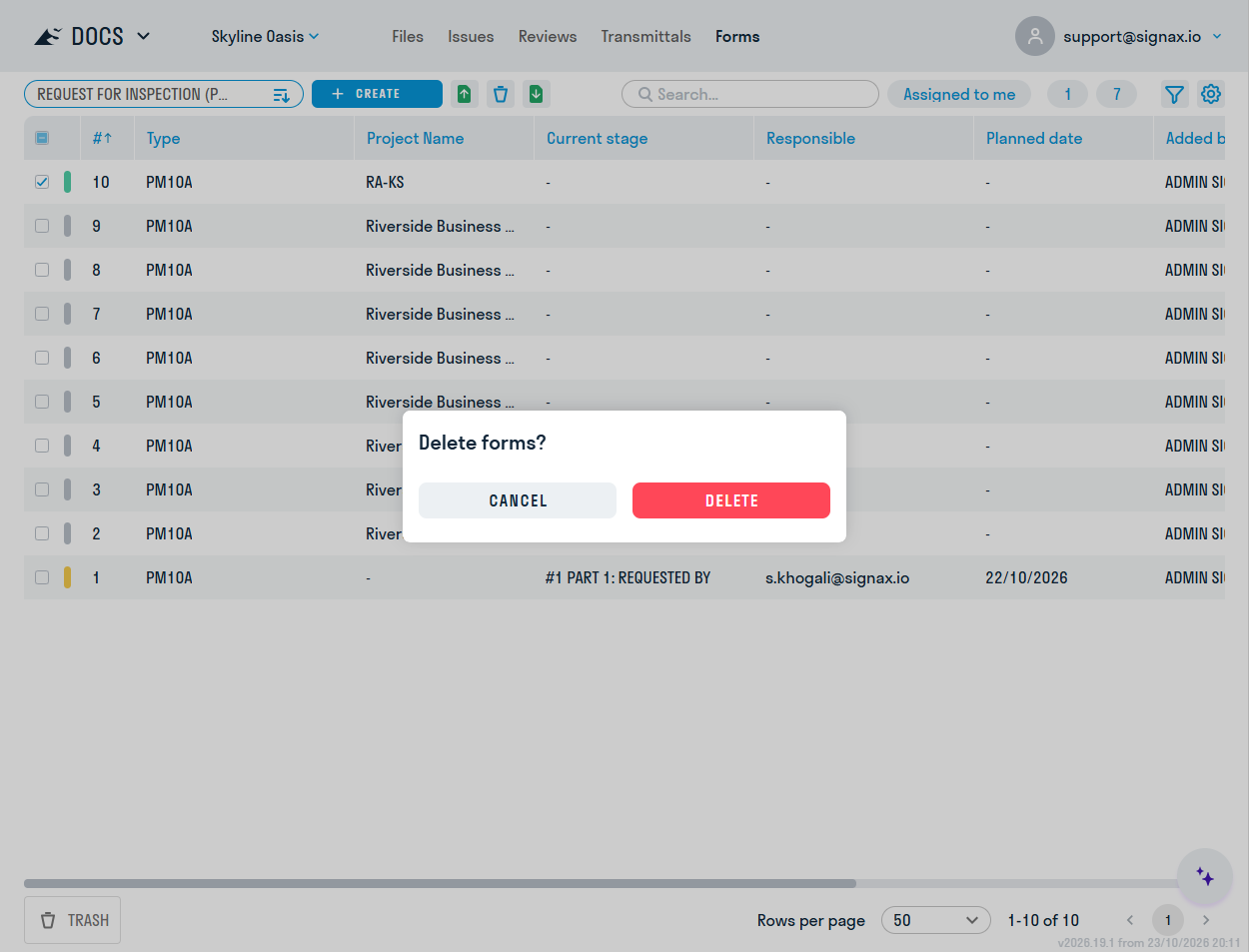
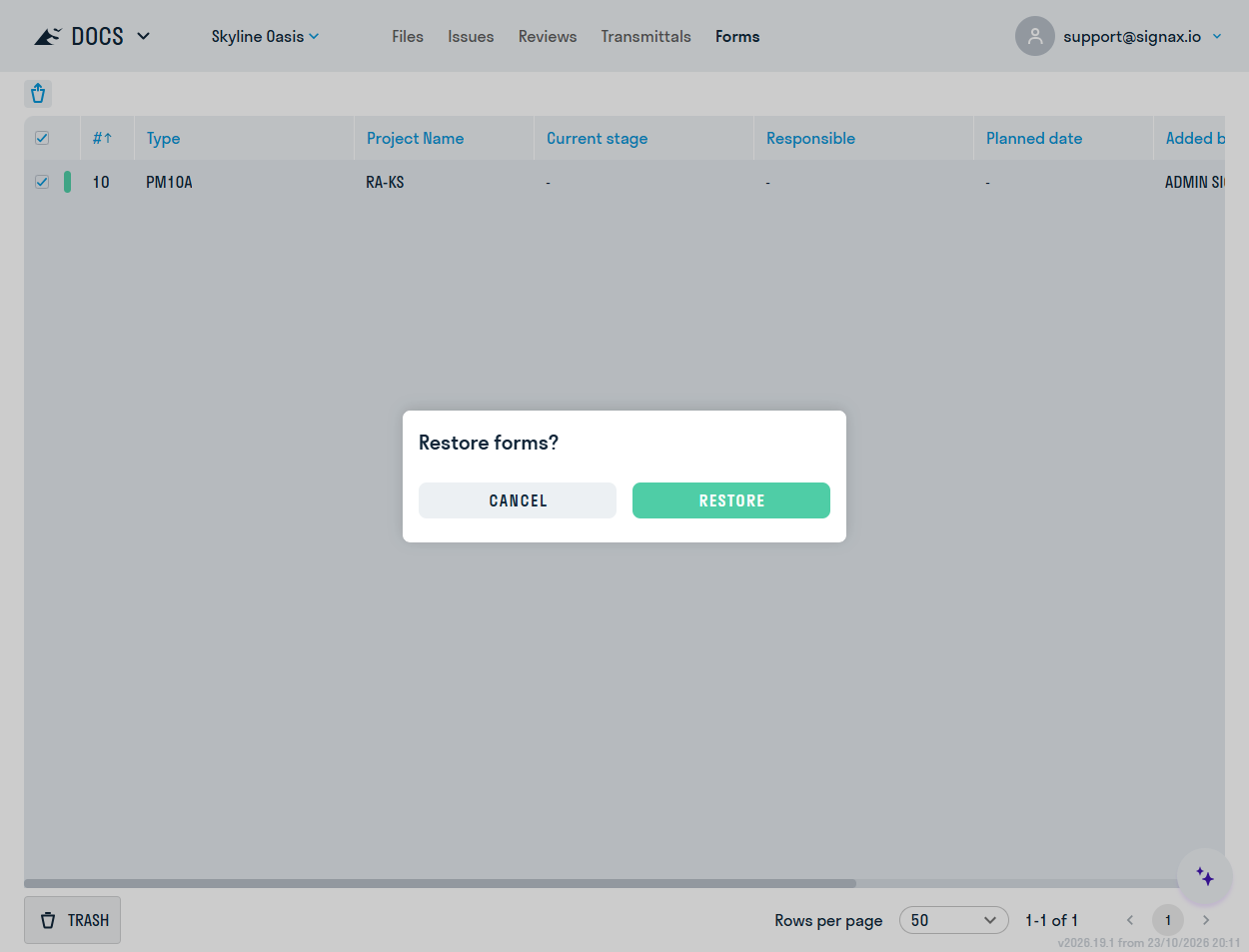
Only project editors and administrators can delete forms and restore them from the Recycle Bin. A restored form returns to the status it had before deletion. A form cannot be deleted while it is referenced by another completed form or is in approval.
At each significant event, such as approval starting, a stage starting or completing, or a form being returned, assignees and watchers receive notifications by email or messenger.
Notification preferences are configured in the user profile.