¶ < FORMS. Introduction | FORMS. Project Settings >
The functions described on this page are currently available only to the SIGNAX Super Administrator.>
In this section, the Super Administrator creates form types and their fields. These form a template library that can then be used in individual projects.
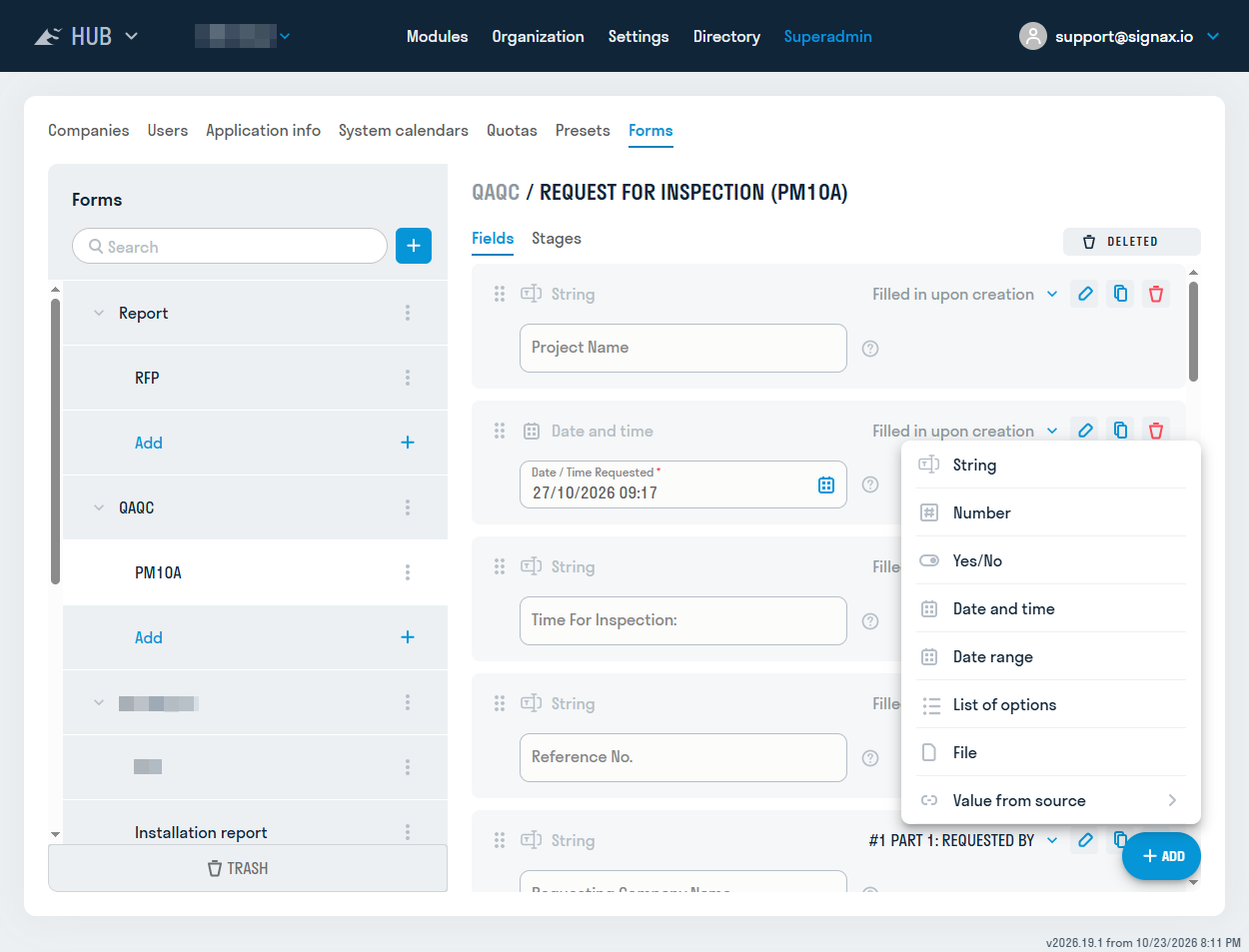
While the Form Builder remains in the Super Administrator area, some field properties do not yet have the usual visual configuration controls. The field-configuration interface will be updated before the Form Builder is moved to the company level.
Each form type defines the structure of a document, such as an Inspection Certificate or Concrete Works Log. The following properties are specified when a form type is created:
| Form property | Description | Example |
|---|---|---|
| Group | Groups are created in the Form Builder. | Certificates and reports |
| Name | Displayed when users select a form. | Concealed Works Inspection Certificate |
| Prefix | A short alphabetic identifier. | CWIC |
| Description | Optional guidance displayed to the user as a tooltip. | An official document recording construction operations that will subsequently be concealed by other construction. Because the work cannot be visually inspected after completion, it must be inspected immediately. |
A default DOCX template can be attached to a form type. When the form type is added to a project, the template is transferred to the project settings, where an administrator can replace it. See Document Generation for details.
Created groups and forms can be reordered.
¶ Recycle Bin
Deleted groups and form types are available in the Recycle Bin at the bottom of the form-type list panel. Select Recycle Bin to switch to the deleted-object view. You can restore a deleted group or form type there. Select the button again to return to the current list.
The following field types can be added to each form type:
| Field type | Display and behaviour when completing a form |
|---|---|
| Text | Enter up to 10,000 characters using an optional input mask. |
| Number | Enter a number within optional configured ranges. |
| Yes/No | Toggle. |
| Date and time | Select a date from the calendar and, where required, hours and minutes from the time picker. |
| Date range | Select two dates; the first date cannot be later than the second. |
| Options list | Select one or more values from a configured list. |
| File | Upload one or more files from the device, paste an image from the clipboard, or select documents from the DOCS project. |
Fields that retrieve data from other objects are grouped under Value from source:
| Field type | Display and behaviour when completing a form |
|---|---|
| Form | Select one or more completed project forms of a specified type, optionally filtered by configured conditions. |
| Issue | Select one or more DOCS project issues. |
| Review package | Select one or more DOCS project review packages. |
| Transmittal | Select one or more DOCS project transmittals. |
| Work type | Select one or more values from the HUB company work-type directory. |
| Material | Select one or more values from the HUB company material directory. |
| Regulatory and technical document | Select one or more values from the HUB company regulatory and technical document directory. |
| Contractor | Select one or more company contractors. |
| User | Select one or more company users. |
¶ Deleted fields
On the Fields tab, select the Recycle Bin icon to open the deleted fields for the selected form type. A field can be restored in this mode. Select the icon again to return to the current field list.
| Field property | Required | Description |
|---|---|---|
| Order | Yes | Fields can be reordered to control their display sequence. |
| Name | Yes | Field name displayed in the form. |
| Description | No | Supporting text displayed to the user as a tooltip. |
| System name | No | Unique identifier used in generated-document templates. Latin letters, digits, and the _ character are permitted. |
| Required | — | Determines whether the field must be completed before the form can be completed. |
| Show in register | — | Determines whether the field is shown as a column in the project's form table. |
| Unique within the project | — | Available for all field types. When enabled, the same value cannot be saved in two forms of the same type within the project. Deleted forms are excluded from the check. |
| Visibility condition | No | Displays the field only when a condition based on other fields in the same form is satisfied. For example, show Reason for rejection only when Rejected = Yes. Conditions may use constants such as = Yes or = 100, compare two fields such as Start date <= End date, and group expressions with AND/OR. If a required field becomes hidden because of a condition, it is no longer required. |
| Stage | No | Specifies the approval stage at which the field becomes editable. Fields without a stage are available to the author from creation of the draft. A field assigned to a stage is editable only while that stage is active and the current user is its assignee. See Approval Stages below. |
| Property | Applicable field types | Description |
|---|---|---|
| Multiple selection | Options list, File, Form, Work type, Material, Regulatory and technical document, Issue, Review package, Transmittal, User, Contractor |
Determines whether the user can select multiple values or only one. |
| Unique value by exact match | The same multi-value field types | Available when Multiple selection and Unique within the project are enabled. When enabled, only an identical set of selected values is treated as a duplicate. When disabled, the system checks partial overlap and does not allow the form to be saved if any selected value is already used in another form of the same type in the project. |
| Drop-down list | Options list |
When enabled, options appear in a drop-down list. When disabled, they appear directly in the form as radio buttons or checkboxes. |
| Include in title | Text, Number, Date and time, Date range, Options list, and supported source fields |
Determines whether the field value, including a linked form or directory value, appears in the completed form's display name. Values follow the field order in the Form Builder. |
| Default value | Text, Number, Yes/No, Date and time, Options list |
Value populated when the form is created and editable by the author. Text, number, and toggle fields use a specified value. A date can use the current date plus or minus a configured number of days, defaulting to 0. An options list can contain one or several options if multiple selection is enabled. |
| Permitted values | Text, Number, Options list |
Text fields may use an input mask, regular expression, and validation message. Number fields may use multiple ranges with optional minimum and maximum values, a step that defaults to 1, and inclusive/exclusive boundaries. An options list must contain at least one option. |
| Unit of measurement | Text, Number |
Optional value selected from the system directory and displayed after the input field. |
| Time | Date and time |
Determines whether the user must enter a time as well as a date. |
| Source | Form |
One form type and, optionally, filters based on its field values. For example, the list can show only forms whose field value matches a value in the current form. |
An approval workflow of up to 20 stages can be configured for each form type. One assignee enters data, after which the next assignee reviews and supplements it.
| Stage property | Required | Description |
|---|---|---|
| Order | Yes | Processing sequence. Stages can be reordered. |
| Name | Yes | Displayed in the form card. |
| Start condition | No | Logical condition that adds the stage to the workflow only when the condition is satisfied. For example, include Cost estimate review when the contract amount exceeds 1 million. |
| Processing mode | Yes | Sequential, where the stage starts after the previous stage is completed, or Parallel, where several stages are active at the same time. |
| Default deadline | Yes | Between 1 and 31 working days, according to the project calendar, within which the stage must be completed. |
| Deadline formula | No | Overrides the deadline based on field values. For example, set a three-day deadline when Priority = Critical and Complexity = Medium. |
| Description | No | Guidance displayed in the form card. |