< DOCS. Notifications | DOCS. More >
**SIGNAX DOCS Disk is a desktop application for working with files located in DOCS from your computer. It allows you to synchronize the necessary folders to your device and update only those that have changed. It also allows you to work with any file format directly from your device via the desktop application.
¶ 1. Getting Started
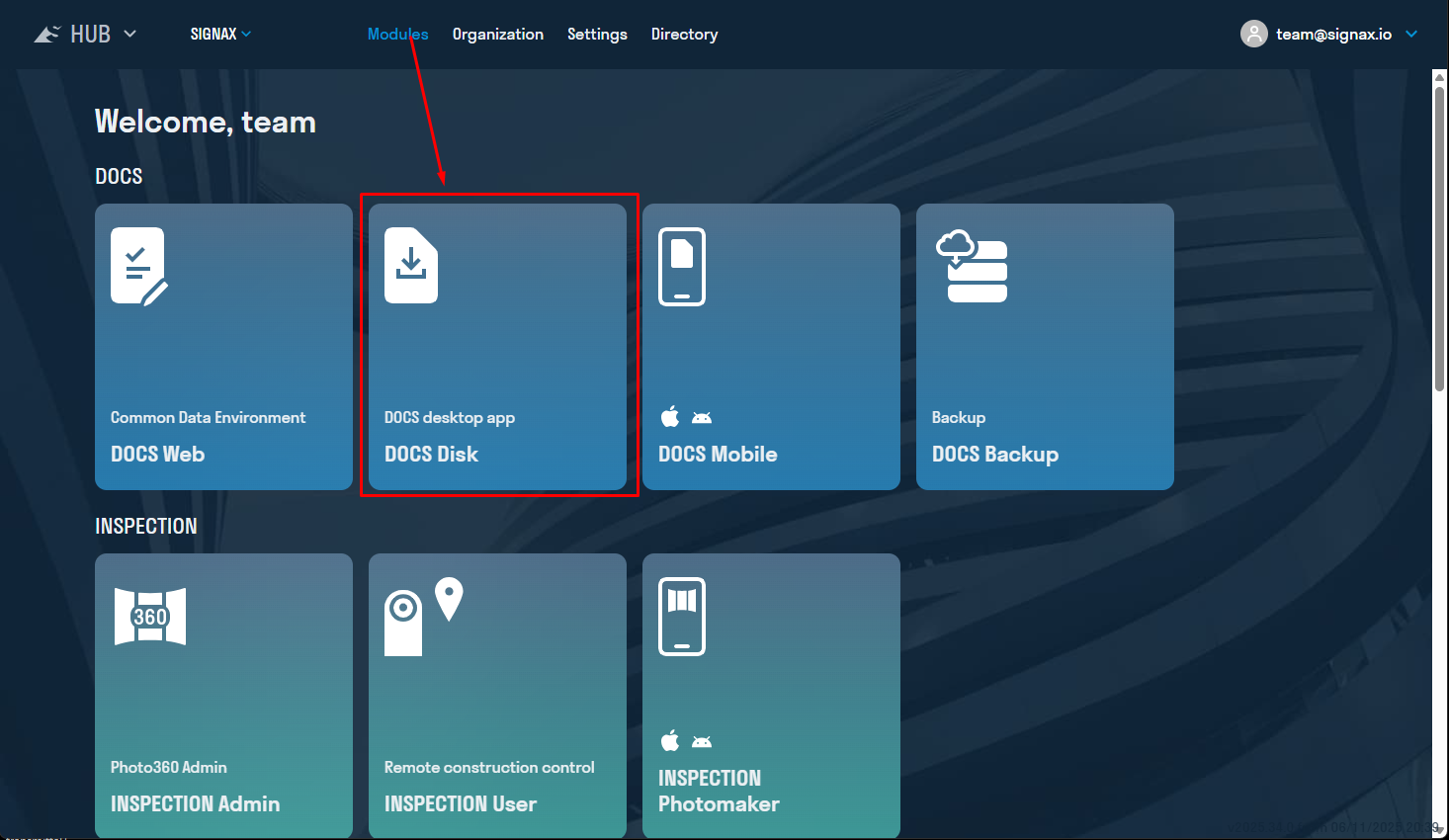
To download DOCS Disk, go to hub.sgnl.pro in the “Modules” section and download DOCS Disk. Install the .exe file on your computer
The start screen will greet the user with the "Login" window
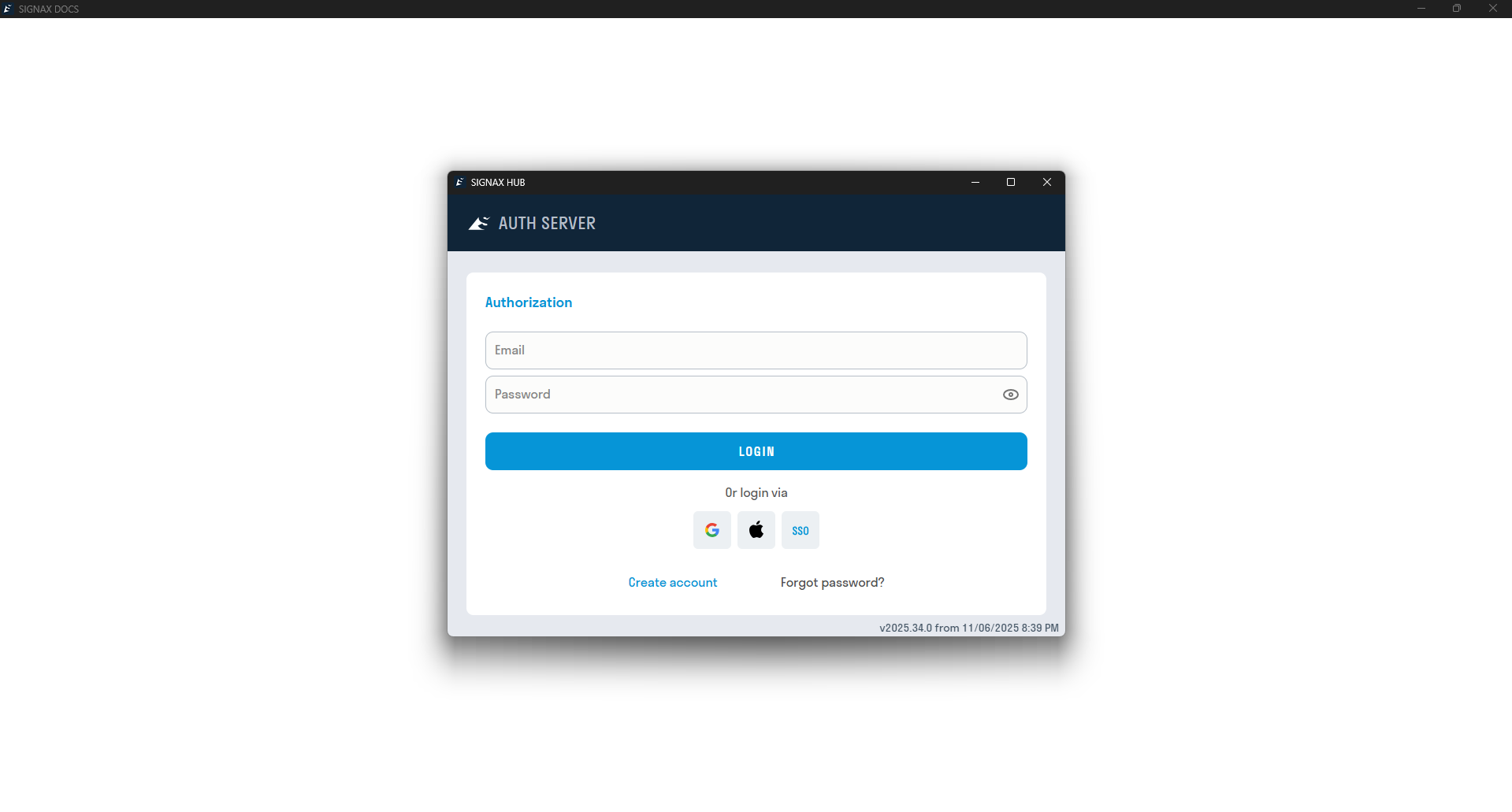
Log in to the application using your SIGNAX credentials
After authorization, select Company - Project.
¶ 2. Settings
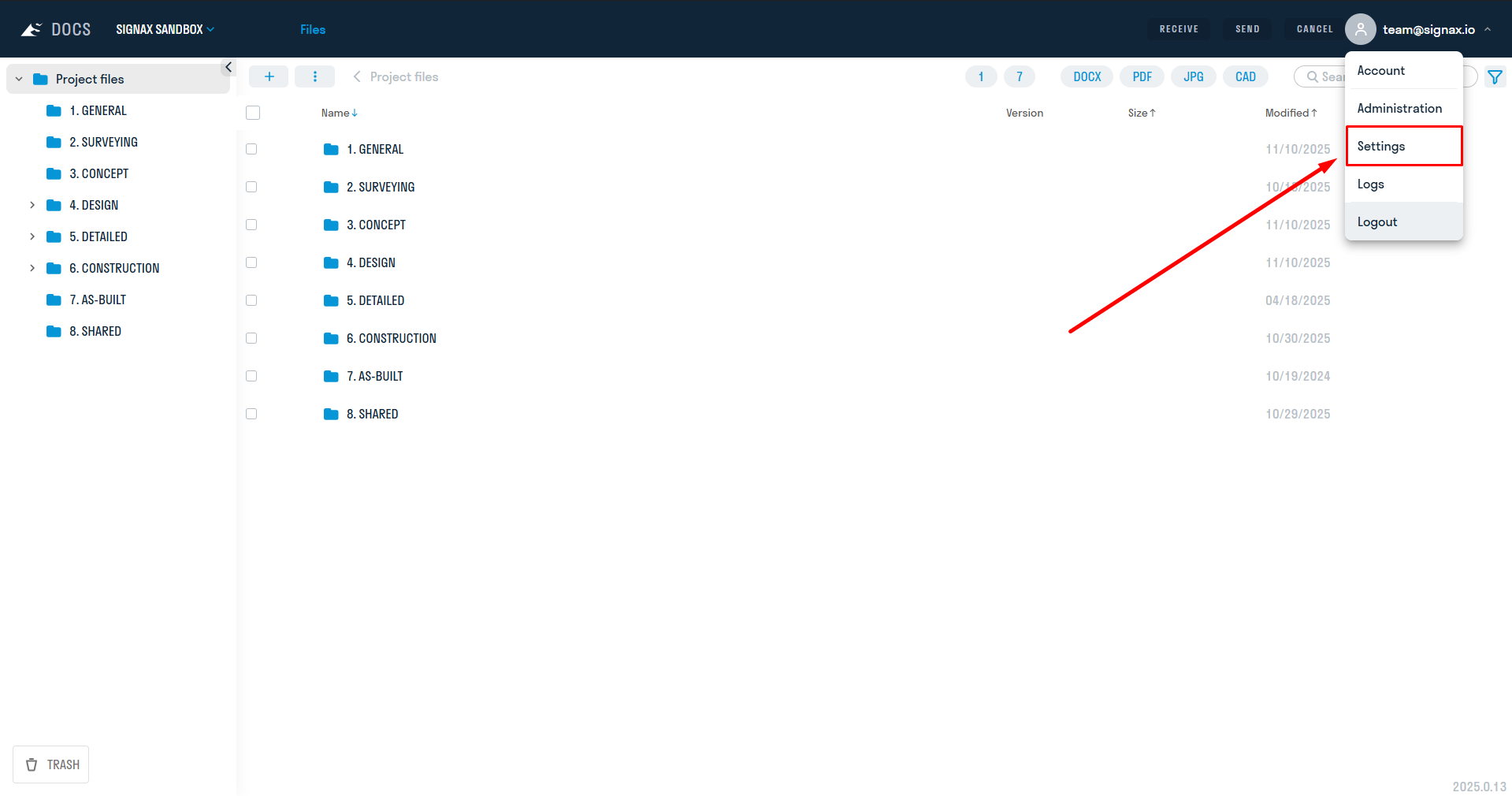
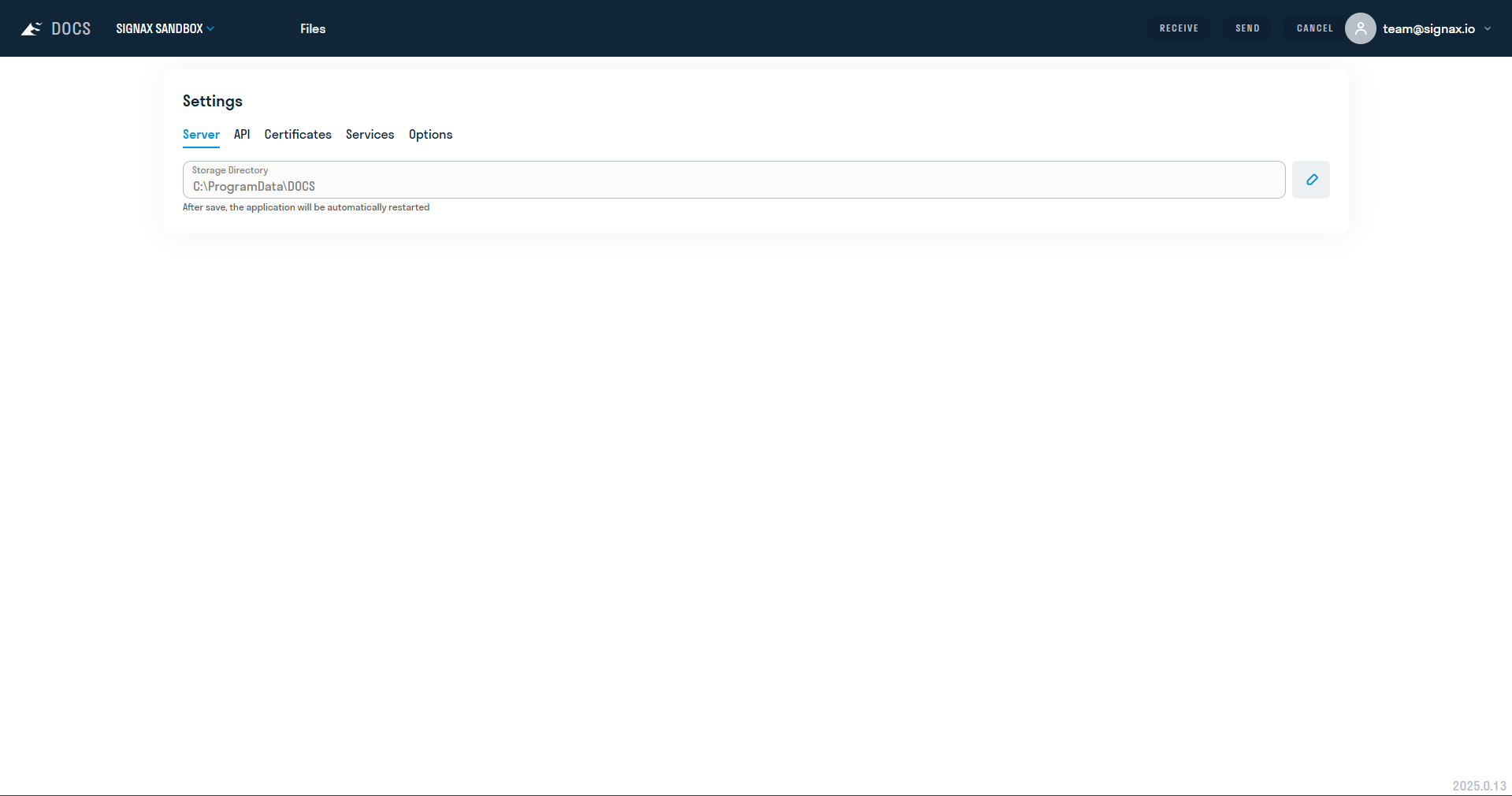
Before you start working with DOCS Disk, configure the application - select the local path where the synchronized files will be located. To do this, click on your account and select "Settings". Select a local path for the
¶ 3. Interface
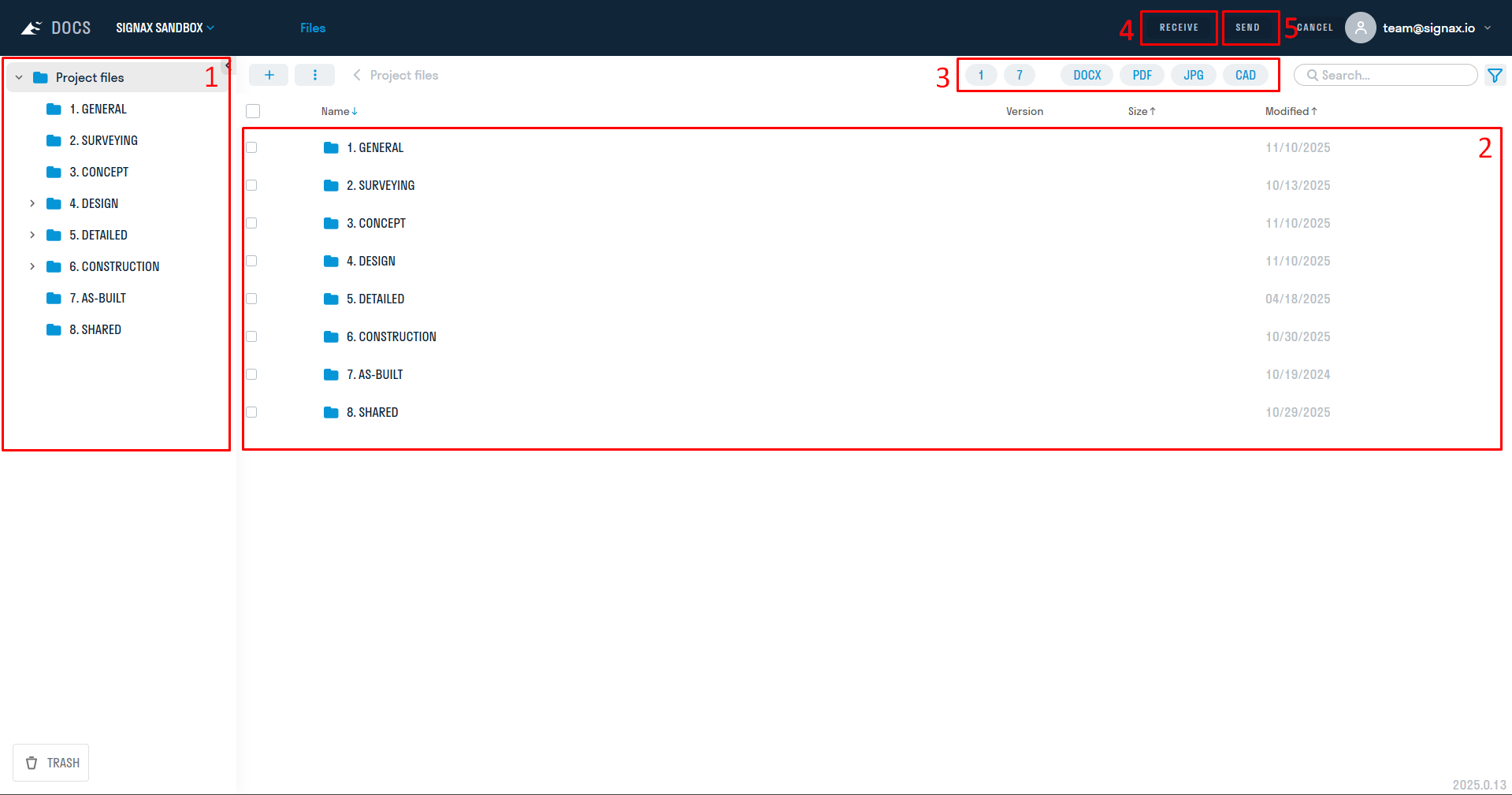
The DOCS Disk interface is similar to the web version. Since the desktop application is designed for working with files, the "Comments", "Approvals", and "Transfer" tabs are unavailable.
1 - Area for working with folder structure
2 - Area for working with files
3 - Quick filters, more details
4 - The "Get" button for getting files from cloud storage and updating them to local storage.
5 - The "Send" button for sending files from local storage to the cloud.
¶ 4. Synchronization
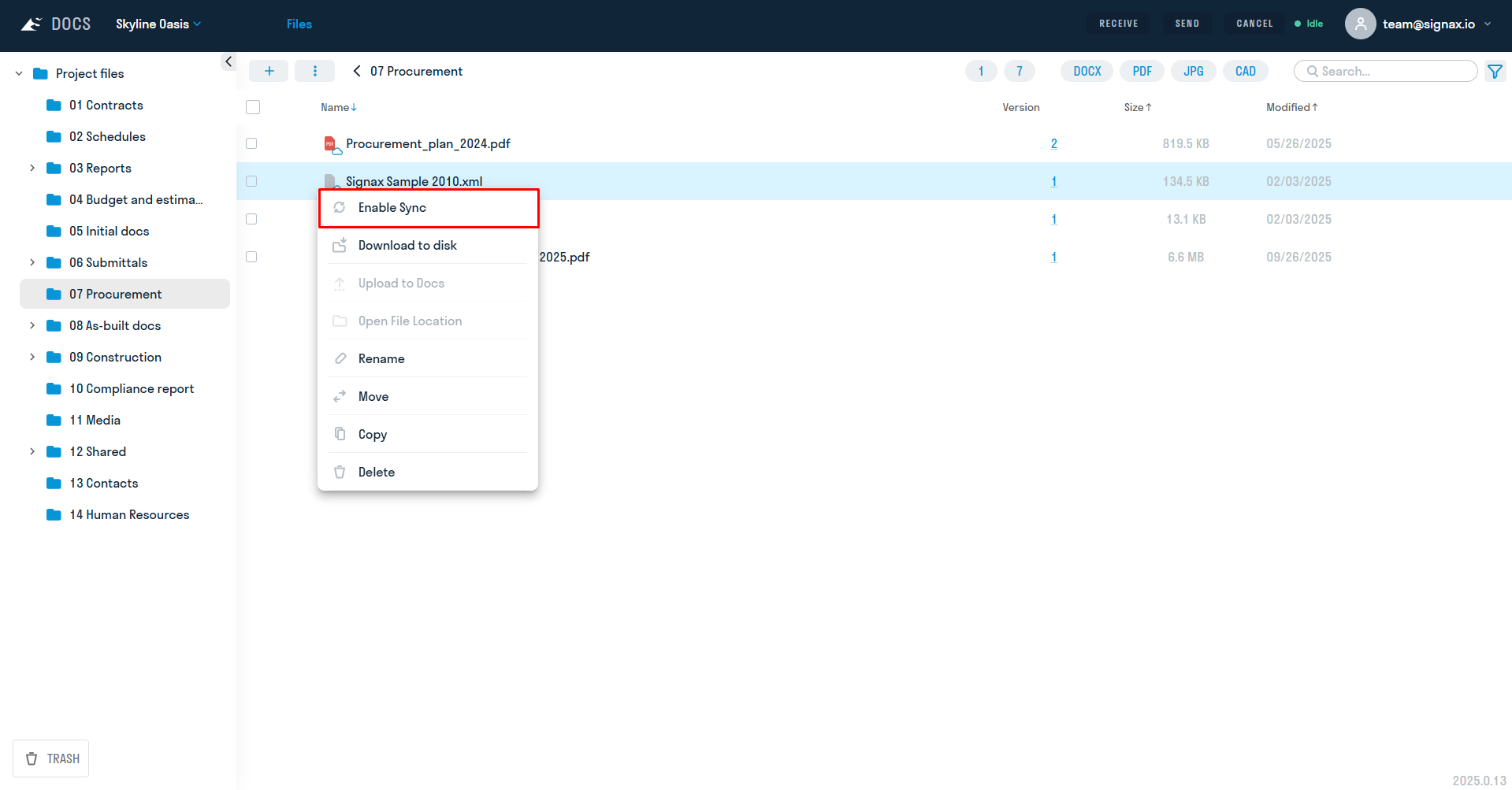
To synchronize a file or folder with your computer's local storage, right-click it and click "Enable sync". The file/folder will be added to the sync list and the "Receive" and "Send" buttons will become active.
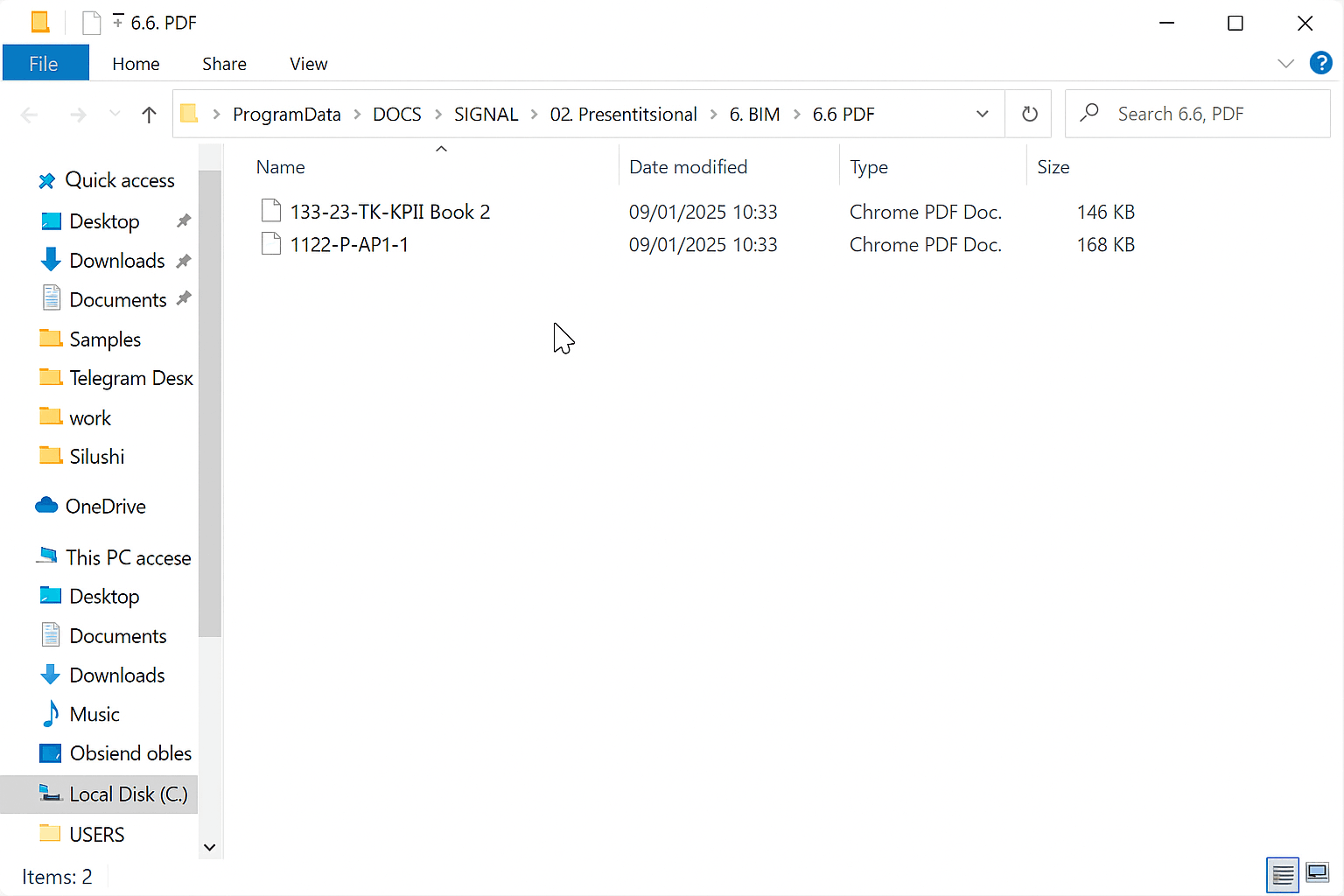
To download a file, click the "Receive" button. All files with enabled synchronization will be added to the previously specified directory.
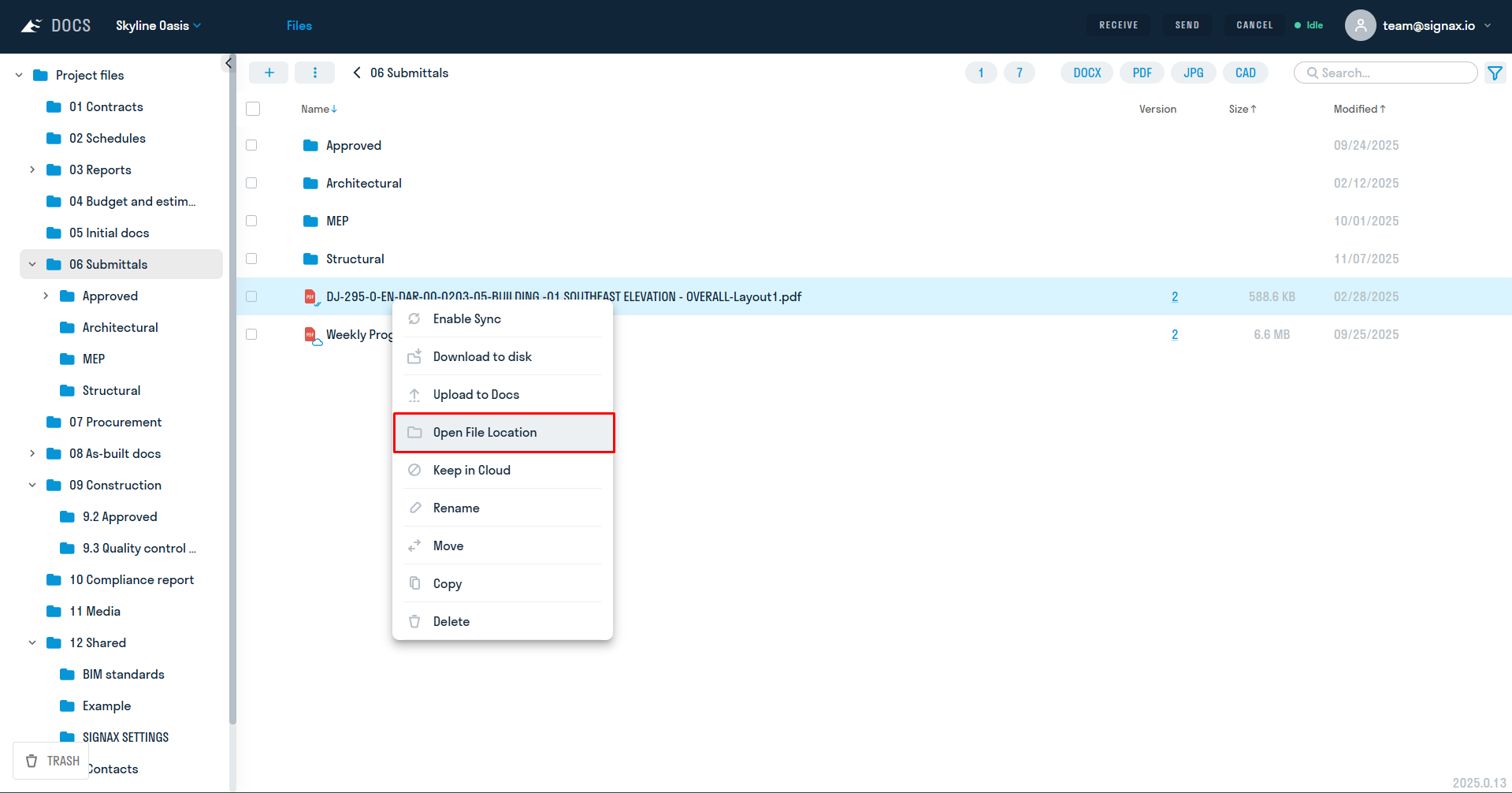
To view them, you can click "Open file location"
When you double-click on a file in DOCS Disk, it will open in the editor corresponding to its format.
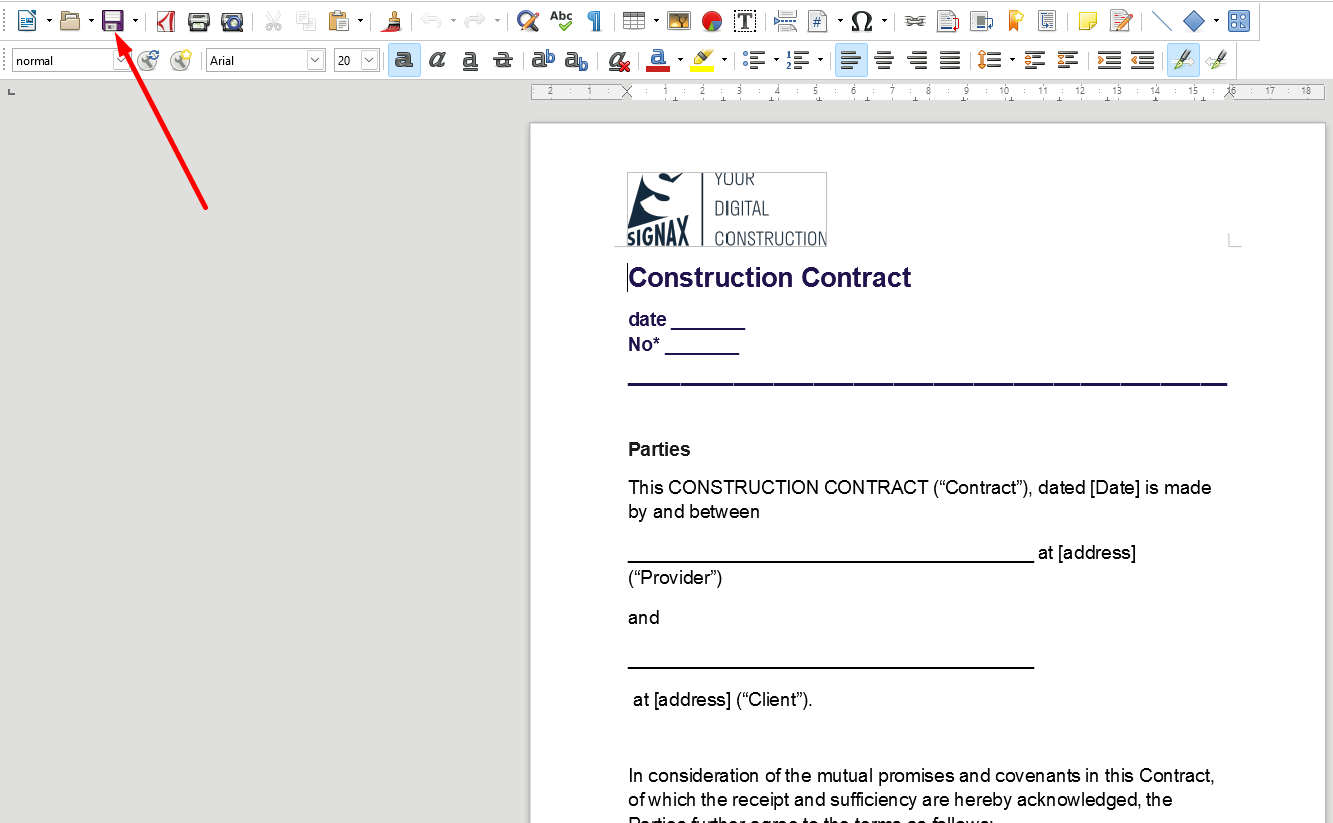
After editing the document, save the file.
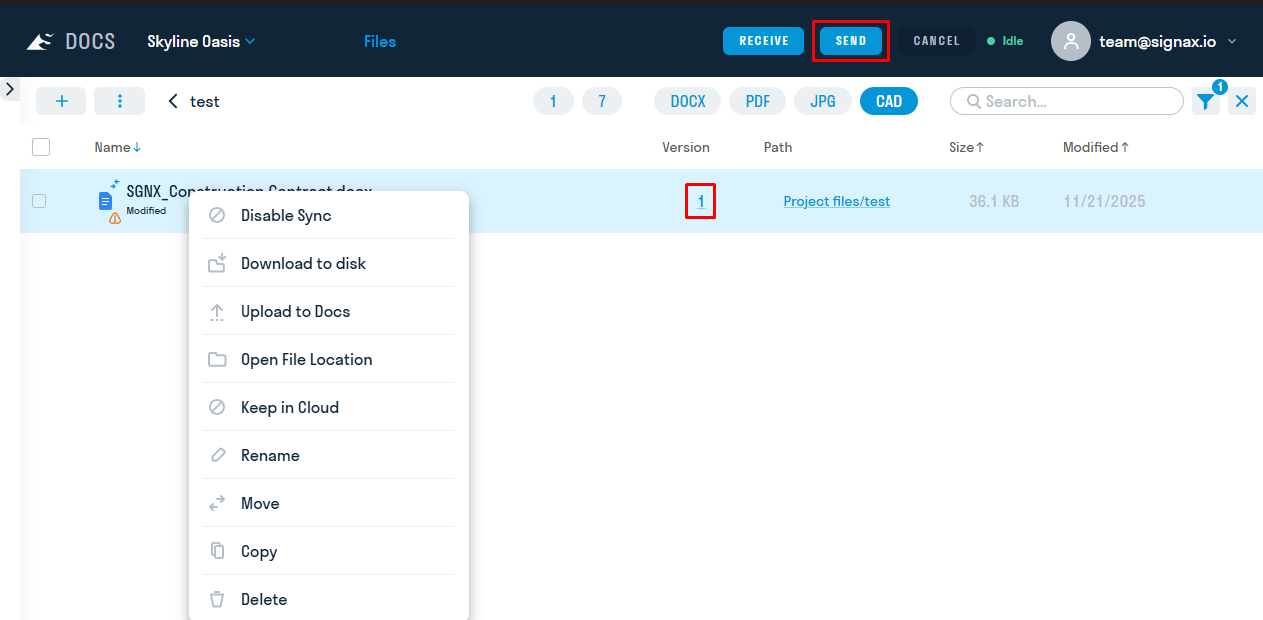
When you change the file, the application will inform you that the file contains changes.

Then turn on synchronization and click send. The file will update its version and saved changes will be sent to the cloud storage.
To completely clear the local storage and send everything to the cloud, click "Store in the cloud":
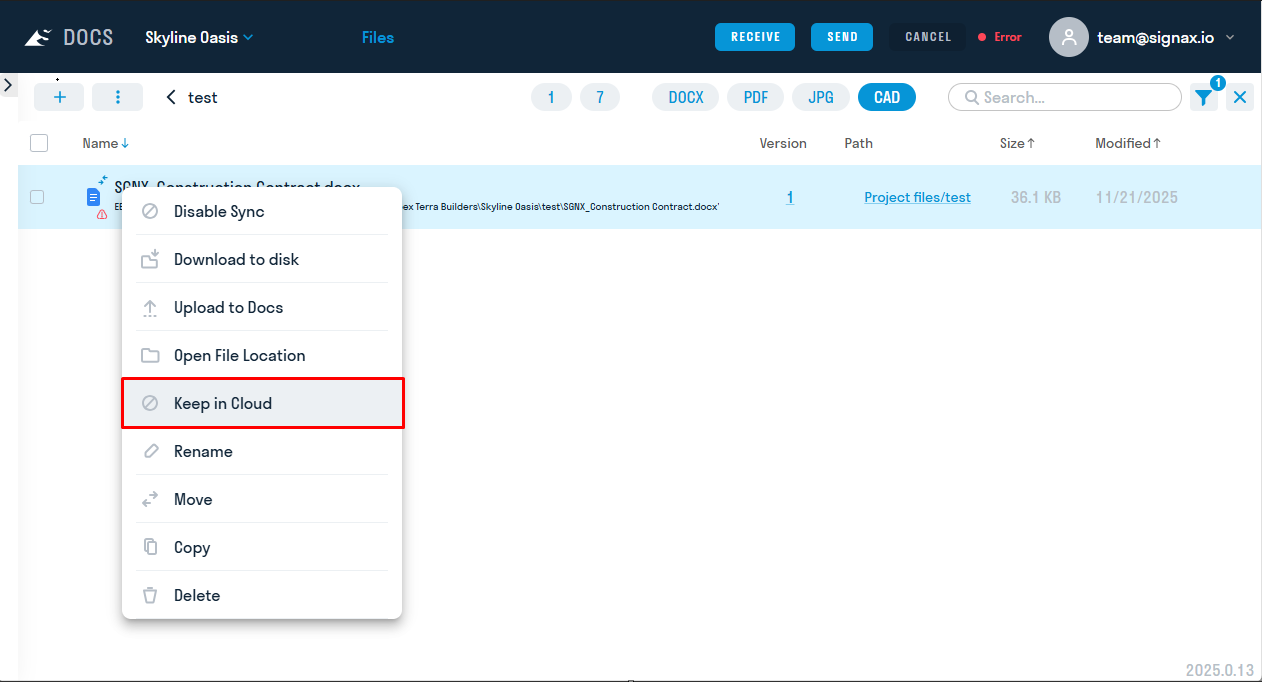
The files will be deleted from the local storage, but this function does not update the version to the cloud, which means that unsaved data may be lost.
¶ 5. User Settings
In the user settings, you can set two functions for forced download.

“Force overwrite files in DOCS on Send” - automatically overwrites all files if they have been edited by someone else.
“Force overwrite local files on Receive” - automatically saves all local files that are in the storage on the computer.
These functions are needed for additional protection against data loss and overlapping work.

** < DOCS. Notifications | [DOCS. More >