< TOOLS FOR NAVIS. Types of Work | TOOLS FOR NAVIS. Calculation >
Using the Completed, Accepted, and Planned commands, you can assign the appropriate status to items.
1. Select the item(s) and click on the SIGNAX tab in the Approval panel ➤ Complete/Accepted/Planned
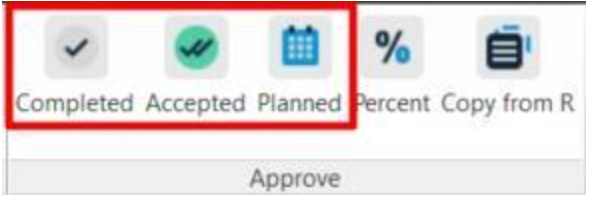
- Complete - actual completion date.
- Accept - approval/payment date for Invoice,3.
- Planned - planned date with assignment of an executor.
The Complete/Accept/Planned command settings windows look the same
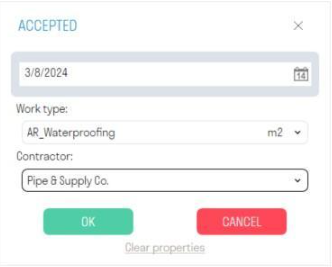
- In the “Date” line specify the work completion date
- In the “Work type” line select the work type associated with the element from the list. Work can be added in two ways - manual entry or importing an Excel spreadsheet (see “Setting up Types of Work” for details)
- In the “Executor” line select from the list the company that performs the specified work type. The company can be added in the Signal plugin Settings (see “Setting up Companies” for details)
- The “Clear properties” button deletes the S parameter values for the selected elements
2. After assigning a status, the following occurs:
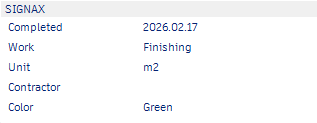
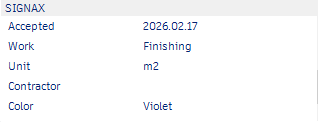
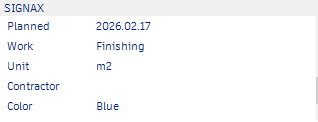
- The corresponding properties “Completed”, “Accepted”, and “Planned” appear in the properties of the selected elements in the “SIGNAX” tab. The properties “Work”, “Unit”, “Color”, and “Contractor” also appear.
- The search sets “Completed”, “Accepted”, “Planned”, and “Color” are created
- The selected elements are colored according to their status. By default, Completed is Green, Accepted is Purple, and Planned is Blue. If desired, the colors can be changed in the plugin settings (see Coloring )
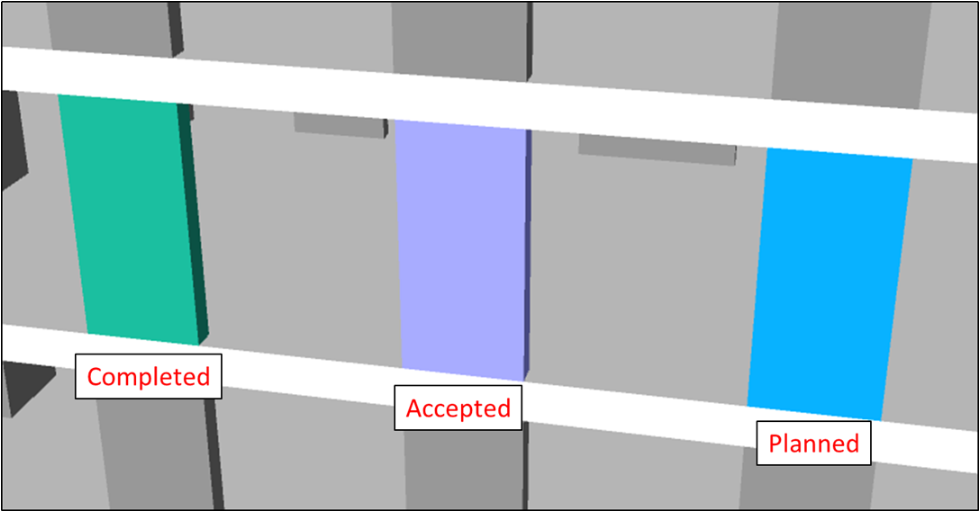
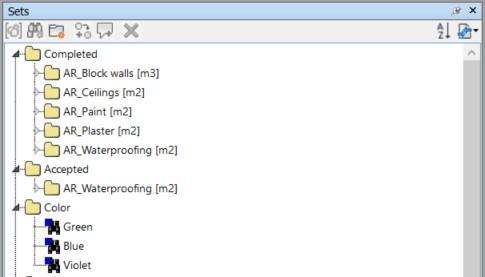
Completed
Accepted
Planned
The tool allows you to record the percentage of work completed for each element of the model. For example, it can be used to evaluate the progress of utility networks broken down by floors, apartments, or rooms. This allows you to more accurately monitor the progress of work and assess the degree of completion of the project.
1. Select the element(s) and click on the SIGNAX tab in the Approval panel ➤ Percentage
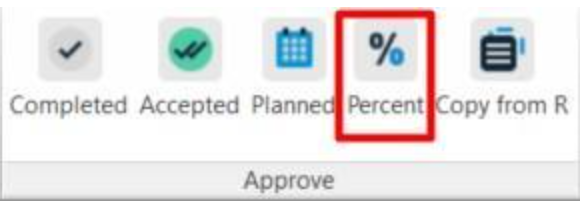
2. In the window that opens, specify the percentage of work completion and select the type of work from the drop-down list. Click “OK“
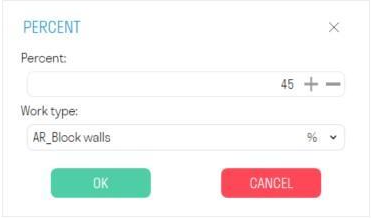
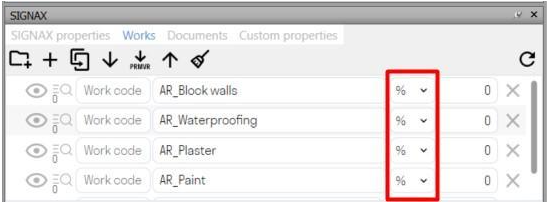
- To include work types in the list, you need to set the units of measurement for them in the SIGNAX panel to %
3. After assigning a percentage, the following happens:
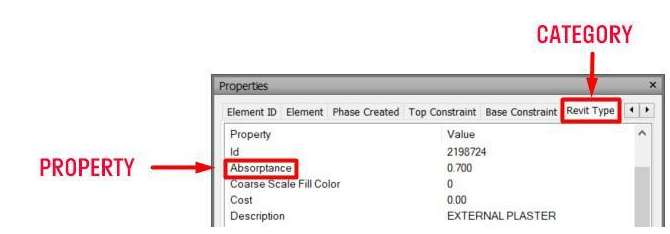
- In the properties of the selected elements, in the “SIGNAX” tab, the corresponding “P_{Type of work}” property appears
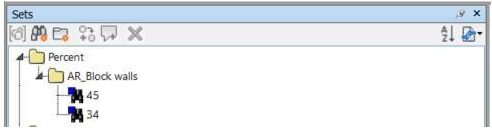
- Search sets with the percentage value are created
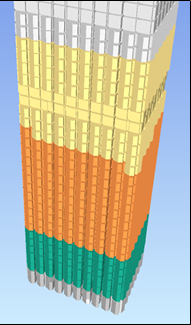
4. To color elements by percentage, use the tool “Coloring”

< TOOLS FOR NAVIS. Types of Work | TOOLS FOR NAVIS. Calculation >